You can add new players to a roster, one by one, by navigating to the respective roster on the back end and going to the Players tab. At the very bottom of the page, should be an Add New Player button. Click that to begin the process of adding an individual to that specific roster.
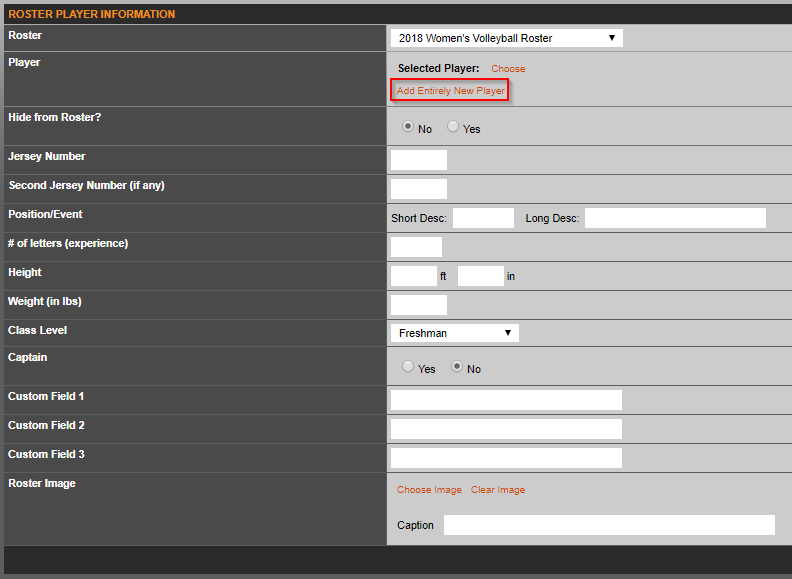
In that window, select Add Entirely New Player to continue the process of adding this player.
In the next window, you will insert their vital information (Name, Hometown, High School, etc.).
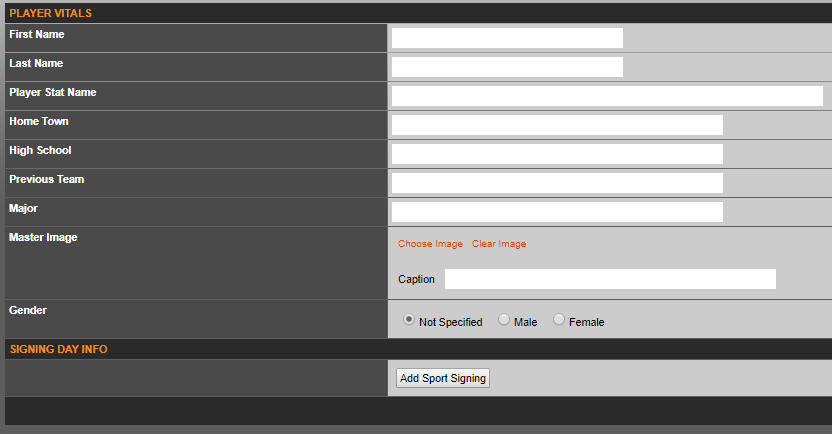
Utilize the Master Image location if you would like your players to have the same headshot throughout their athletic career. By default, the gender will be set to Not Specified. We only recommend setting a Gender if you have a combined roster that will sort the members of your roster by their gender.
Once finished entering their information there, select Save Changes. This will bring you back to the Roster Player Information screen. There, you can enter their additional information, including adding their headshot. Once done there, select Save Changes.
Once the player has been created, you will be able to enter their bio. You will have to edit that player, then select the Edit Bio Data button from the Roster Player Information window.
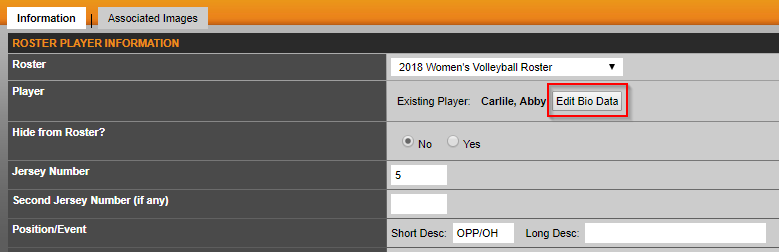
That will bring you to the Player Vitals screen, where you can enter their Sport Bio.
Was this article helpful?
That’s Great!
Thank you for your feedback
Sorry! We couldn't be helpful
Thank you for your feedback
Feedback sent
We appreciate your effort and will try to fix the article