One feature that is a huge time saver in your SIDEARM software, is the ability to upgrade a roster from one season to the next. This process will allow you to take the previous season's roster and through a few simple clicks, choose the returning players, copy information and advance their academic year's to create the new season's roster.
To Upgrade a Roster, follow the steps below:
1. Locate and edit the previous season's roster, for this example we will be using 2013 Softball.
2. Click on the 'Information" tab and scroll to the bottom where you will find the 'Upgrade' button and click said button.
3. This will bring up the upgrade menu where you will be asked to run through a couple of quick options:
- Season upgrading to: Choose the new season, in this case 2014.
- Upgrade Roster From: This drop down menus will be preset based on the roster you edited.
- Choose whether you would like to advance academic year, retain coaching staff, retain bio information and retain player photos (only if you do not upload a new photo each year).
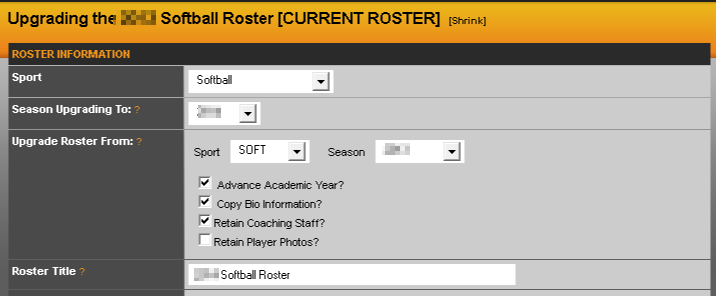
Once those steps have been completed, scroll to the bottom and hit 'Save Changes'.
This will present you with a new screen seen below.
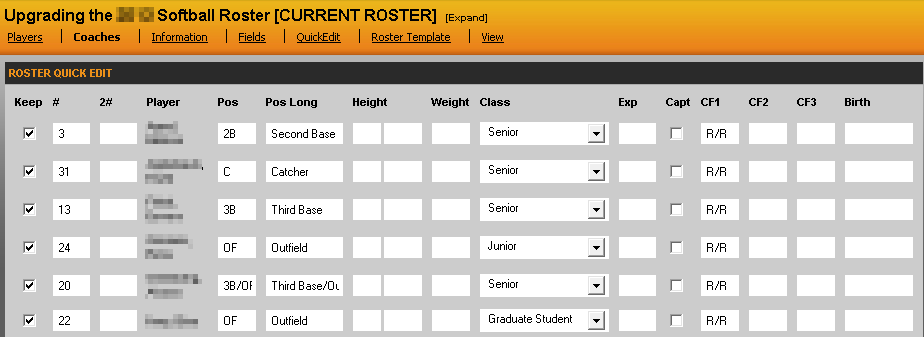
This is where you will want to select the players that are returning to the team. You can also choose to edit roster specific information at this time or wait until this step has been completed. This screen can still be accessing by clicking on 'Quick Edit' in the edit roster area.
After making all the proper selections, scroll to the bottom and hit 'Save Changes' and now your new roster has been created. From this point, it is suggested you save the roster again and then make current when you are ready for it to show live on the site.
To see how to batch add new players to this roster, click here.
After creating a new roster, follow tutorial here https://sidearmsports.freshdesk.com/a/solutions/articles/4000228214 to make sure your sport's correct season is set.
Was this article helpful?
That’s Great!
Thank you for your feedback
Sorry! We couldn't be helpful
Thank you for your feedback
Feedback sent
We appreciate your effort and will try to fix the article