To add a new roster into the SIDEARM software, expand the Rosters menu and choose 'Add Roster'.
In the 'Add a Roster' screen, you will need to fill out the following fields:
Sport: Choose the sport for which you want to add the roster.
Season: Choose the correct season for the sport.
Roster Title: Once the sport and season are selected, the Roster Title will be generated for you, but can be edited if needed.
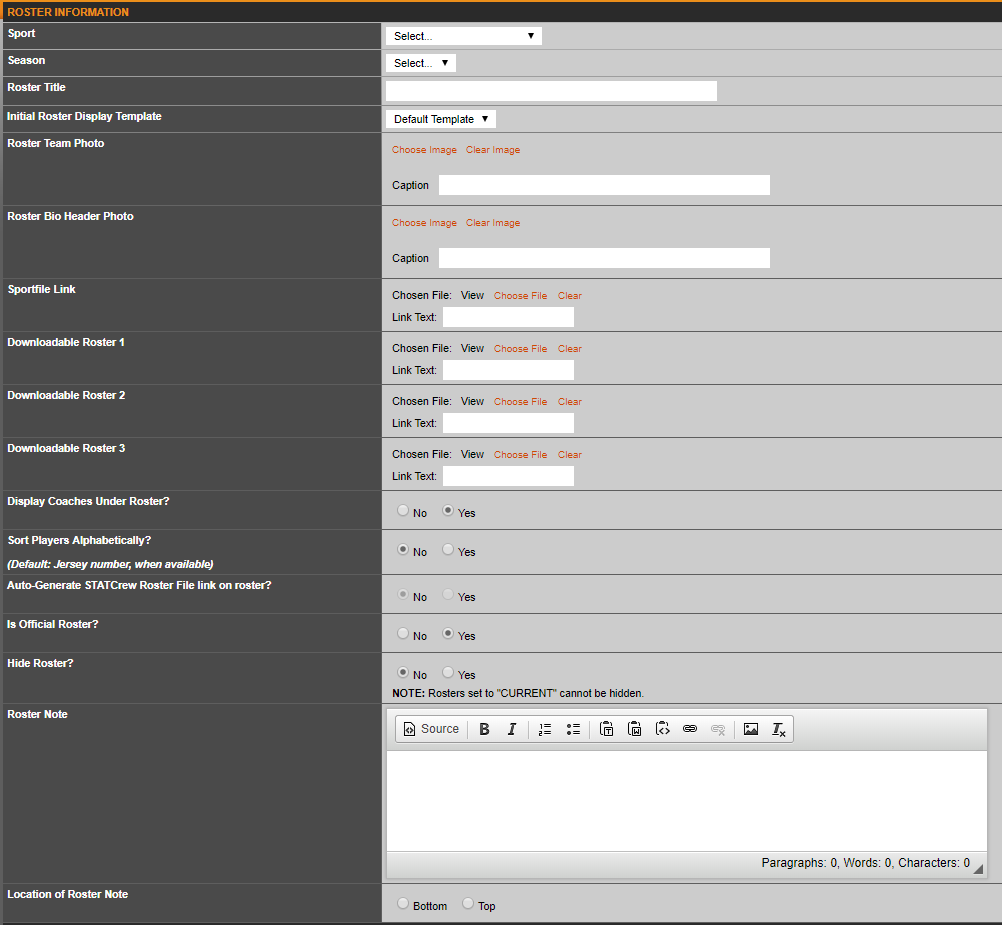
Once the steps above are completing, you can save the roster. The other options are typically filled out later and can be found in the 'information' tab when editing the individual roster.
Note: Always be sure to click 'Save Changes' first as opposed to 'Make Current', a roster needs to be saved before it can be made current, click make current in this step will cause the roster to not be added into the system.
After creating a new roster, follow tutorial here https://sidearmsports.freshdesk.com/a/solutions/articles/4000228214 to make sure your sport's correct season is set.
Was this article helpful?
That’s Great!
Thank you for your feedback
Sorry! We couldn't be helpful
Thank you for your feedback
Feedback sent
We appreciate your effort and will try to fix the article