Once an empty roster has been added into the software, you have a few options for adding players to that roster.
The first option will be importing the players via an Excel sheet. This can prove to be a quick and easy method for adding new players, especially when building your site for the first time. Just make sure the Excel file is saved as either an .xls file (97-03 Office version) or as a .csv file. You can download a template from the back end of your site under Roster Management > Rosters > Import, as well.
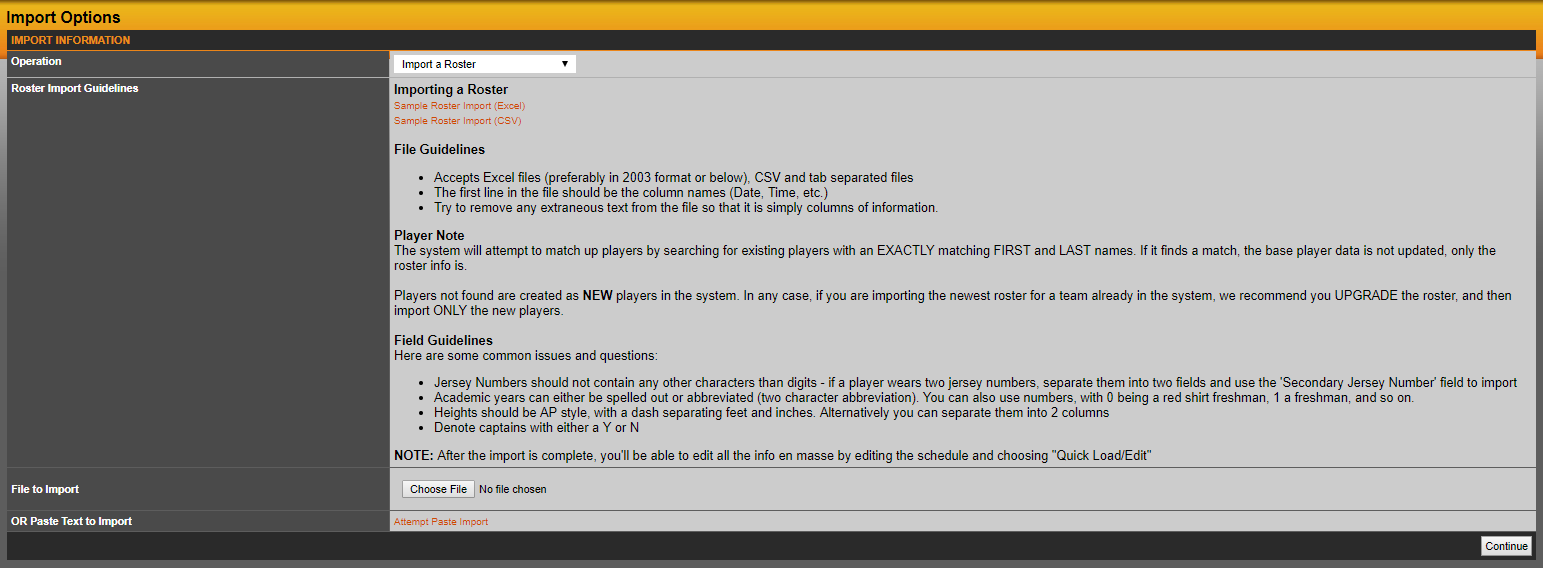
To begin the process, expand the rosters option in the SIDEARM menu and click on 'Import Roster'. In the screen that loads, click the browse button, search for the file, select it and then click continue.
In this step you will be asked to choose the operation you are running, which will default to 'Import Roster' and then select the Sheet that has the roster on it. This comes in handy if using an Excel file that has several sheets in it for each time. When ready, click continue.
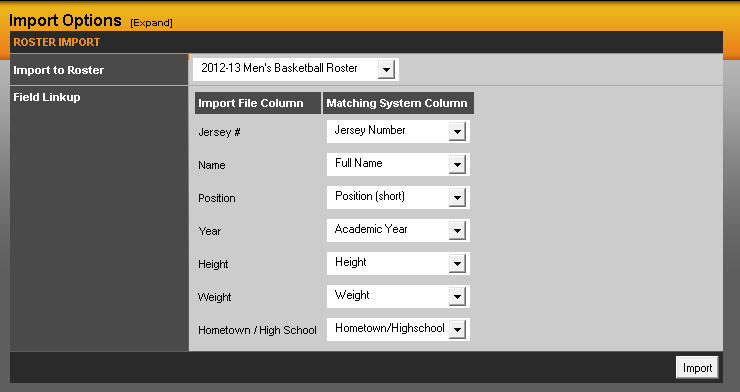
In the final step, you will want to select the roster you are adding the players to, and then you will need to match the columns from your Excel sheet with the display field on the site. This is done by selecting each one from the drop down menu on the right to match what it says in the first column on the left. See below for an example:
Was this article helpful?
That’s Great!
Thank you for your feedback
Sorry! We couldn't be helpful
Thank you for your feedback
Feedback sent
We appreciate your effort and will try to fix the article