One option for importing games into a schedule is to use an excel sheet. On most sites, you will be required to use an excel sheet with the .xls extension which is for Office 97-2003 or you can use the .CSV file format.
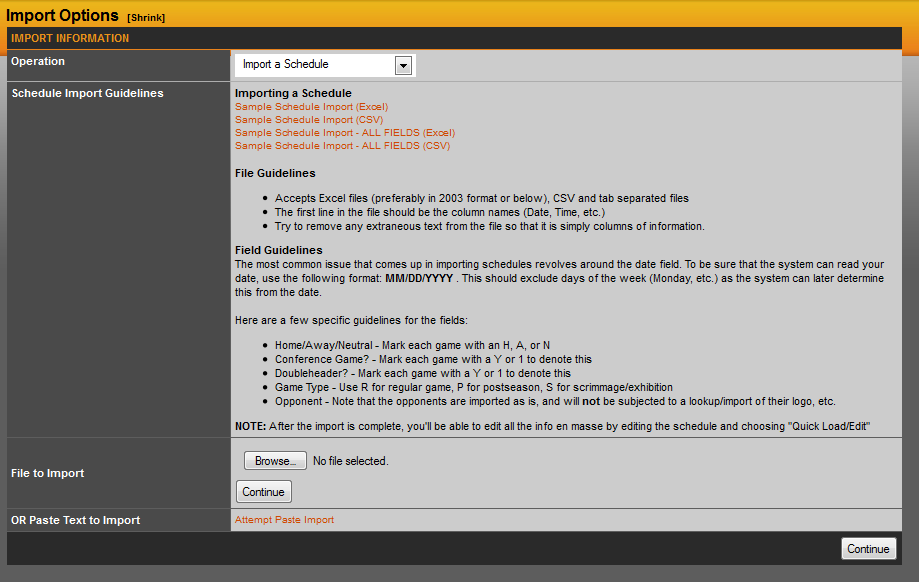
When you expand the Schedules menu, you will see an option that says Import Schedule. Click there to be brought to the screen below where you will browse for the excel file and hit the second continue button at the bottom of the screen.
The next screen will confirm that you are importing a schedule and will allow you to choose which sheet in the file you are importing. This can be handy when using one excel file that has multiple schedules on different sheets. When ready, hit the continue button.

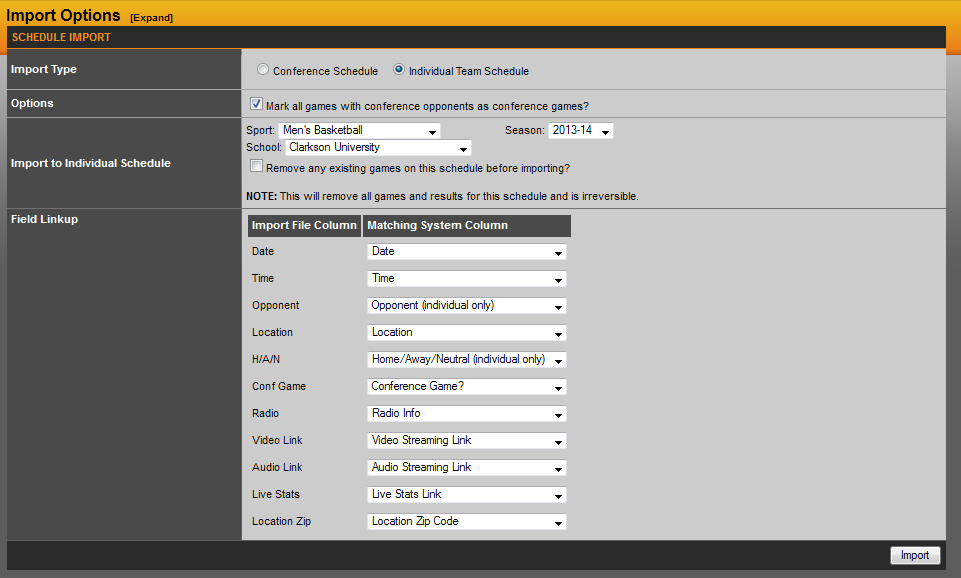
The next and final screen will present a few quick steps to ensure the games are imported properly.
Import Type: Conference Schedule or Individual Team Schedule. In this scenario, you will always select Individual Team Schedule.
Options: There is a check box below that asks if you want to remove any existing games, this would be used if someone entered games into the schedule already, but you wish to remove them and start fresh.
Import to Individual Schedule: Here you will want to choose the sport, season and school that you are importing the schedule for.
Field Linkup: In the Import File Column, you will see the names of the columns from your excel file. The goal here is to match those fields with the options from the dropdown menus to the right as shown in the example below.
Was this article helpful?
That’s Great!
Thank you for your feedback
Sorry! We couldn't be helpful
Thank you for your feedback
Feedback sent
We appreciate your effort and will try to fix the article