One of the benefits of being a SIDEARM client that is a member of a SIDEARM conference, is being able to easily import schedules to the conference site.
To begin, go to Schedules on the Conference site and then click on Add New Schedule.
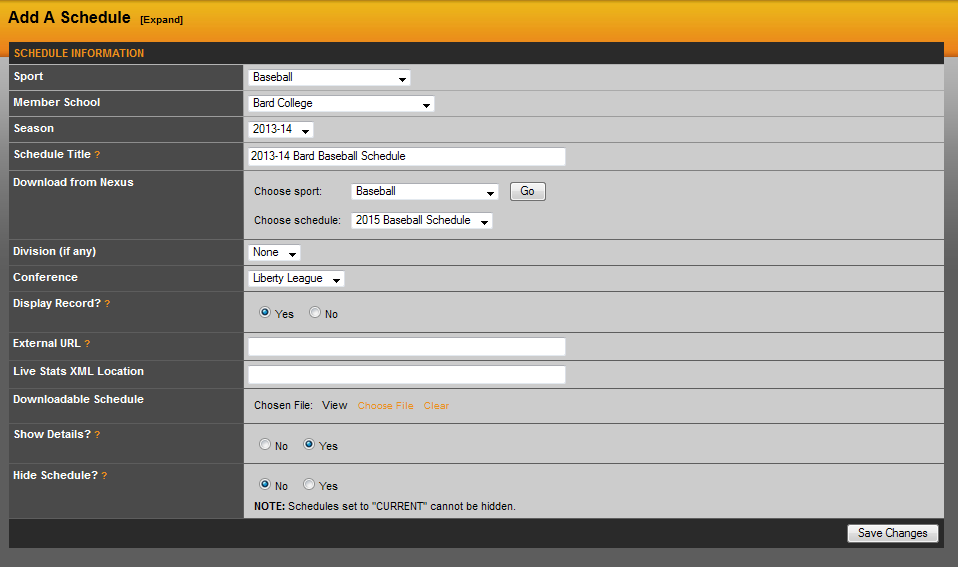
From here, you will want to run through the steps below:
1. Choose the Sport
2. Choose the Member School - This will load a new section titled 'Download from Nexus'.
3. Choose the Season
- The Schedule Title will auto-populate once the steps above have been completed.
4. Download from Nexus:
- The Sport should be selected already, but in case it doesn't, choose the sport and hit the 'Go' button.
- Choose Schedule will display all the schedules from that member's site, choose the appropriate one.
5. Choose a Division if it applies.
6. Choose your conference from the dropdown.
Then hit Save Changes. This will import the full schedule from the member school site into your site.
Was this article helpful?
That’s Great!
Thank you for your feedback
Sorry! We couldn't be helpful
Thank you for your feedback
Feedback sent
We appreciate your effort and will try to fix the article