To insert a photo gallery widget into the editor, click on the  SIDEARM Gallery Widget button. This will bring up the SIDEARM Gallery Widget Menu which presents a few options for setting up your widget.
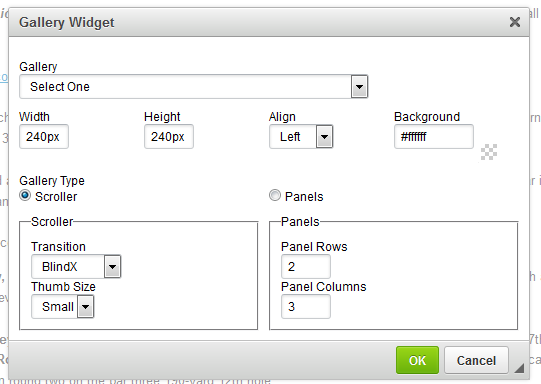
The first thing you will need to do is select the gallery from the drop down menu that says 'Select One'.
Once a gallery has been selected, you will need to set the height and width, the alignment of how you would like it displayed on the page and the background color, which defaults to white.
Type of Widget
There are now two types of widgets to choose from, Scroller and Panels.
Scroller
A scroller widget will have the photos scroll through automatically based on one of the different transition opens available in the dropdown menu.
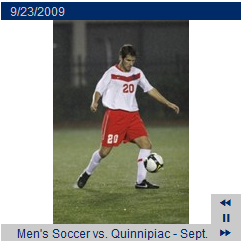
Note: When using this method, if you make the gallery larger than the default 240 x 240 size, make sure you change the thumbnail size from Small to Big.
Panels
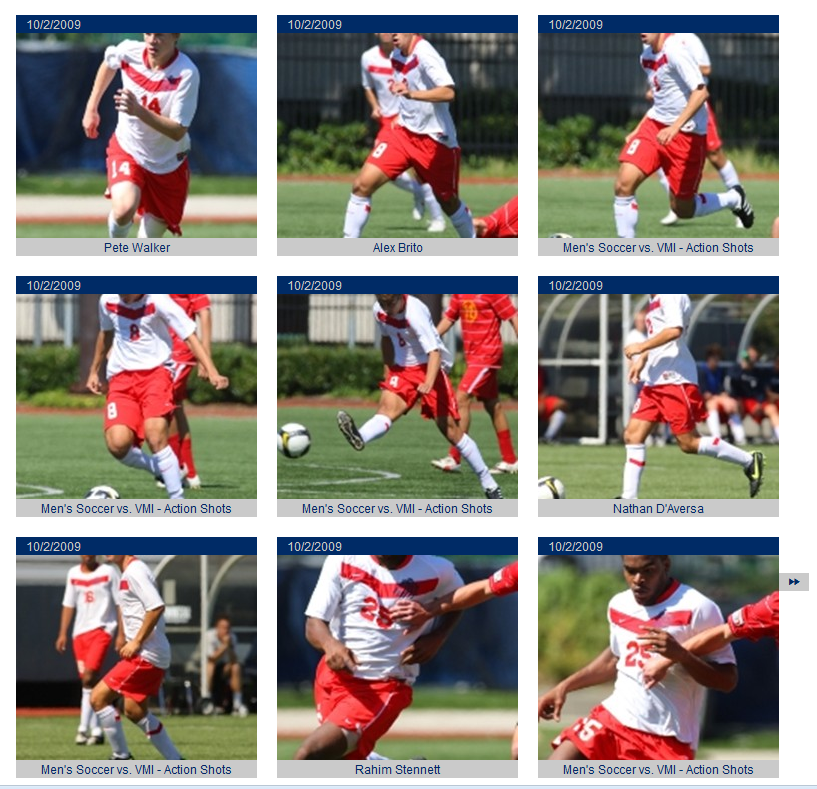
A panel widget will display all of the photos in a contact sheet format.
Was this article helpful?
That’s Great!
Thank you for your feedback
Sorry! We couldn't be helpful
Thank you for your feedback
Feedback sent
We appreciate your effort and will try to fix the article