A new feature for 2019, you can set a photo gallery uploaded to SIDEARM to display in place of the primary image of a story when viewing the story page.
When adding or editing a story, in the first step (Details) there is a spot where you can choose the 'Associated Gallery'.
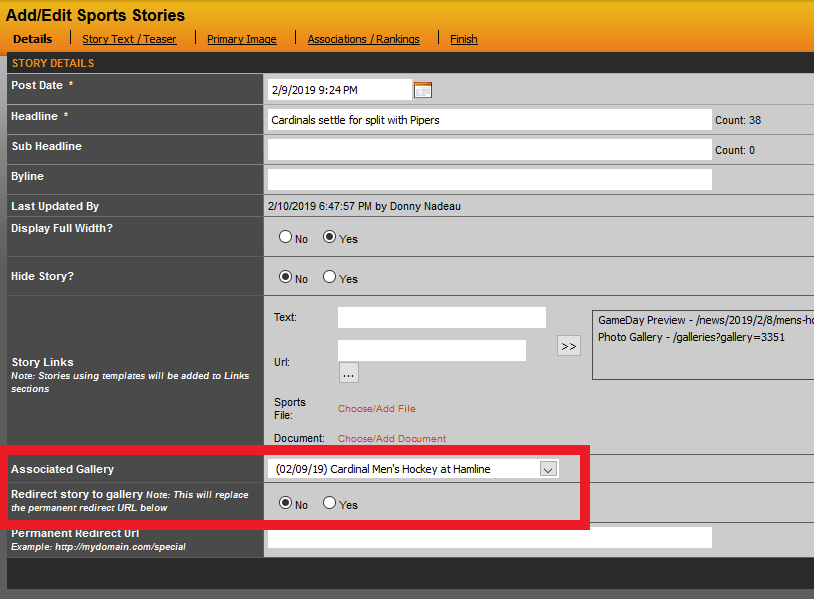
Scroll through the list until you find the gallery you want and then choose it. After doing this, there will be an option below that asks if you want to Redirect the story to the gallery. This option only applies if you want the story to link directly to that gallery when someone clicks on the link as opposed to going in to read the story. This works well for when looking to post gallery links into your story rotator.
After choosing the gallery, finish out the story as you normally would, or just save from this tab if editing an existing story.
Note: You will still need to choose a primary image as this is what will display on the home page before clicking into the story.
Once added, you will see the gallery displaying in place of the primary image, like the example below:
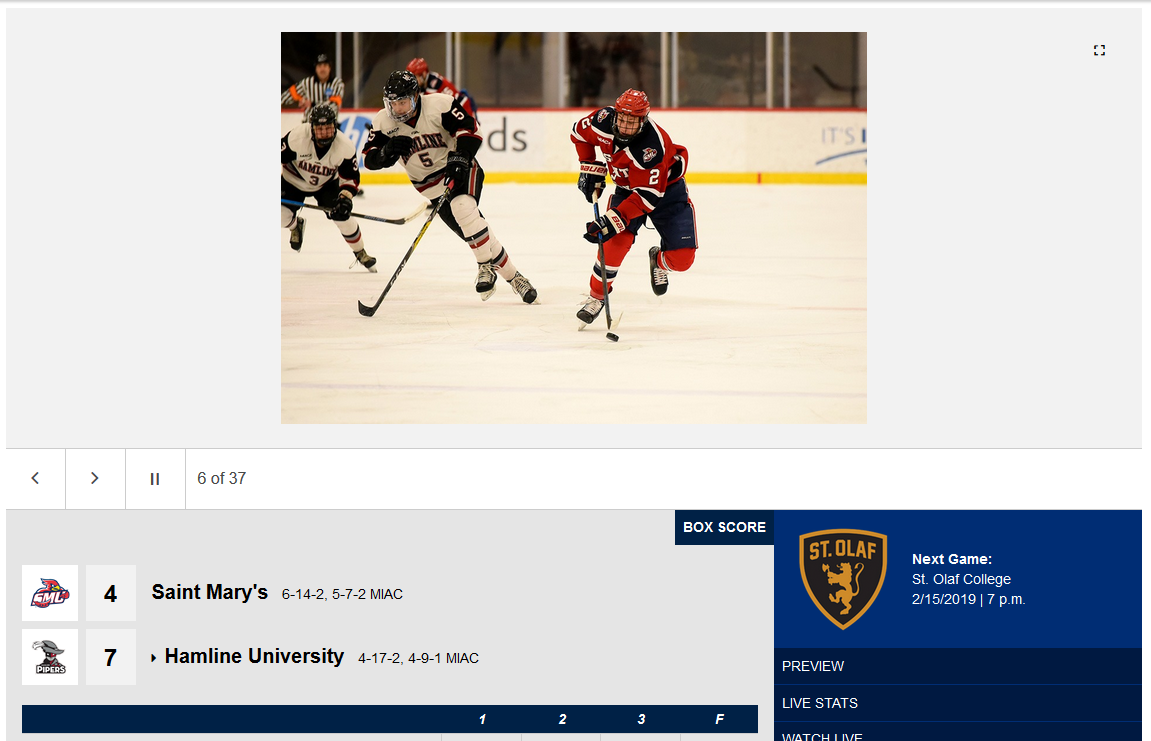
A user can then click on the icon in the top right corner to view the gallery full sized on the page.
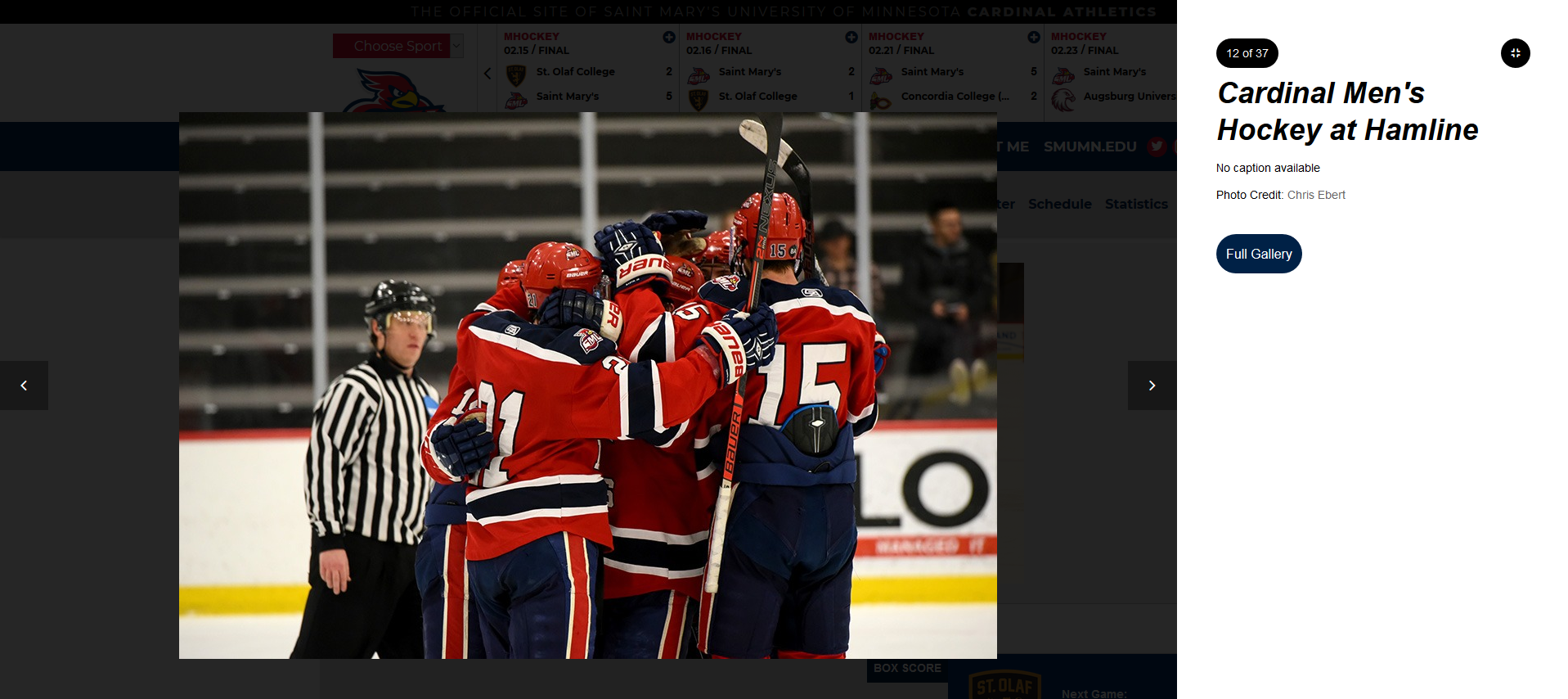
This feature is currently being rolled out to school sites on our responsive software.
Was this article helpful?
That’s Great!
Thank you for your feedback
Sorry! We couldn't be helpful
Thank you for your feedback
Feedback sent
We appreciate your effort and will try to fix the article