Using Conference Schedules
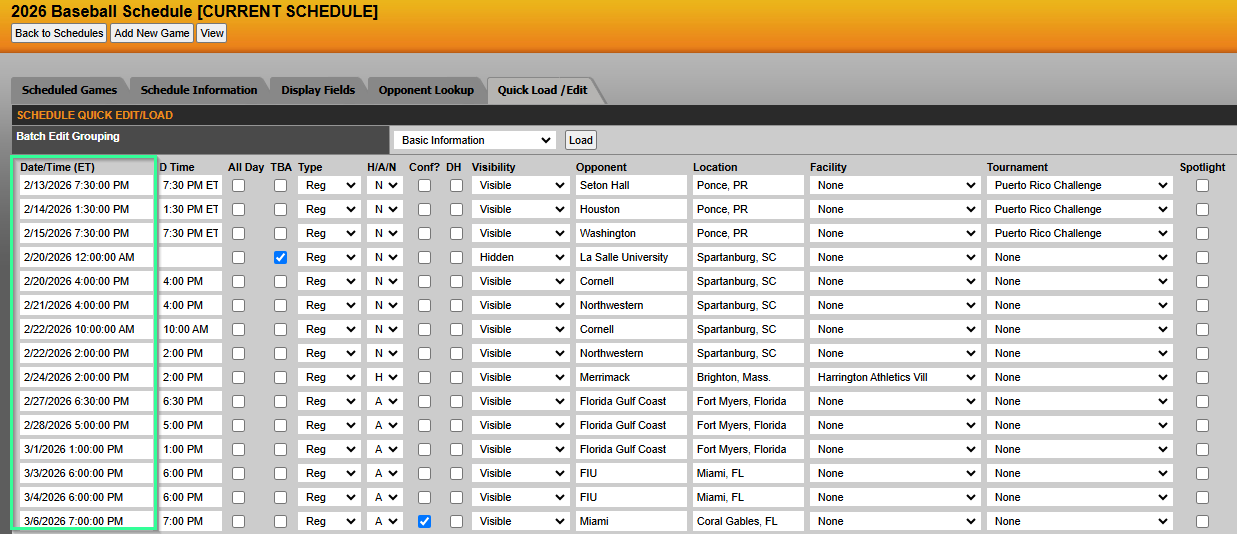
Date/Time field
- Set the “Date/Time” field (system/internal time) to match the “D Time” (display time) column. This can be done in bulk by going to Schedules>Edit Schedule>Quick Load/Edit>Basic Information
- If the “Date/Time” field is not entered when the game is created or imported, this defaults to midnight, and could cause games to be out of order on the composite calendar
_____________________
Postponed games:
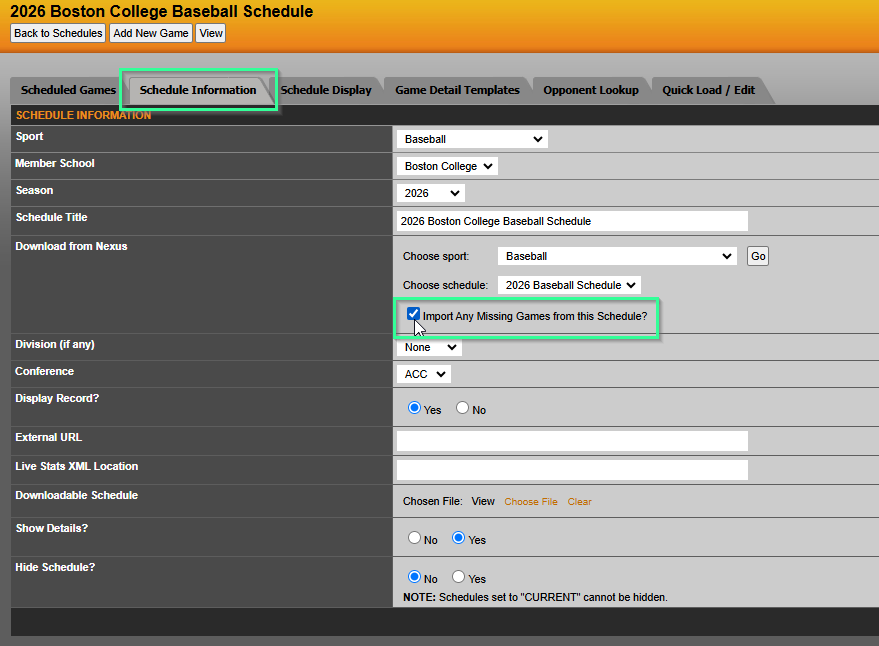
- If a game has been postponed, the original game should remain on the schedule, then the new game date should be added to the school’s schedule just like a regular game. Once that’s been done, edit the schedule on your conference site>schedule information>choose schedule: (select schedule)>select “Import any missing games from this schedule?”>save changes
- Do not select the “Go” button to the right of the sport unless the “choose schedule” list needs to be refreshed. This will only refresh the schedule drop down list, and will not import missing games.
_____________________
FAQs
Opponent Lookup: Set up the Opponent Lookup tab with the respective opponents. To do this, go to schedules>edit schedule>opponent lookup, then enter the opponent name(s).
______________________________________________________________________________________________________________________________________
Starting a new season for a sport can seem overwhelming at first, but the following steps can help with preparing your site for all the new information your fans will soon be looking for!
Schedules are created by member schools
- Each of your member schools needs to create their schedules on their respective sites, and assign the conference to them in the “Schedule Information” tab.
Import School Schedules
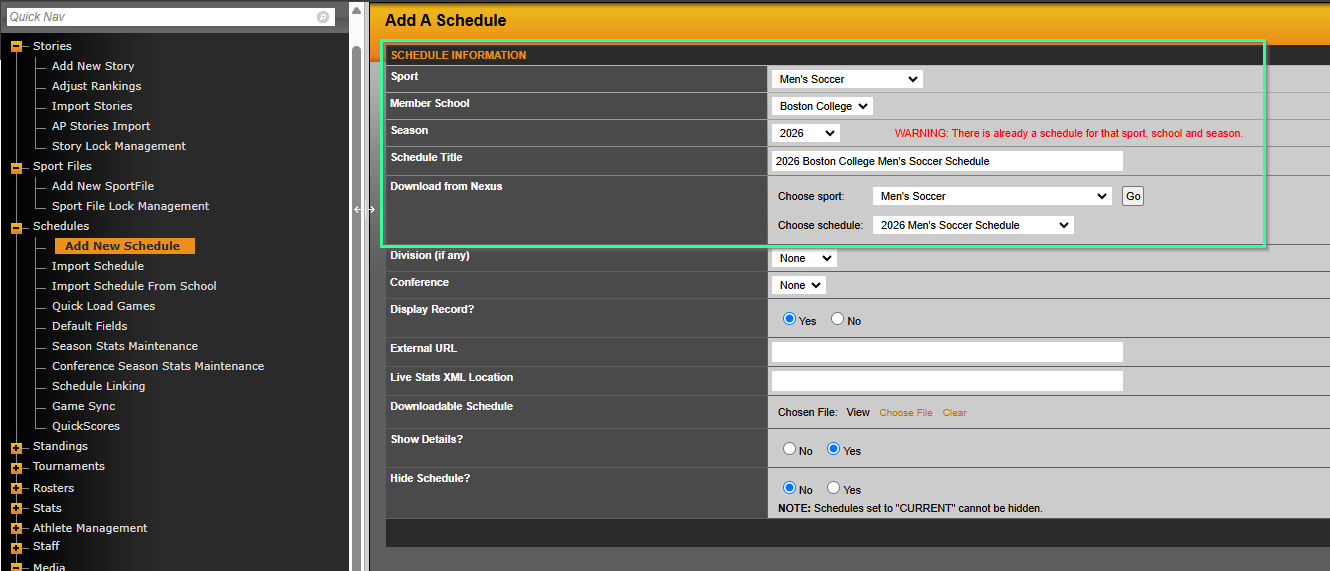
- The conference imports the respective schedules by going to Schedules>Add New Schedule>select Sport, School, Season and actual schedule, then “Save changes”
- Repeat this for all schedules for this sport
Import Schedules for Non-SIDEARM Schools
- if you have schools in your conference not on the SIDEARM platform, you can import their schedules using an Excel file by going to Schedules>Import Schedule and uploading the formatted Excel file
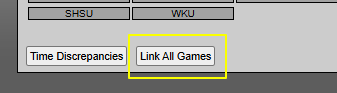
Link All Games
- use the Link All Game button to have the system match the conference games on the schedules so that they are linked together
_____________________
Opponent Lookup Setup
- Edit each schedule of the sport, go to the “Opponent Lookup” tab and make sure it’s populated.
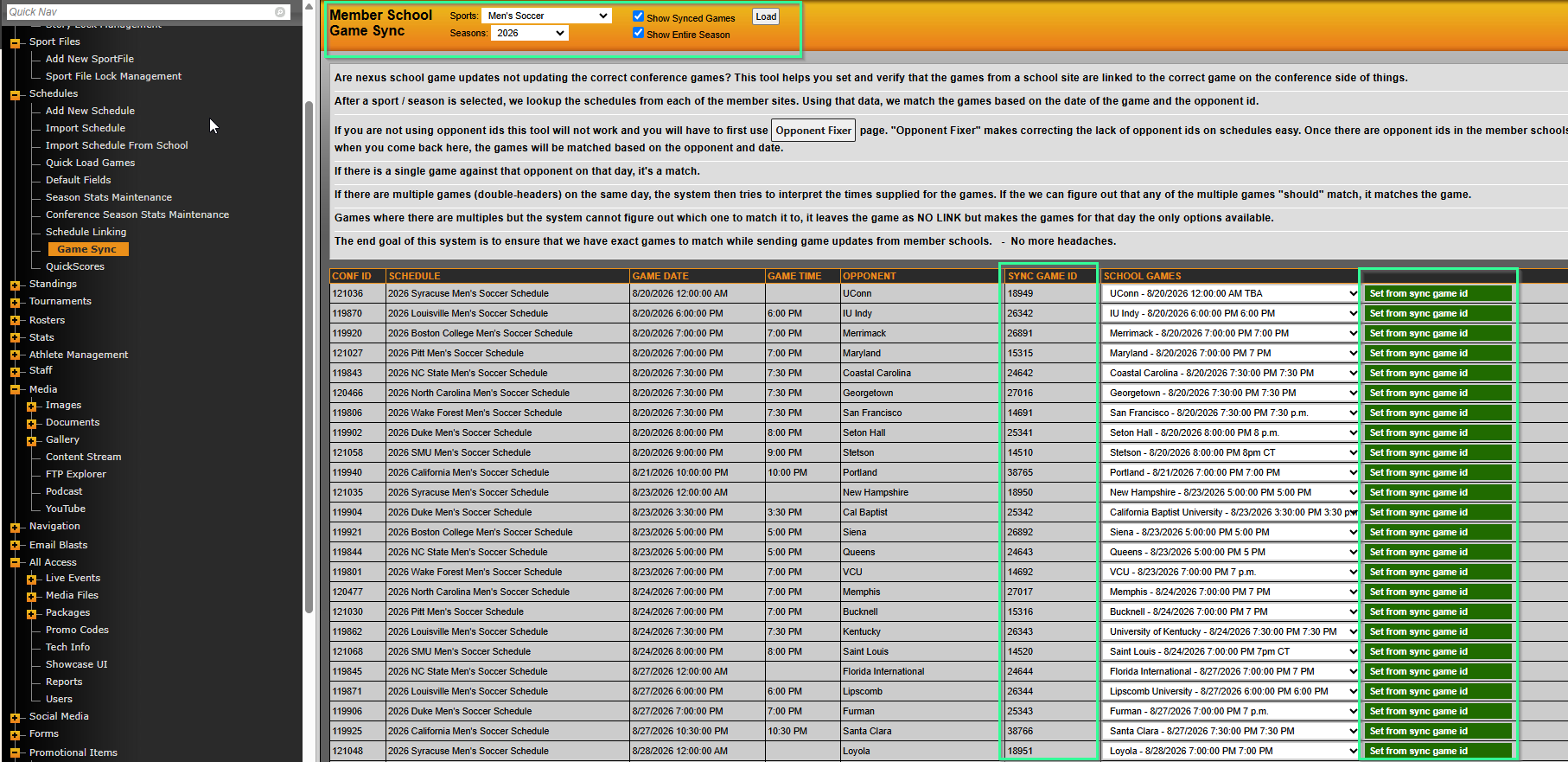
Game Sync
- Ensure that game sync is set up properly. To do this, go to Schedules>Game Sync>select Sport and Season, check off “Show Synced Games” and “Show Entire Season”>Load. The object of this menu is to make sure all games are synced together with a sync game ID, and their statuses are green.
- If any games do not have anything selected in the dropdown or is missing a Sync Game ID, make sure the proper game is selected in the dropdown before saving.
- The only games that may have some trouble are those for non-SIDEARM member schools. Those are okay to leave in red since the result and/or XML file will be manually added to the site.
_____________________
Create Standings
- If applicable, you’ll need to create standings for your sports, then mark them as CURRENT. To do so, go to Standings>Add New Standings>Select Sport and Season>Save changes
- To mark them as current, go to Standings>Select Sport and Season>Load>MAKE CURRENT
- This process will also mark the respective sport schedules as current, updating the composite calendar and any scoreboard or events/results components on your site
Was this article helpful?
That’s Great!
Thank you for your feedback
Sorry! We couldn't be helpful
Thank you for your feedback
Feedback sent
We appreciate your effort and will try to fix the article