Below are some must-knows when it comes to using your schedules!
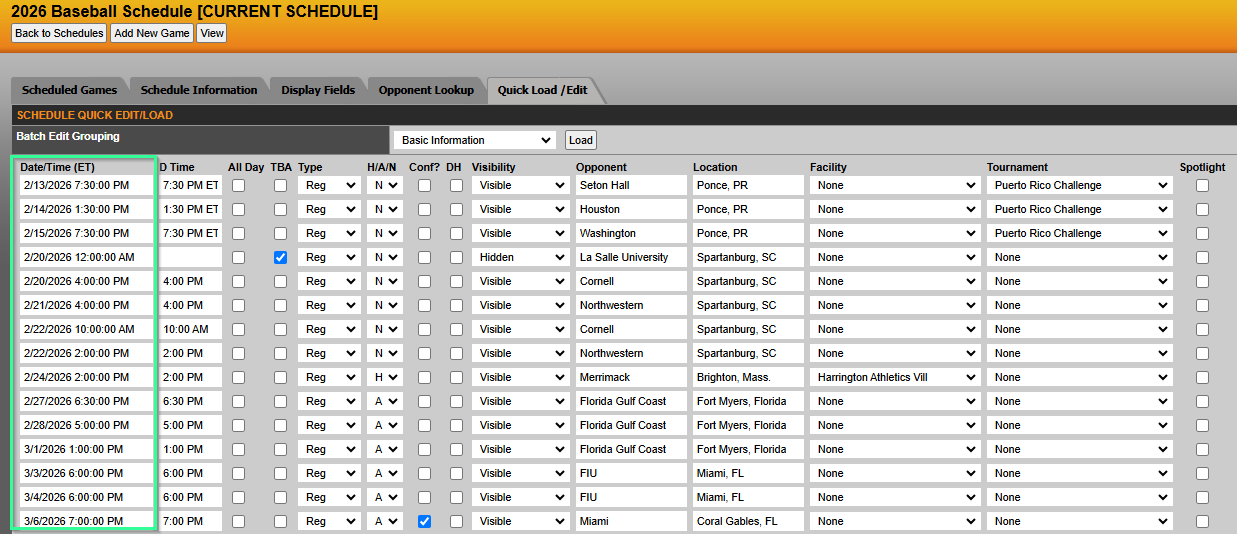
Date/Time field
- Set the “Date/Time” field (system/internal time) to match the “D Time” (display time) column. This can be done in bulk by going to Schedules>Edit Schedule>Quick Load/Edit>Basic Information
- If the “Date/Time” field is not entered when the game is created or imported, this defaults to midnight, and could cause games to be out of order on the composite calendar
_____________________
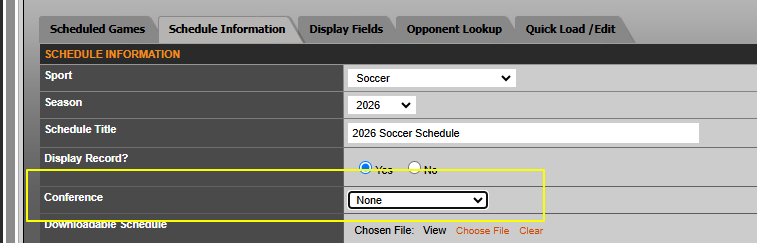
Conference Assignment
- Assign the conference to the schedule (Edit Schedule>Schedule Information tab and choose your conference from the dropdown)
_____________________
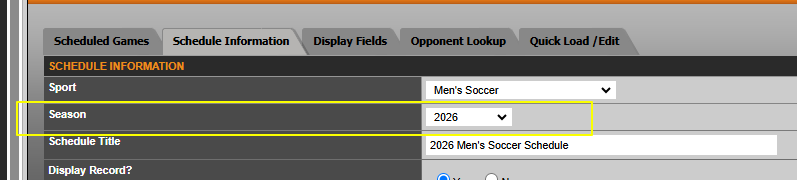
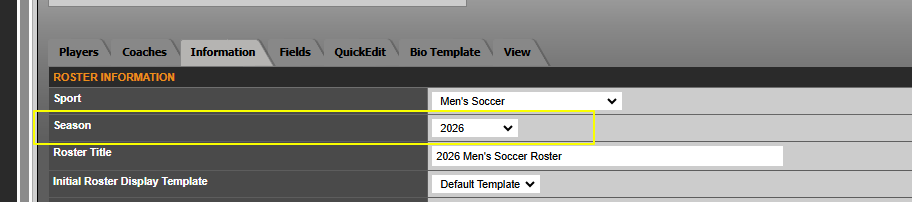
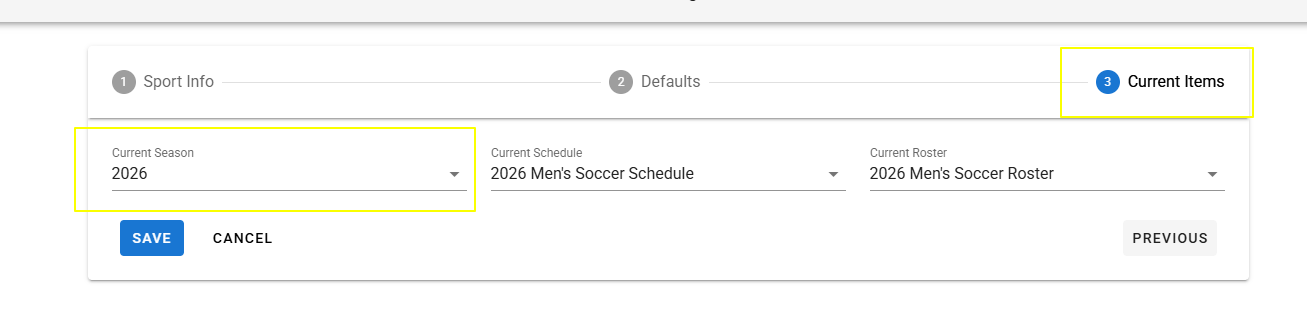
Choose the same Season on Schedule, Roster and Sport Settings
- Make sure that your current Schedule and Roster is set to the same Season, and that your overall sport has the matching Current Season.
- Edit your Schedule and use the Schedule Information tab to double check your selected Season
- Edit your Roster and use the Information tab to double check your selected Season
- Go to Site Settings>Sports and Edit your Schedule and use the Current Items tab to double check your selected Current Season
_____________________
FAQs
Opponent Lookup: Set up the Opponent Lookup tab with the respective opponents. To do this, go to Schedules>Edit Schedule>Opponent Lookup, then enter the opponent name(s) to pull from your local or the global database.
Postponed Games: If a game has been postponed, the original game should remain on the schedule, then the new game date should be added to the schedule just like a regular game.
Was this article helpful?
That’s Great!
Thank you for your feedback
Sorry! We couldn't be helpful
Thank you for your feedback
Feedback sent
We appreciate your effort and will try to fix the article