If Story auditing has been turned on, one of the few options that also get activated is Story Auto-Saving.
Story Auditing
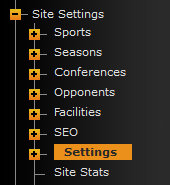
To turn on Story Auditing, go to Settings under the Site Settings menu.
Then in the top frame, it will display a list of settings and search field. In the search field type 'audit' and hit enter. This will display the proper setting below.
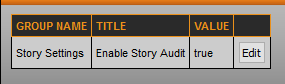
You will change this setting from 'false' to 'true' and hit save.
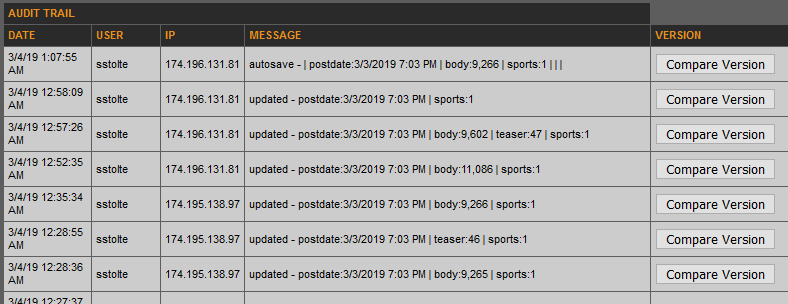
Now that story auditing has been enabled, when on the finish tab of a story or sport file, you will be able to see the list of all individuals who have edited this particular page.
Story / Sport File Recovery
In addition to seeing the list of those who have edited a specific story or sport file, there is also a compare version button displayed next to each one.
This will allow you to see what data has changed between each save made of the story or sport file and if needed, revert back to an older version in case an error was made or something was removed.
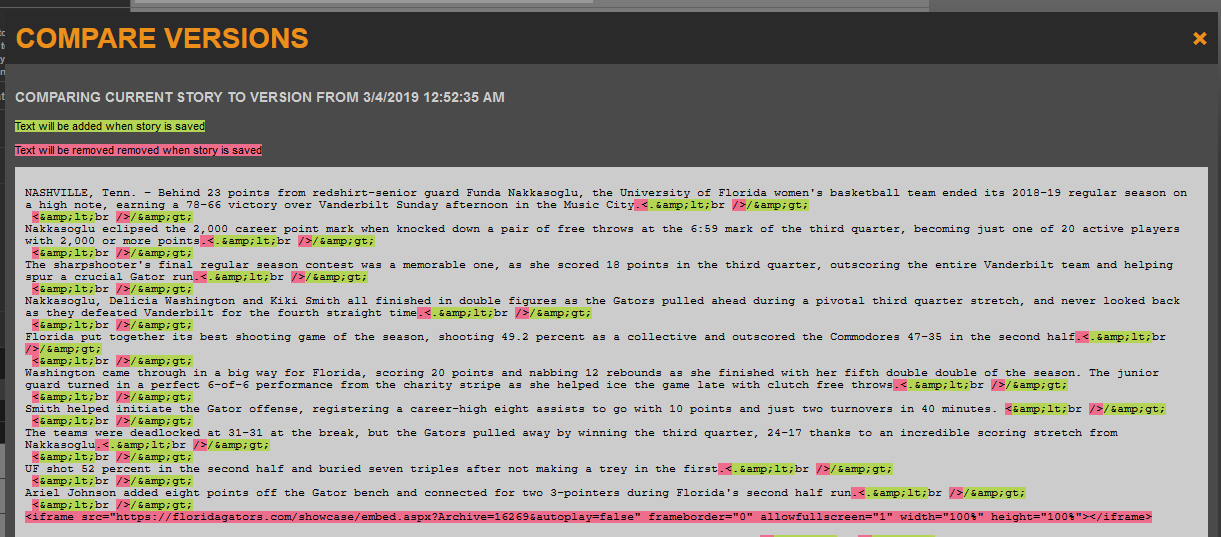

Note: After choosing to revert to an older version, you will need to save the story before any changes go into effect.
Story Auto-Saving
When working directly in the text-editor while writing a story, if a user goes idle for 15 minutes, you will be prompted to continue or the story will be auto-saved, hidden and available to edit when ready.

Was this article helpful?
That’s Great!
Thank you for your feedback
Sorry! We couldn't be helpful
Thank you for your feedback
Feedback sent
We appreciate your effort and will try to fix the article