Home Screen Game Center Tile – Background Image
The Game Center Tile is the first thing fans see when they open the app on gameday. A high-quality image here sets the tone before the game even starts.
Image Requirements
- Recommended size: 1920x1080px
- Accepted formats: PNG or JPG
Where to Upload
Pre-game and live: Edit Schedule > Edit Game > Game Information Tab > Event Image
Post-game: Story > Primary Image Tab > Primary Image Then associate it: Associations/Rankings > Sport: Football > Game Associations > Select game and post-game story > Save
Video in the Game Center Tile (v181.2.0+)
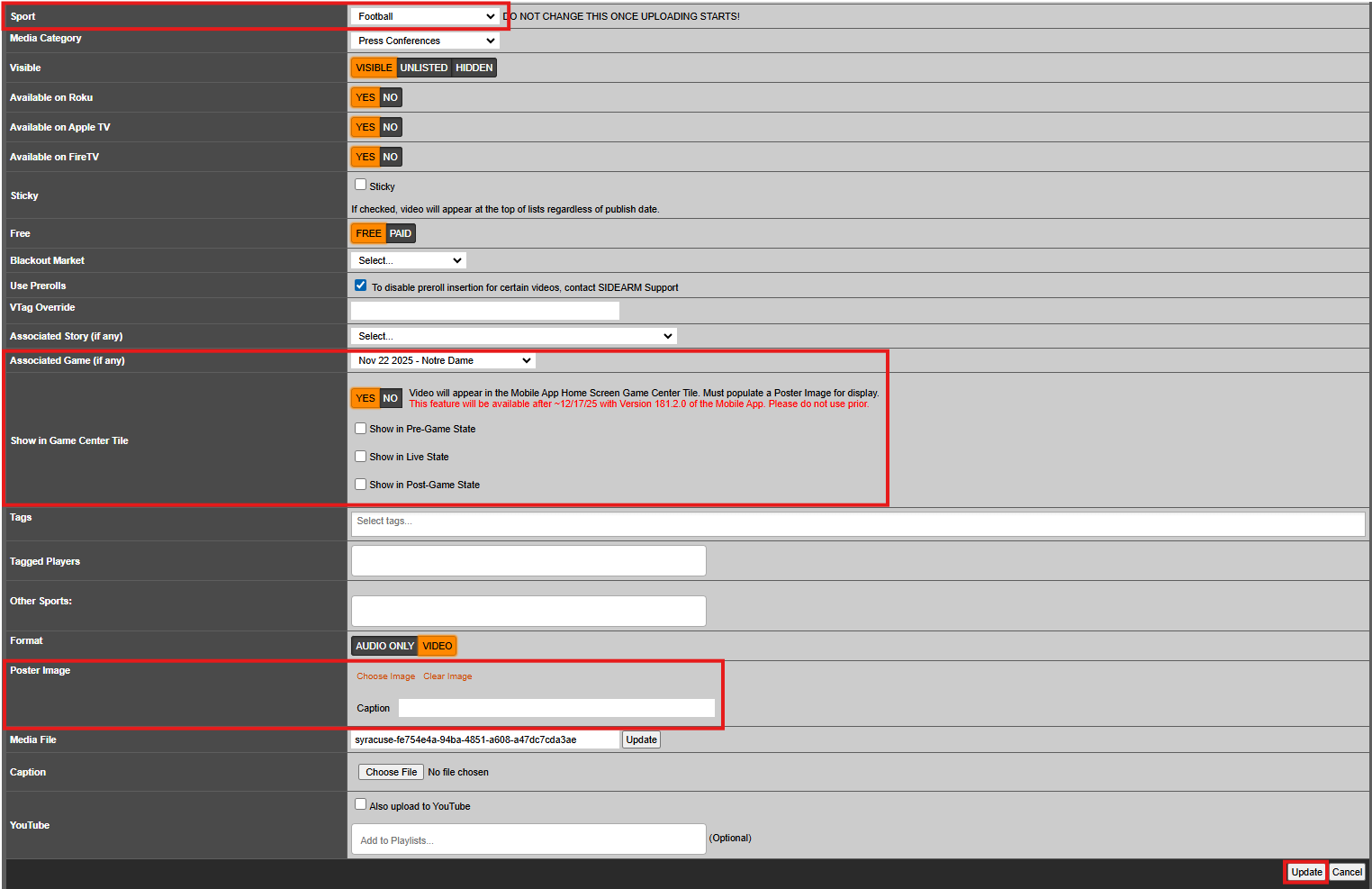
Starting in version 181.2.0, you can display video in the Game Center Tile. The Poster Image from a Live Event or Media File will appear with a play icon overlay.
To enable this, the Live Event or Media File must:
- Be associated to a Game Center sport (e.g., football)
- Be linked to a specific game
- Include a Poster Image (used as the thumbnail)
Post-Game Story
The post-game story drives the official post-game state of Game Center. Once a game is marked complete, Game Center transitions to this state and displays:
- Final score
- Box score
- Post-game story content
- Photo galleries
- Video (if attached)
The Home Screen Game Center Tile will also update to show the post-game story's primary image.
CMS Workflow
- Go to
Story > Primary Image Taband upload a Primary Image. - In the same tab, use the Attached Video Field to link an All Access video or external video URL.
- Go to
Associations/Rankings Tab > Sport: Football > Game Associations. - Select the correct game and designate this story as the Post-Game Story.
- Click Save.
Post-Game Press Conferences
A long-term integration for press conferences is in development. In the meantime, you can surface them through the post-game story.
Temporary Workaround
- Upload a press conference image as the Primary Image in
Story > Primary Image Tab. - Add the press conference video URL to the Attached Video Field.
- Associate the story to the correct game in
Associations/Rankings Tab > Sport: Football > Game Associations. - Set it as the Post-Game Story and click Save.
Optionally, send a push notification with a deep link to the press conference, or direct fans to the Media tab.
Stadium HQ
Populate Stadium HQ content before each home game. If no content is added, the section will not appear in the app.
Push Notifications
Always test notifications before sending to your full audience. Send a test to yourself first to verify deep links open correctly.
If deep links aren't working as expected, contact support.
Clips
Create a Clips playlist for each game with highlights and associate it with your Game Center template. This makes Clips available in both the live and post-game states.
Tips
- Drag and drop modules in Game Center to reorder them.
- Move Clips higher in the module list to prioritize them in the app.
- Always click Save after making any changes.
Live Stats
SIDEARM configures the live stats panel in your CMS. For football, do not adjust these settings on your own.
For questions or issues, contact support.
Important: Game Center data is only as accurate as the stats being sent. Make sure the stats operator has a reliable internet connection and is actively sending data to Genius.
Was this article helpful?
That’s Great!
Thank you for your feedback
Sorry! We couldn't be helpful
Thank you for your feedback
Feedback sent
We appreciate your effort and will try to fix the article