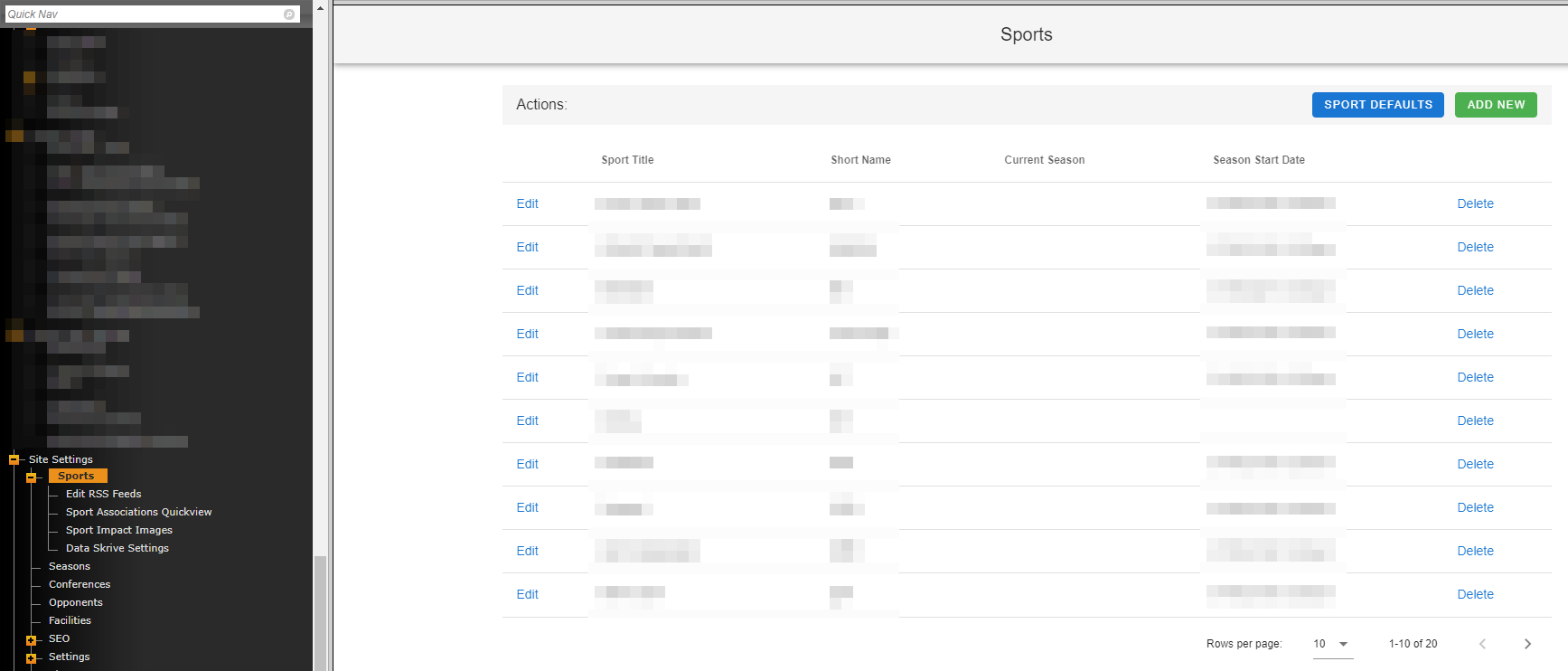
Whether you are adding a new sport for competition or looking to have an internal page function like your traditional sport landing pages, this is the place to go to add it into the system.
Start by going to Site Settings > Sports.
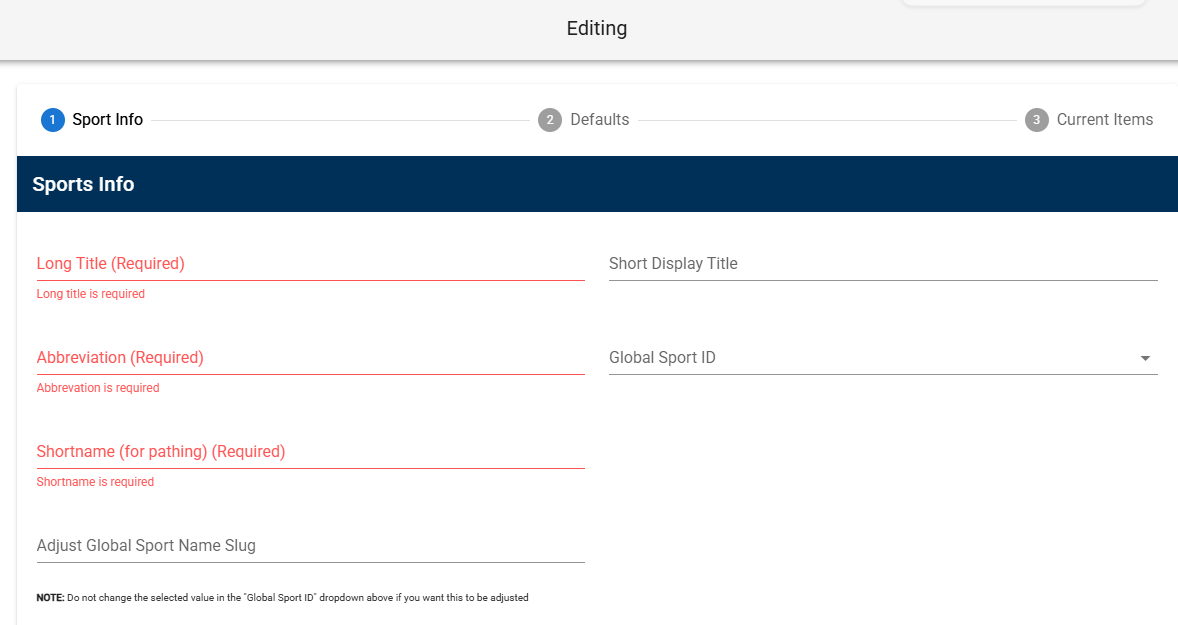
Step 1 - Sport Info
This is the most important step in the overall process. Here, you are going to choose the name of the sport, set up the path name, and also any specific settings that can apply to the sport. You will also be able to adjust sport settings, social media and tickets for sport. Below is a breakdown of each field.
Note: There are strict guidelines for pathnames that need to be followed. Additionally, if creating an actual sport, the path names MUST use our format. To see an official list of pathnames, click here.
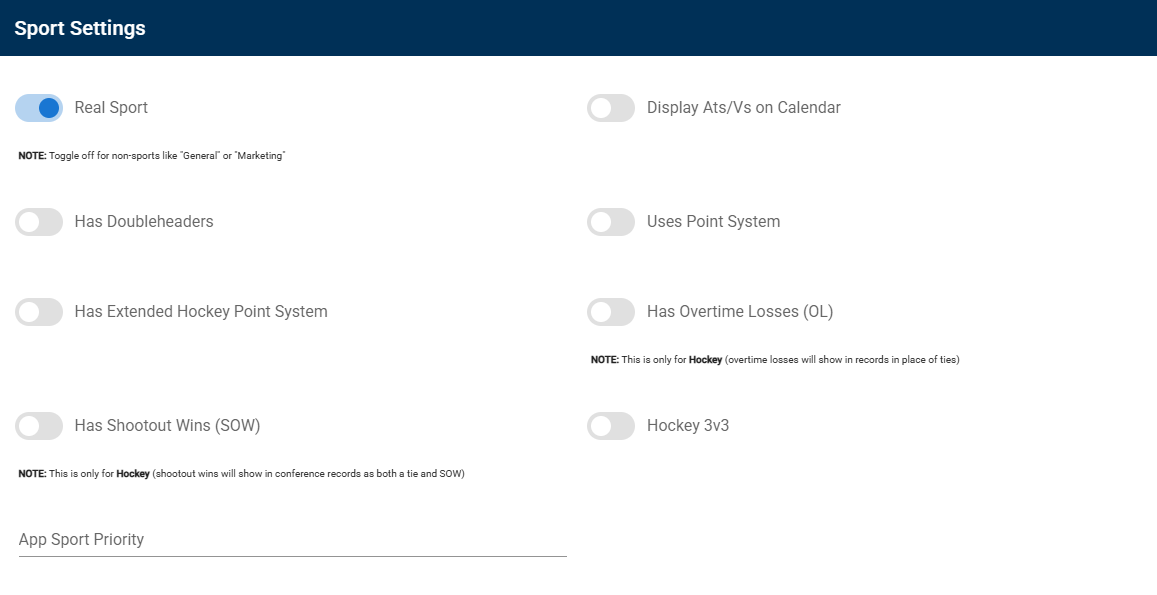
Sport Settings
*typically toggle on "real sport" and "display ats/vs on calendar", the rest are sport specific
Social Media + Tickets
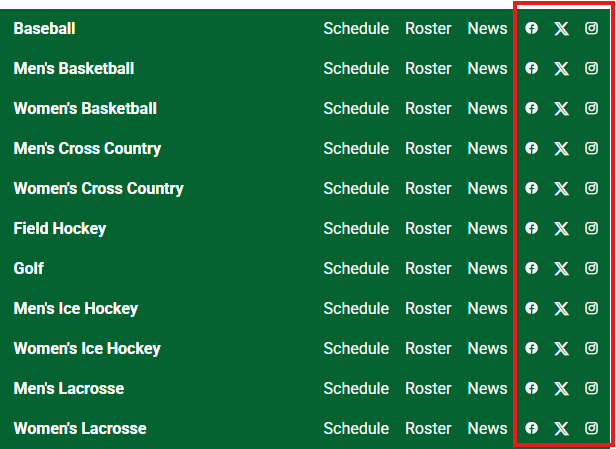
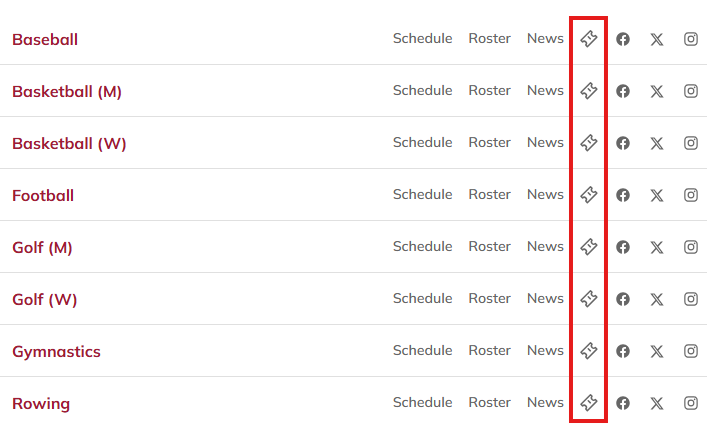
*social media usernames entered here will appear on main navigation bar next to respective sport if feature is enabled (highlighted in images below) same thing applies for ticket links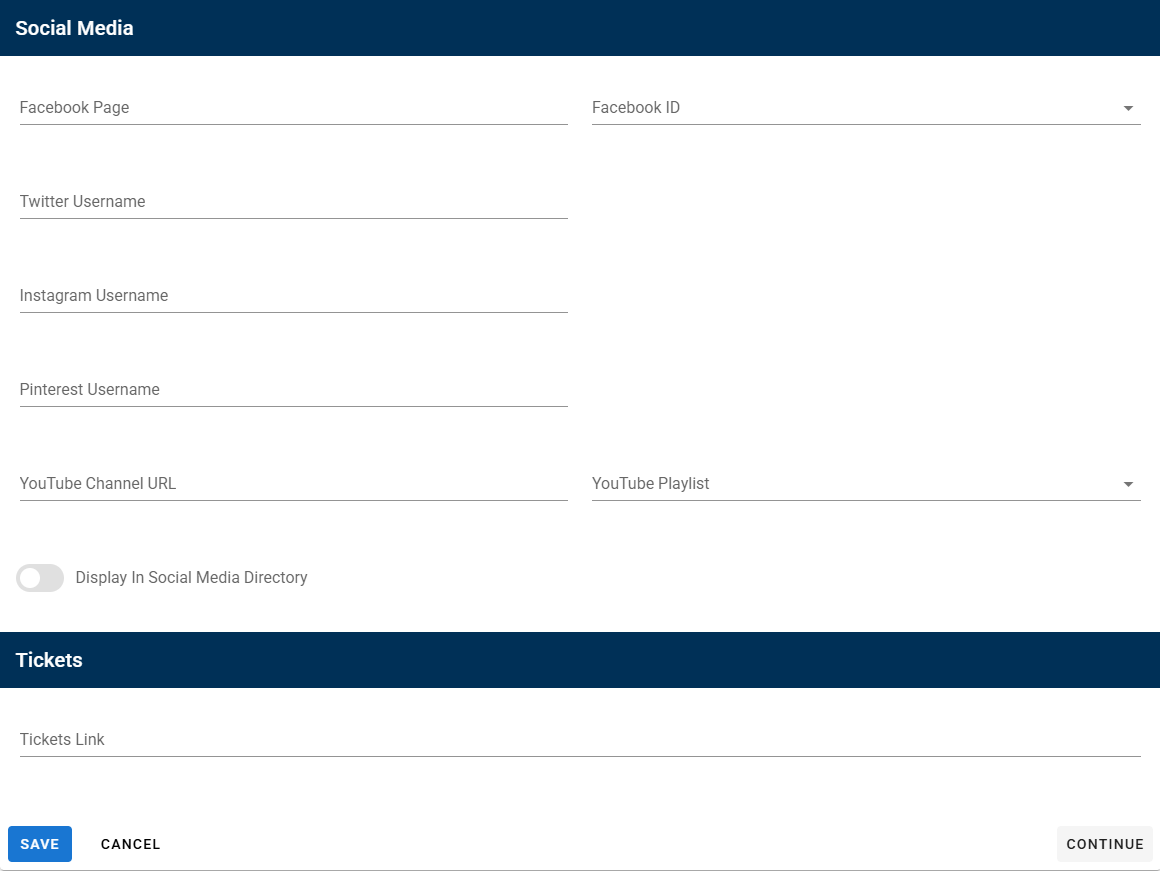
Social media links with icons on main navigation bar
Ticket link with icon on front end of main navigation bar
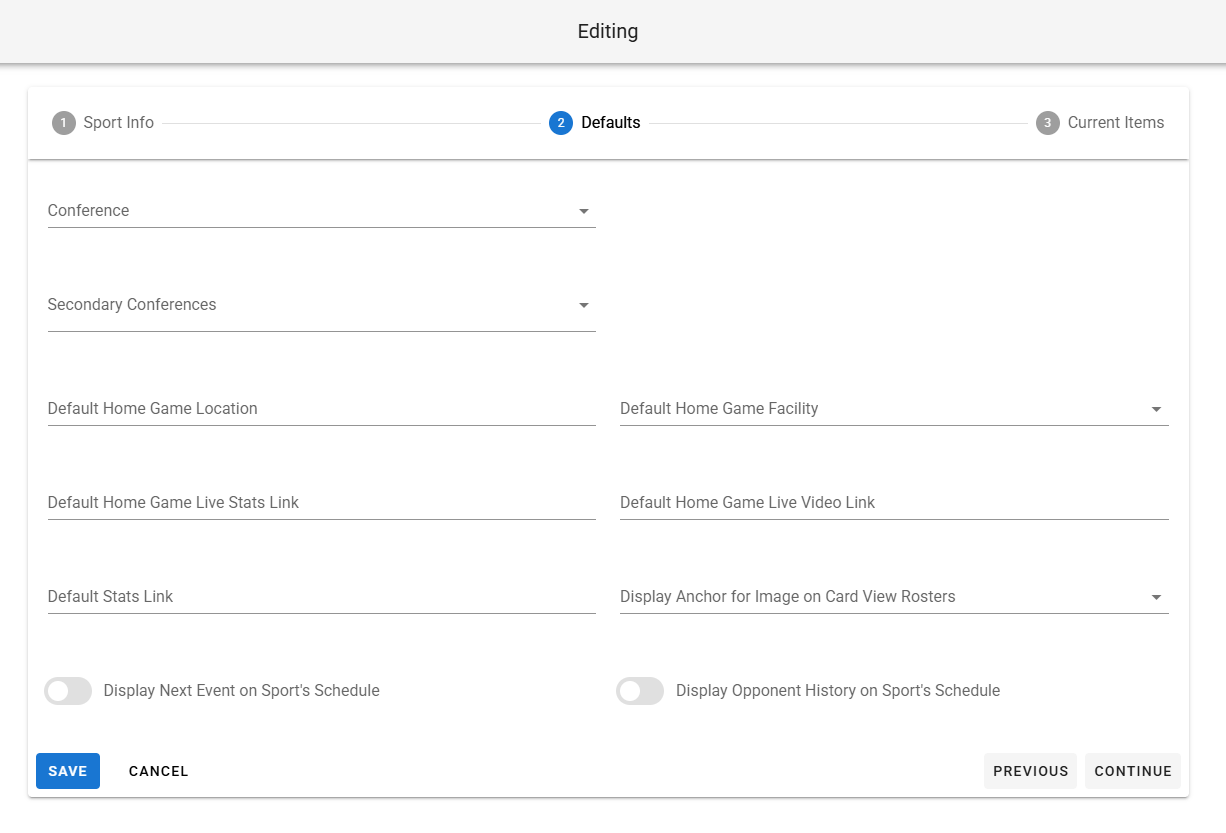
Step 2 - Defaults
None of the data filled out in this step is required, but could make adding new games a little easier for a sport. Below is a breakdown of each field.
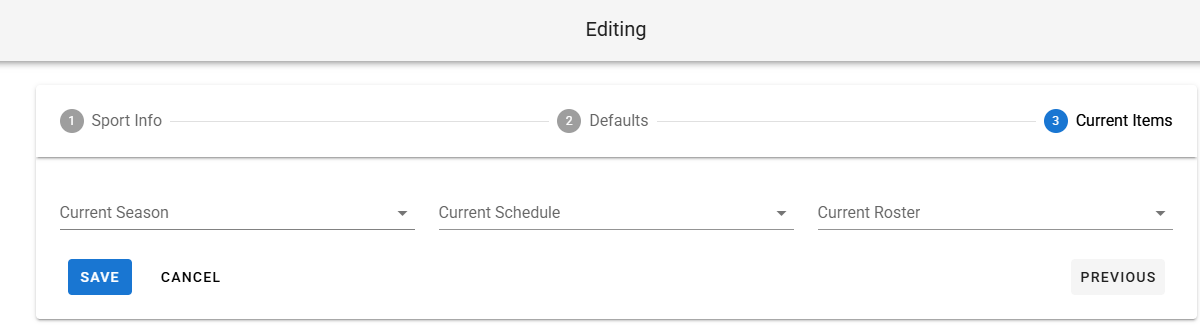
Step 3 - Current Items
This step is not required when adding a sport. This serves as a way to double-check the default season, schedule, and roster for a sport. This can also be done in the Set Defaults section on initial sports page (first image on this page).
Was this article helpful?
That’s Great!
Thank you for your feedback
Sorry! We couldn't be helpful
Thank you for your feedback
Feedback sent
We appreciate your effort and will try to fix the article