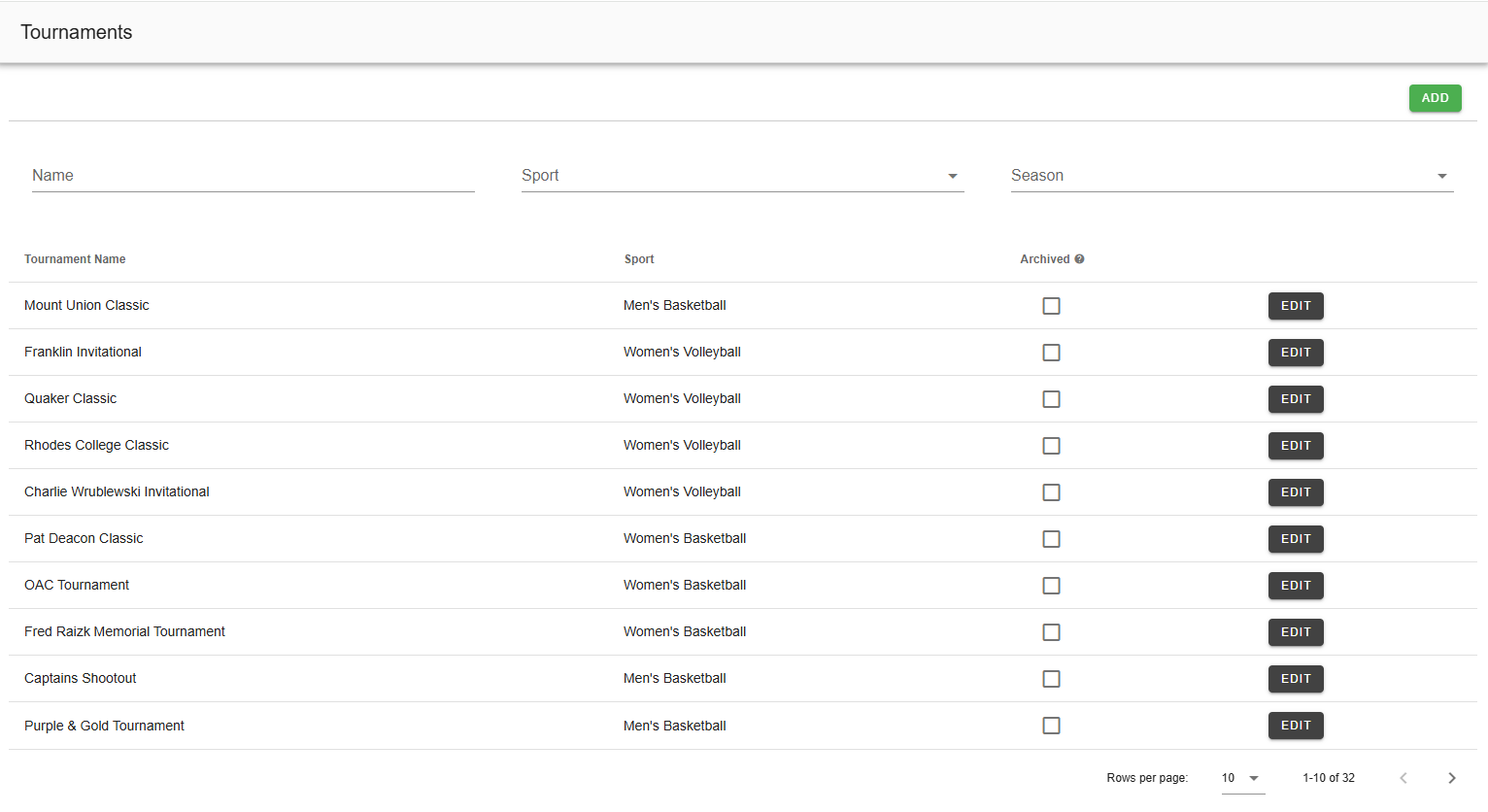
To add, edit or delete tournament information, select Tournaments from the Schedule tab, where a list of all the current tournaments will display.
Adding a new tournament:
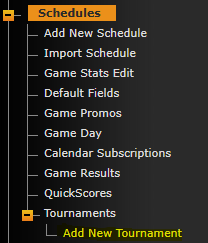
1. To create a new tournament, click the Add New Tournament button in the Tournaments menu in the left navigation bar.
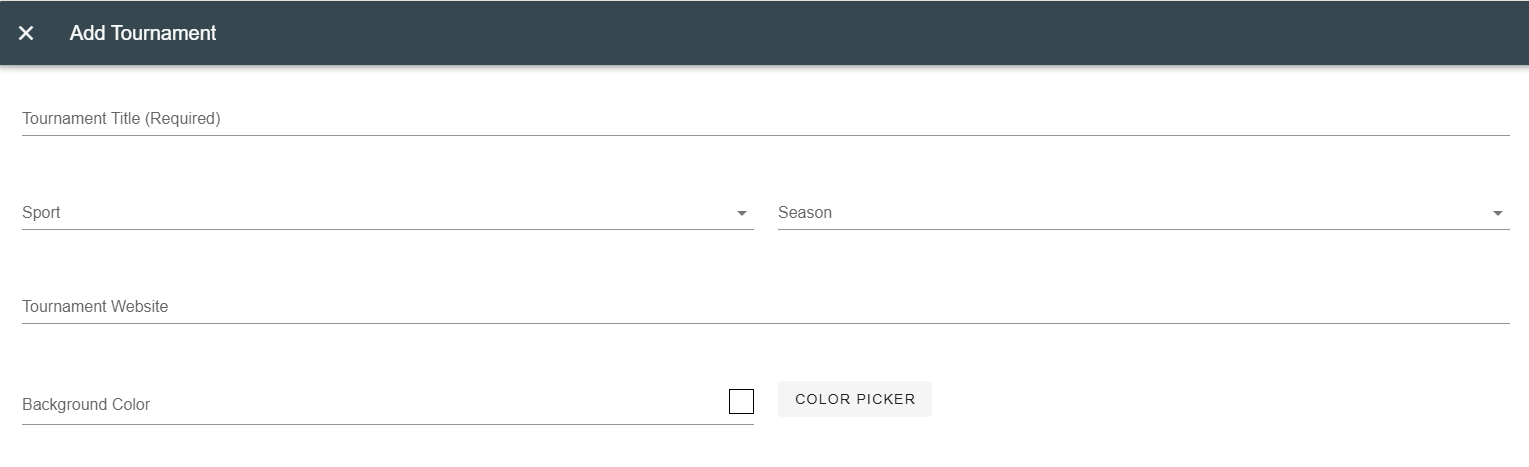
2. You will need to enter the Tournament Title.
3. Then select the Sport and the Season you want to associate with the tournament by clicking on the drop down list. If the tournament will be used in all sports, such as NCAA Tournament, use the default of show all sports.
4. You can then enter the tournament website information, but this is not required.
5. To color code the different tournaments and organize the scheduled games on the front end of your website you can select a unique background color for every tournament by clicking on the Color Picker button and selecting the color from the color palette which pops up. If you leave this blank, a default site color will be used instead.
6. Once you are done entering the details, click on the blue "Save" button in bottom righthand corner of page.
Associating a game to a Tournament:
In the 'Add/Edit Game Information' area, click on the Game Information tab. Then in the section called Tournaments, click on the drop down menu and choose the appropriate tournament as seen below:
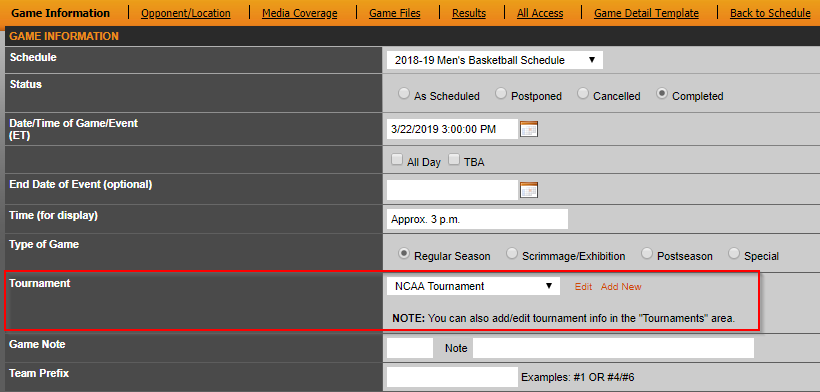
Be sure to mark all games that are part of the tournament as this will group them on your schedule using the color chosen.
Was this article helpful?
That’s Great!
Thank you for your feedback
Sorry! We couldn't be helpful
Thank you for your feedback
Feedback sent
We appreciate your effort and will try to fix the article