The Tournaments section in the SIDEARM software allows you to easily create a tournament central page for any tournament you might host.
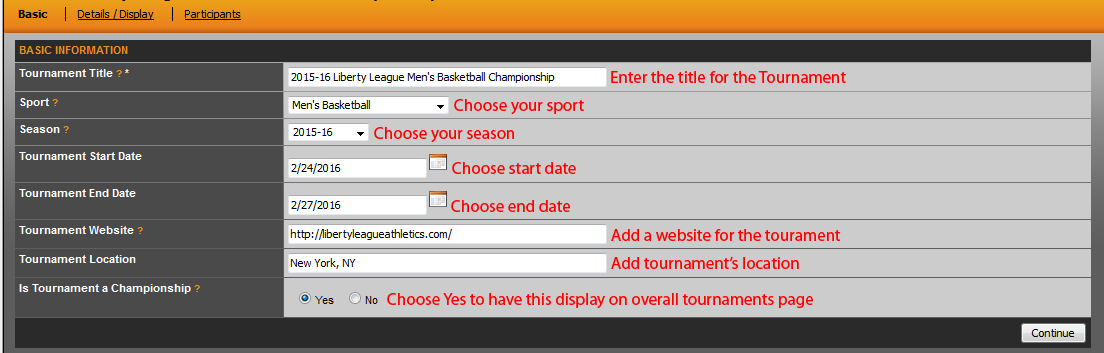
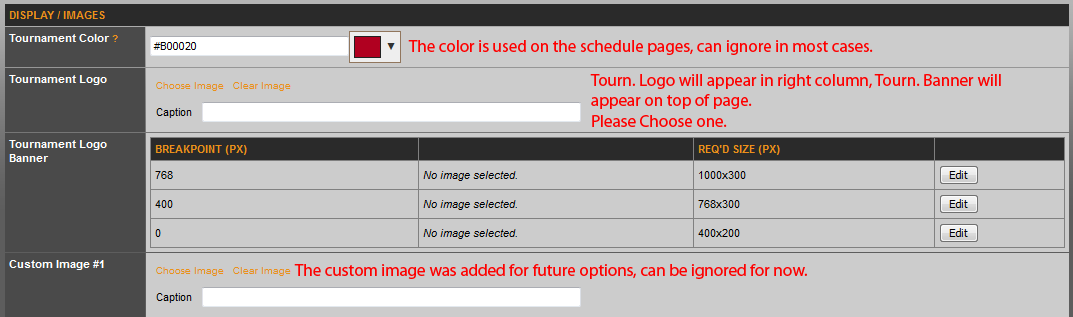
Below, you will find diagrams of each step when adding a new tournament central page and the purpose of each field.
Basic Tab
Details / Display
Description / Text
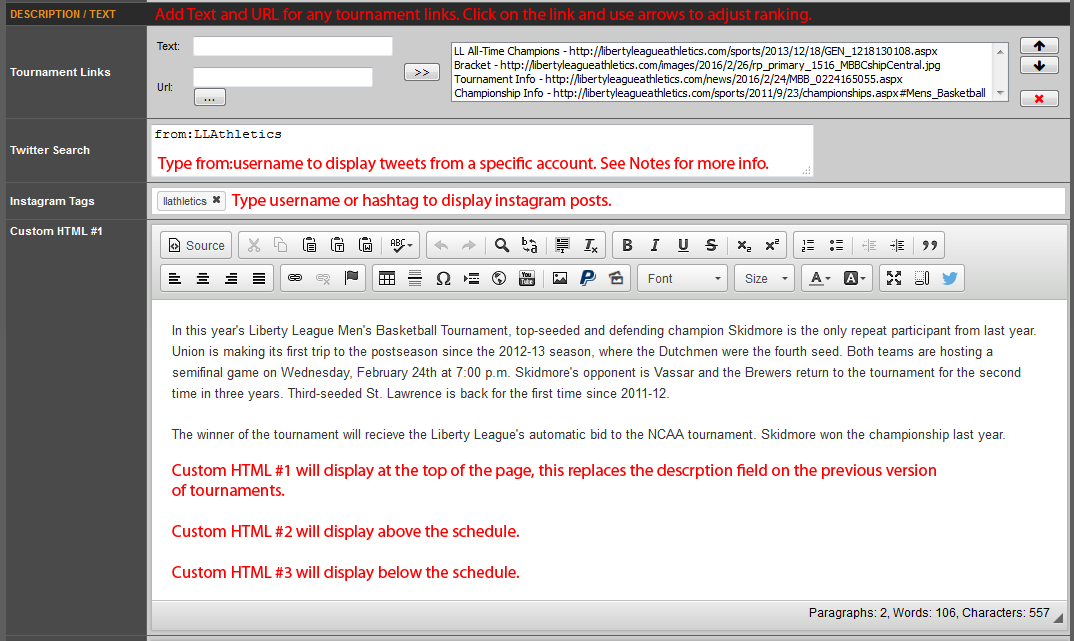
Notes: When working with this version of the twitter search, you can enter multiple accounts / searches to pull from. If looking to display just tweets from a specific account, use from: followed by the username, with no spaces in between the colon and the username. If you wish to have tweets pull from two ore more accounts, separate the from tags with a capital OR. So from:sports OR from:school would be the needed format. If you wish to display a search or hashtag, use "search" or "#search" with your desired term replacing the word search. You can still use the capital OR to have multiple searches and can mix the two. Just remember that there is no way to delete or filter any tweet in a search, these are pulling directly from twitter.
Participants
Something new, you can now choose which participants will appear and can setup what links you want to appear for them as well.

To begin adding participants, click on the drop down menu and choose the school and then click the add button. If you want them in alphabetical order, then be sure to add them as there is not a sort function available after choosing. If by chance you make a mistake, you can click the orange remove link under the school's name and then adjust by adding schools again.
By default, the school's website link will load, you can choose to keep or change this. To add additional links, click on the Add Link button and then type the Title and URL for that link. When done, be sure to click the Save Tournament button. As a change from the previous version, the participants will now appear in the right column, below the tournament links.
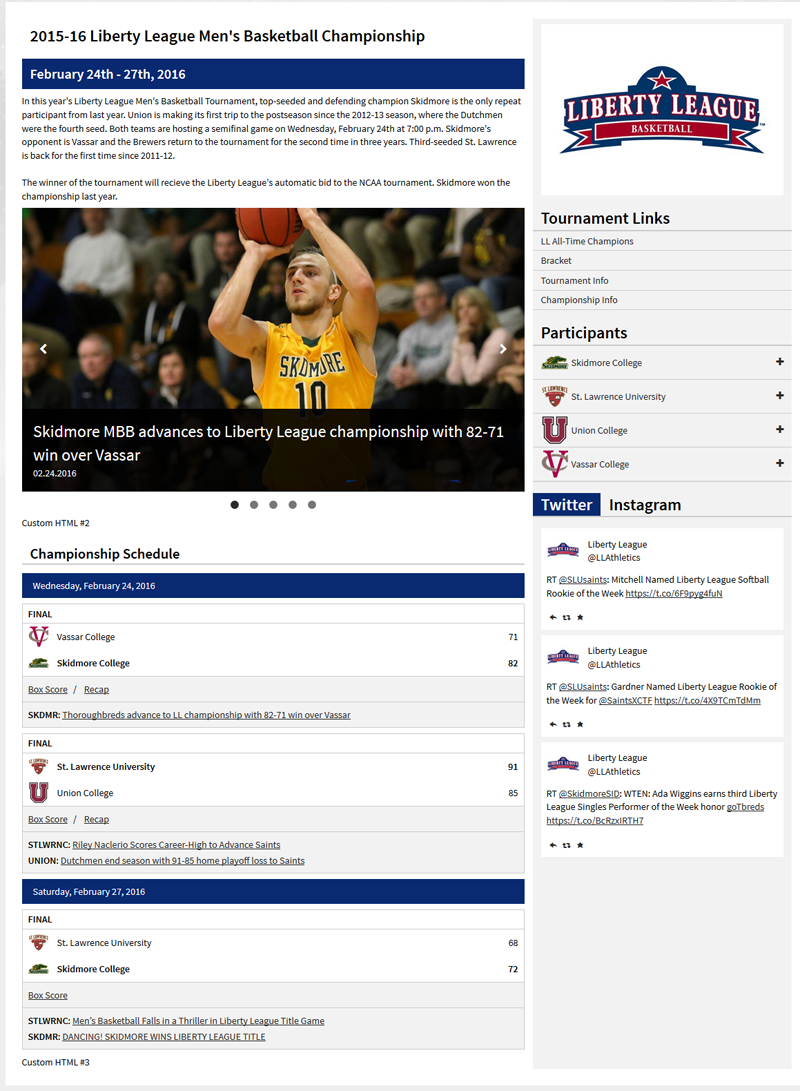
Front Page Example
Here is a sample of how the page can look on the front end: http://libertyleagueathletics.com/tournaments/?id=13
To get games to display, you will need to associate them to the tournament, this can be done when you edit a game on the schedule and choose the proper tournament from the tournament drop down.

To get stories to populate, you would need to associate the story to one of the games that has been associated to the tournament.
Was this article helpful?
That’s Great!
Thank you for your feedback
Sorry! We couldn't be helpful
Thank you for your feedback
Feedback sent
We appreciate your effort and will try to fix the article