The Primary Image Tab is the step where you will choose the main image for your story that will appear in the Story Rotator on your main and sport pages. It will also serve as the main image for the story page itself unless otherwise specified.
To select the image, simply click on 'Choose Image' which will bring up a window of your Image Database on the site. When ready, click the 'Choose' button and you are all set.
If there was a scenario where you would like to have a different image or no image display on the inside story page, click on the second radio button title Display Alternate Image or No Image and then either choose an additional image in the area provided or leave it blank.
To select the image, simply click on 'Choose Image' which will bring up a window of your Image Database on the site. When ready, click the 'Choose' button and you are all set.
If there was a scenario where you would like to have a different image or no image display on the inside story page, click on the second radio button title Display Alternate Image or No Image and then either choose an additional image in the area provided or leave it blank.
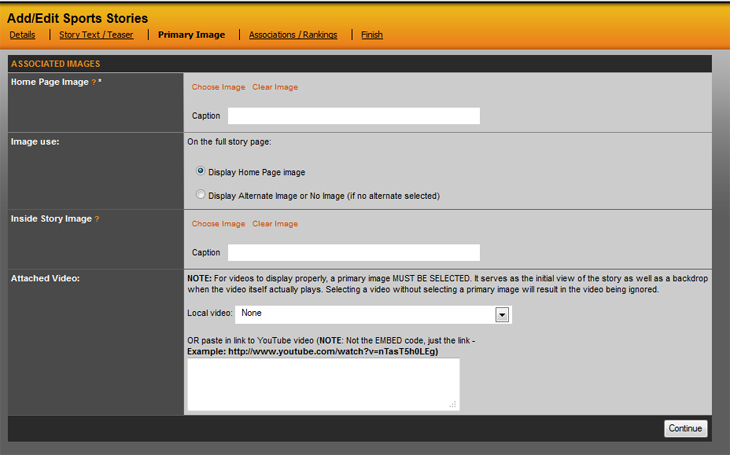
The last two options allow you to insert a video that will play off the primary image. If you are uploading Video Content to SIDEARM, you would use the dropdown menu to choose the video. If you want to use a YouTube Video, then you can paste the link to the youtube video into the box shown above. The key with YouTube is to use the actual video link (http://www.youtube.com/watch?v=nTasT5h0LEg) and not the abbreviated one that pops up in the share area (http://youtu.be/nTasT5h0LEg).
Was this article helpful?
That’s Great!
Thank you for your feedback
Sorry! We couldn't be helpful
Thank you for your feedback
Feedback sent
We appreciate your effort and will try to fix the article