Display Head-to-Head Format
Controls how a game or event is displayed to end users — choosing between a head-to-head layout and a generic layout.
⚠️ Current availability: This setting currently applies to the mobile app Game Rotator only. We are exploring other areas where this setting can be leveraged to improve your site and app. If you have a recommendation, please send it to the Support team (support@sidearmsports.com) for consideration.
Setting Overview
This setting can be applied to individual games or events within the CMS. It determines which display format is applied when the event is rendered for end users.
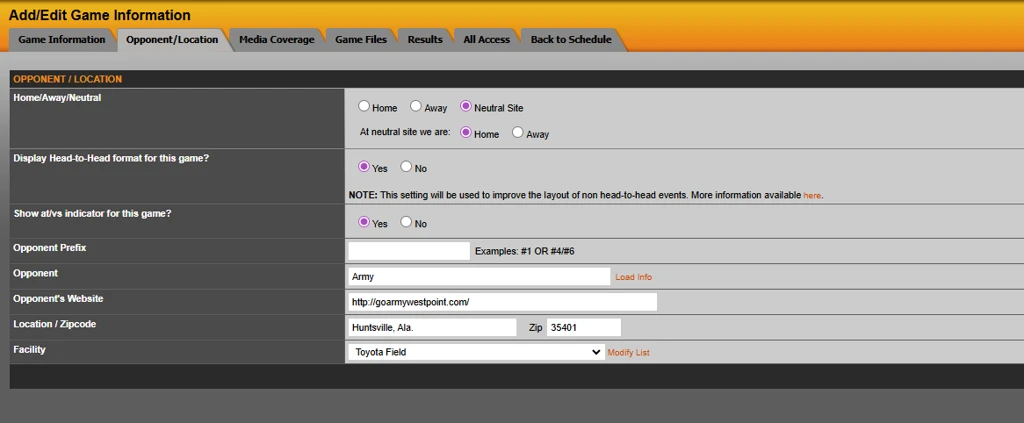
To find the setting, log in to the CMS and navigate to: Schedule → Game → Opponent/Location Tab.
Setting label: Display Head-to-Head format for this game?
Options: Yes / No
What Each Option Does
Use this setting to match the display format to the nature of the event. Not all events involve two competing sides — selecting the wrong format can result in an awkward or misleading layout for end users.
Yes: Head-to-Head Format Use for events where your school is competing against a specific team or opponent. The layout will show both school names and logos with associated scores and stats.
No: Generic Format Use for events that do not involve a direct opponent, such as multi-entry formats, solo competitions, or non-competitive events such as an awards ceremony. The layout adjusts accordingly.
What Changes When Set to "No"
The setting defaults to “Yes” as the selection. Setting this to “No” triggers the following changes to how the event is displayed:
A different layout template is applied. A generic layout template is used in place of the head-to-head template.
Certain UI elements are hidden. Rather than displaying “Your School Name and Logo” vs/at “Opponent Name and Logo”, the template will display only the “Opponent Name and Logo” as populated in the “Opponent” field. In this case, “Opponent” field should be used as the event title, such as “NCAA Indoor Championships”.
Scores and stats are displayed differently. Rather than presenting scores in a versus context, results and statistics are either not shown, or shown in a format appropriate for the event.
Note: Leverage the “Show at/vs indicator for this game?” setting to determine if “Vs” or “At” should display for the event.
Guidance by Event Type
Event Type | Recommended Setting |
|---|---|
Sports game or match (i.e. Soccer, Basketball) | Yes — two teams or players competing directly against each other. |
Individual or team competitions with no direct opponent (i.e. Cross Country, Track & Field) | No — competitors are not a single opponent. |
Other event types (i.e. Awards Ceremonies, Football Spring Game) | Consider whether a clear "two sides" structure exists. If not, default to No. |
If you are unsure which format is appropriate for a specific event type, contact the support team. Applying the wrong format may cause display issues for end users.
Examples
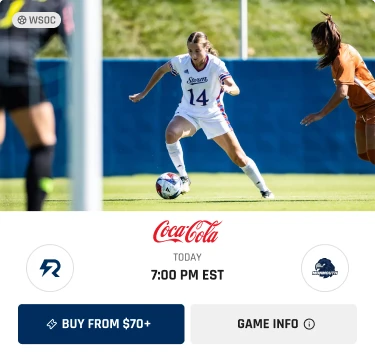
Game Rotator: Head-to-Head
Game Rotator: Non-Head-to-Head


Was this article helpful?
That’s Great!
Thank you for your feedback
Sorry! We couldn't be helpful
Thank you for your feedback
Feedback sent
We appreciate your effort and will try to fix the article