One method for adding new games into a schedule is to use the Add New Game option inside of the Scheduled Games area. This method had two steps to add a game, the Game Information and Opponent/Location. There are additional options for adding Media Coverage and Game Files, but only the first two steps are required.
Game Information
The first step titled Game Information is where you will enter the Date, Time, Type of Game. etc.
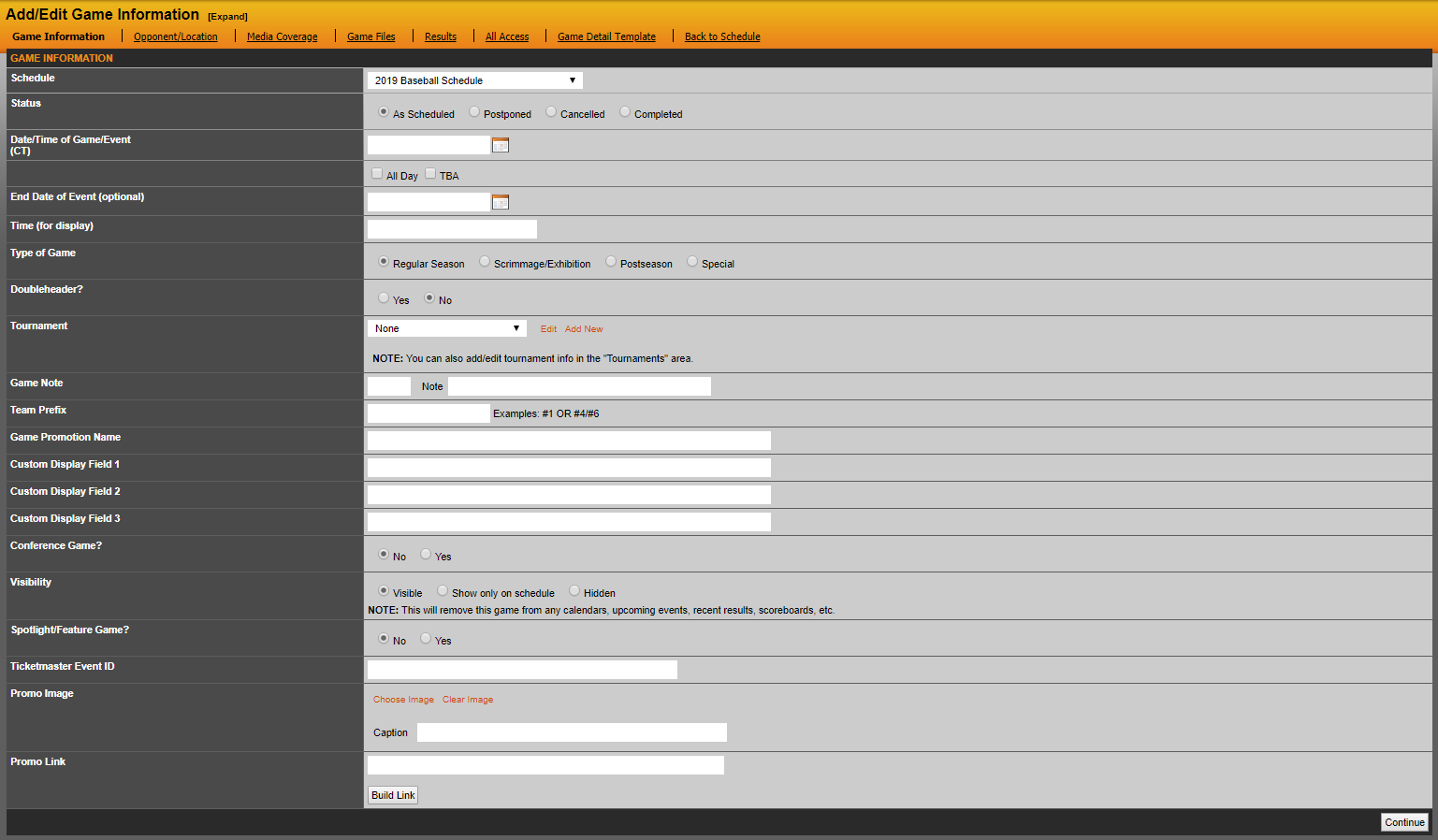
Add/Edit Game Information
The second step, titled Opponent/Location, is where you will game the opponent and location information.
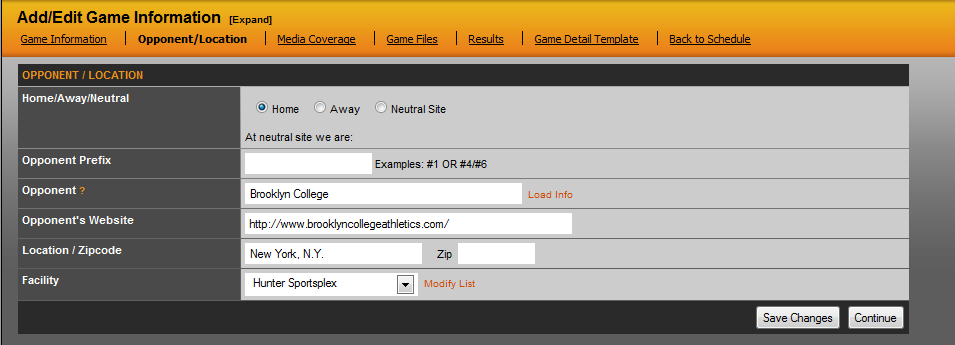
Home/Away/Neutral: Choosing if the game is home or away or at a neutral site.
Opponent Prefix: This is used for displaying an opponent's national ranking.
Opponent: Here you can type in the opponent's name or for a sport like track, you can type in the event or invitational name you are competing at.
Load Info: Clicking the orange 'load info' link will present a menu where you can pull in the opponent's information from either the local list on your site or from our global database.
Opponent's Website: Here you can enter the opponent's website. When selecting from the local or global list, this will fill in automatically.
Location / Zipcode: Here you can enter the location for the game and the zip code. When selecting from the local or global list, this will fill in automatically.
Facility: Here you can choose a facility for the game, this list is built in the Facilities section under site settings.
Was this article helpful?
That’s Great!
Thank you for your feedback
Sorry! We couldn't be helpful
Thank you for your feedback
Feedback sent
We appreciate your effort and will try to fix the article