Creating an auction
1. The first step in creating an auction is to determine which selling format will be best for the item. There are two main selling formats (types) to choose from:
a. Auction
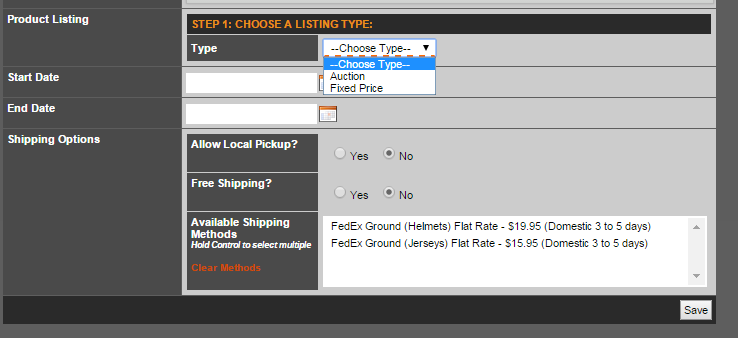
b. Fixed Price.
Auction
Using an auction selling format, registered users of the site can bid on an item until the end date is reached. When the end date is reached, the seller agrees to sell that item to the highest bidder. When using this selling format, the product listed must be a single SKU with no variations.
· Starting Price – This is the amount at which bidding begins. No bids lower than this amount will be accepted.
· Minimum Bid Increment – If this value is set, bidders will have to bid in increments of at least this amount. If this is not set, the minimum bid increment will default to $.01.
· Reserve Price – This is the minimum amount a seller is willing to accept for an item. If a reserve price is set, the seller will not sell the item if bidding does not reach this amount.
· Show Reserve Notification – A notification will be listed on the auction page to indicate to bidders whether or not the reserve price (if entered) has been met or not.
· Buy it Now – In a “Buy It Now” auction, a user can buy the item, without bidding, for the price set by the seller. The “Buy It Now” option will be shown until the reserve price has been met (if entered). If a reserve price has not been entered, the Buy It Now option will be removed from the frontend when a bid has been placed. If a user purchases the item using the “Buy It Now” option and depletes the inventory, the auction will end, regardless of the end date.
Fixed Price
Using a fixed price selling format, the seller can list an item for a fixed price. There is no bidding involved and the user can purchase the item immediately. When selling products using a fixed price format, the product listed can have zero to two variations. For example, a T-Shirt can be listed with size and color variations.
· Price – This is the price at which the seller agrees to sell the item. It is not subject to bidding.
· Custom Text Field - This option is available for items that require custom information/text that needs to be included on the item, such as engraving.
2. After determining the best selling format for the item, the seller will need to enter the product information.
· Product Details – A product should have basic information entered like a title and a description. The description will appear on the full listings page. Optionally, you can choose a manufacturer of the product and whether to not track inventory when orders are placed. You can also choose to hide the product from any listings.
· Variations – A product can have zero to two variations. Common variations include things like size or color.
· SKUs – A product with zero variations has only one SKU. The more variations added, the more SKU’s that are generated, as adding variations increase the number of unique products. Each SKU that is generated will be created with an inventory of 1. The number will need to be modified to reflect the actual number of items in stock. As orders are placed for SKU’s, (assuming the seller has chosen to track inventory), the inventory will be updated. Sellers can optionally enter a tracking number for their record keeping purposes and an image for that specific item.
· Images – Sellers can enter zero or more images for any product. If more than one image is entered, the user can order these images as they appear on the listing page. By default, the first ranked image will be the main image displayed for any product.
· Categories – After all product information has been entered, the user can choose any categories this product belongs to (categories explained in more detail later in this document).
3. After choosing your selling format and the product to be listed, there are a couple other details to enter.
· Title/Teaser – The title and teaser will appear on the auctions listing main page. The full listing will show the description entered for the product, not the teaser.
· Start Date – The start date indicates when this listing is visible. Once the start date is reached, the listing will be displayed.
· End Date – When the end date is reached, the listing will be removed from the site. For auction selling format, bidding will end. For fixed price listings, the listing is removed from the site.
· Shipping Options – Shipping options are particular to a single listing as opposed to an entire order. At checkout, the user will select from the available shipping methods for each item in their shopping cart.
4. Save your listing and as soon as the start date is reached, this listing will be available for users.
Was this article helpful?
That’s Great!
Thank you for your feedback
Sorry! We couldn't be helpful
Thank you for your feedback
Feedback sent
We appreciate your effort and will try to fix the article