The Watch+ layout section (formerly Series Layout) is where the site admin will go to build out how the page is going to look and choose which content will be featured. They will choose from the available widgets and can then adjust the order as often as needed.
Available Widgets
There ten widgets available for site admin’s to use in building out the Watch+ page. Some are duplicates, while most are unique panels.
Live Events
For any school who plans on posting live streams will need to include this widget. The suggestion is for it to be placed at the top of the page.
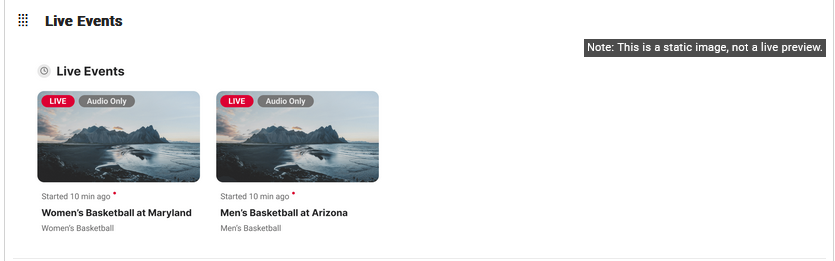
Note: This widget will only show on the page when there are live events taking place that day.
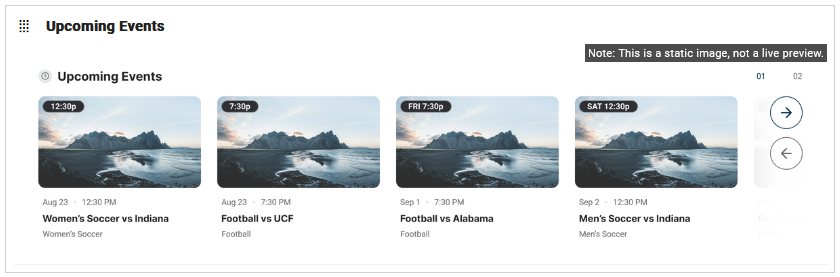
Upcoming Events
The upcoming events widget should be used for schools who plan to post live streams. This widget will display any live streams scheduled for beyond the current day.
Individual Series Feature A
There are three different widgets to feature a series, the first option will show the description, a link to the series page, hero image and then display the available episodes below.
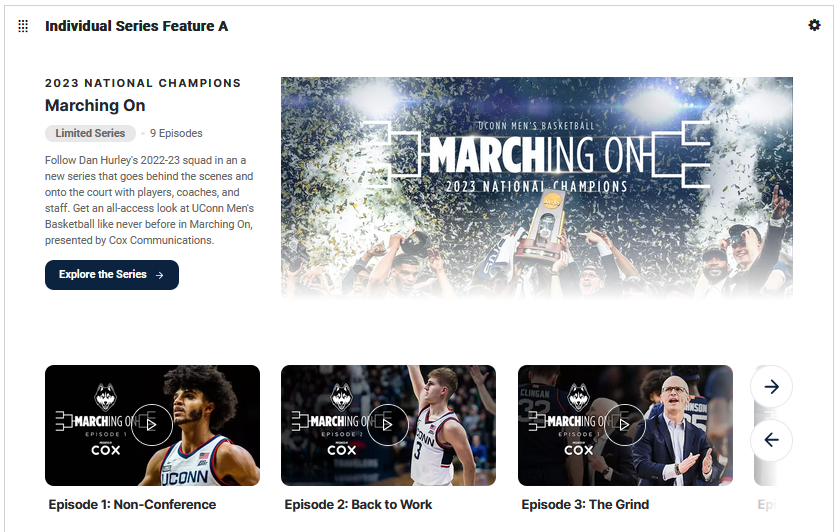
The widget does require a simple setup where the user must click the gear icon and enter the ‘tagline’ which in this case is “2023 National Champions” and then also must choose the series to feature.
Individual Series Feature B
The second option utilize a parallax background image, still displays the description with a link to the season home page and then shows a list of available episodes minus the thumbnails.
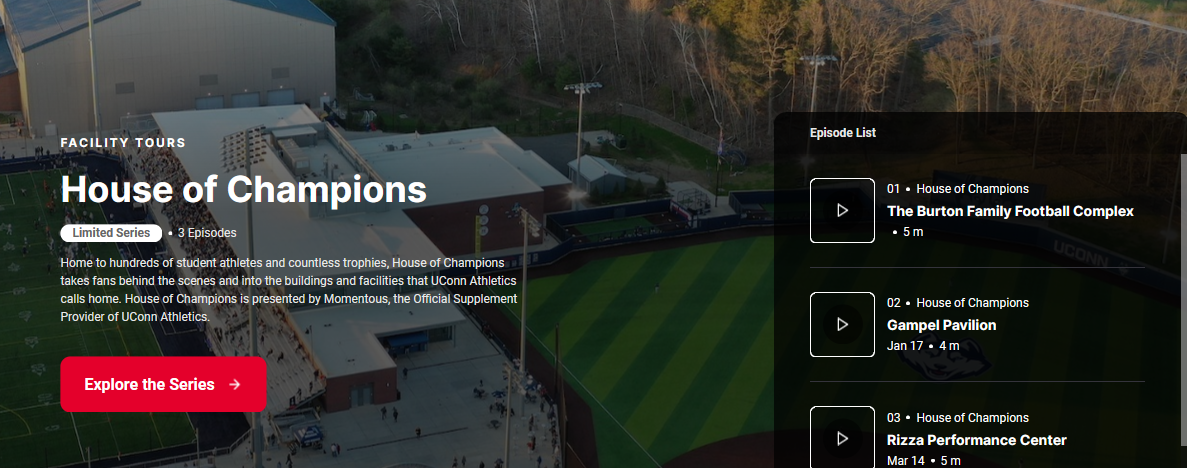
The setup of this widget requires a background image, ‘tagline’ and then choosing the series to feature.
Individual Series Feature C
The third option highlights each episode of a series, displaying the portrait image and description with the option to scroll through them.
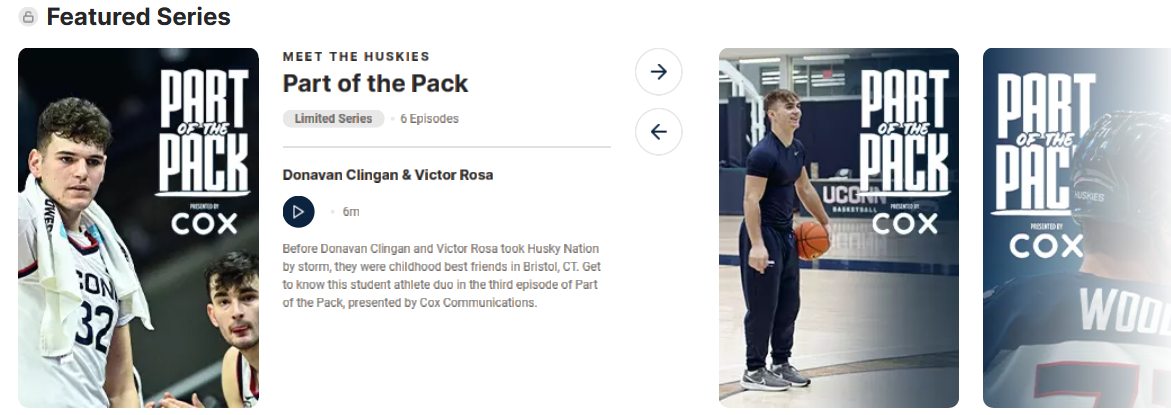
The setup of this widget requires just a ‘tagline’ and choosing the series to feature.
Episode Feature
There are two panels available to feature a single episode from a series.
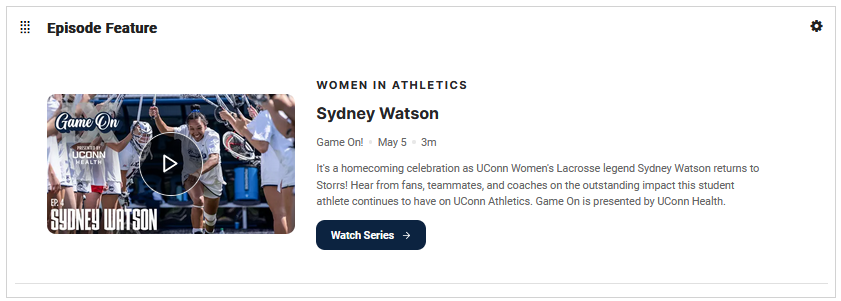
The setup of this widget includes a ‘tagline’, choosing the specific episode and a call to action for the button that links to the overall series homepage.
On-Demand
There are currently three widgets available to display an on-demand category. These categories are setup under ‘Media Files’ in the admin.
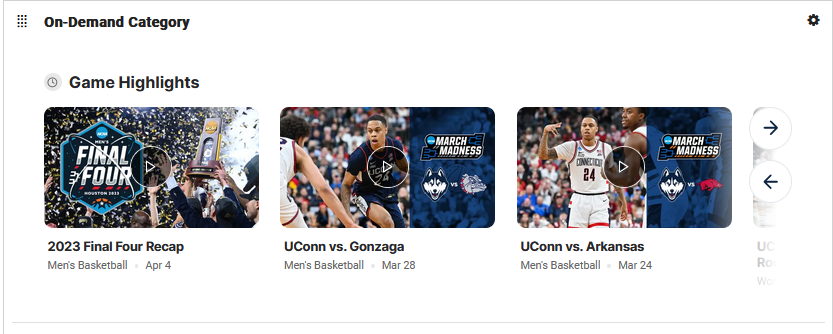
The setup of this widget just requires a title and choosing an on-demand category to highlight.
Important Note: When the Watch+ layout is active, each widget will show a live preview when adding it to the main area. However, if the page is not live, it will just show a static default image. The user will also not be able to preview the page before making it live.
Was this article helpful?
That’s Great!
Thank you for your feedback
Sorry! We couldn't be helpful
Thank you for your feedback
Feedback sent
We appreciate your effort and will try to fix the article