TABLE OF CONTENTS
- WinSCP Instructions (Recommeded)
- FileZilla Instructions
SIDEARM creates a static FTP for each partner site. A Static FTP is a secure location where your site’s static files are stored and accessed. Most commonly used by SIDEARM partners to house HTML stats files. It allows you to upload and manage these assets outside of the CMS environment when needed.
This page contains guidelines for connection to the new FTP servers utilizing SFTP. Instructions contained below are for using FileZilla as well as WinSCP FTP clients.
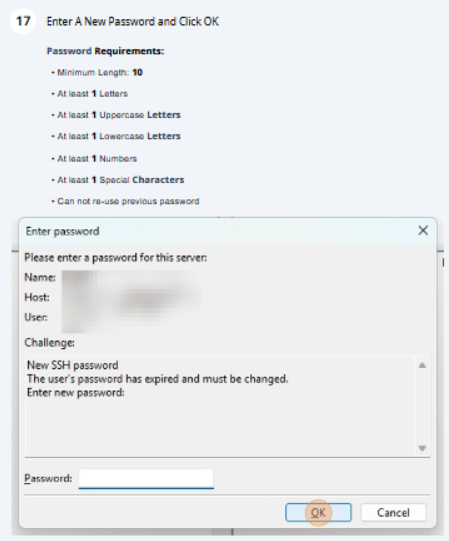
The current password complexity requirements are:
At least 10 characters in length
At least 1 capital letter
At least 1 lower-case letter
At least 1 number
At least 1 special character
Expire after 180 days
If you forget your FTP password, SIDEARM is able to issue a temporary password. On your next login attempt, you'll be prompted to create your own password.
WinSCP Instructions
WinSCP is a great choice for use as an FTP client.
We recommend, but do not require, switching to WinSCP as it has many useful features that FileZilla does not, and offers a less complex password update procedure.
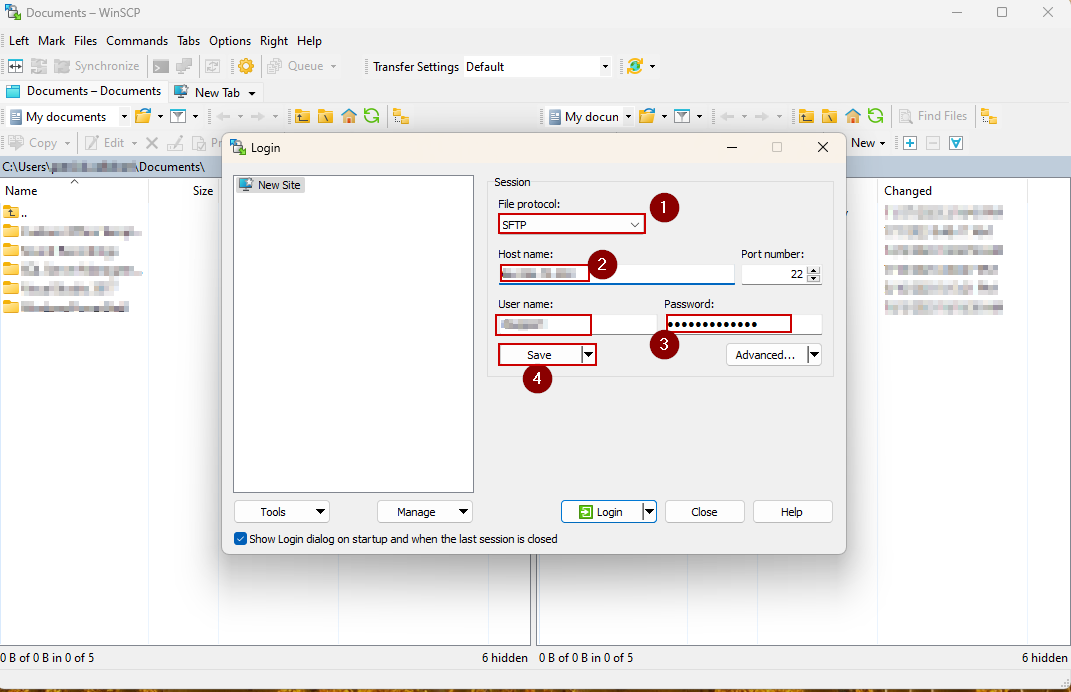
When you first open WinSCP, it will present a ‘Login’ window by default, which can be turned off if desired. At this screen, select ‘SFTP’ as the ‘File Protocol’, enter your ‘Host name’ as usual, followed by ‘User name’ and ‘Password’. If desired, you can then click ‘Save’ to save this information for connecting quickly later on, or just click ‘Login’ to connect now.
NOTE: It is not recommended to save your password when saving this connection - upon connecting to the saved connection later, you will be prompted for a password.
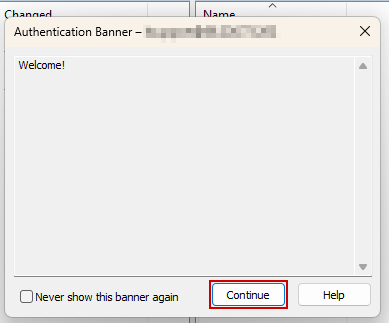
The ‘Welcome!’ banner will pop up, simply click ‘Continue’ to proceed, and select ‘Never show this banner again’ if desired.
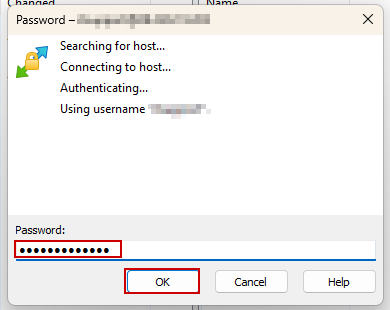
If you saved the connection and are connecting to it later, you will now be prompted to enter your password.
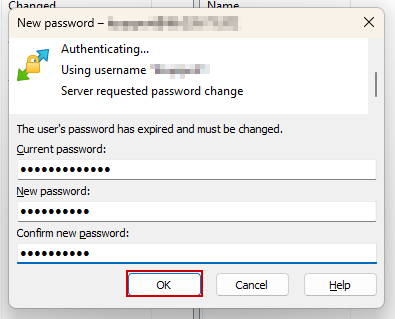
If your password has expired, you will be prompted to enter your old password, followed by your new password, and a confirmation thereafter.
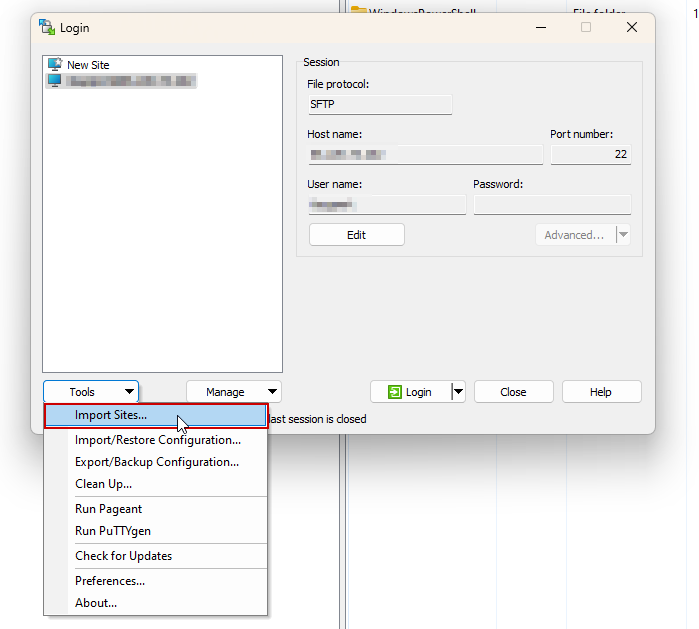
If you are switching over to WinSCP from FileZilla, you will have the option to import any previously saved sites using the ‘Import Sites…’ Tool from the initial ‘Login’ window.
FileZilla Instructions
Utilize the following steps/screenshots to walk through the process of resetting your Static FTP password in FileZilla.
Note: You cannot reset your password utilizing "Quickconnect".
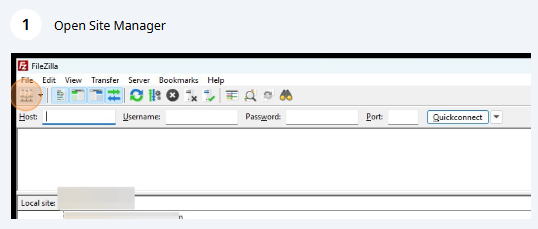
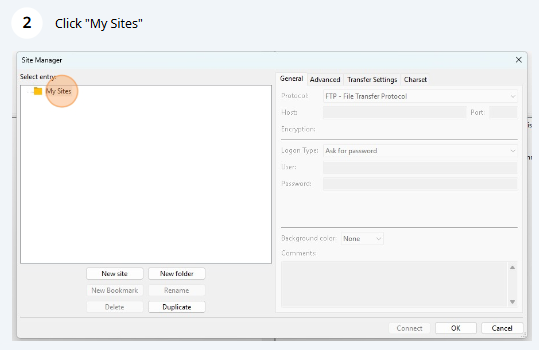
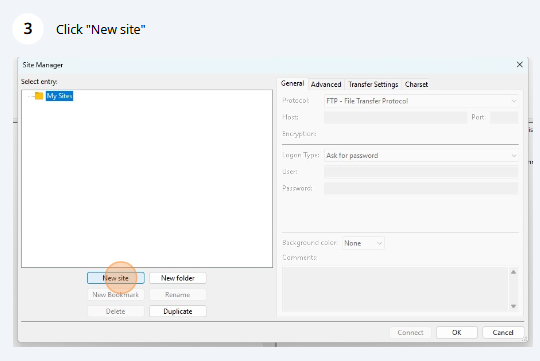
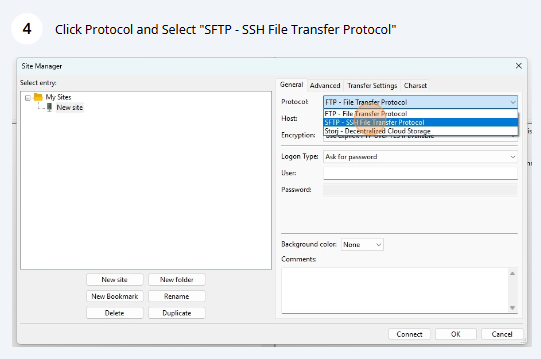
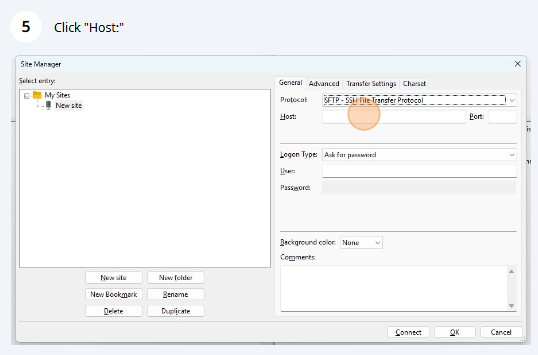
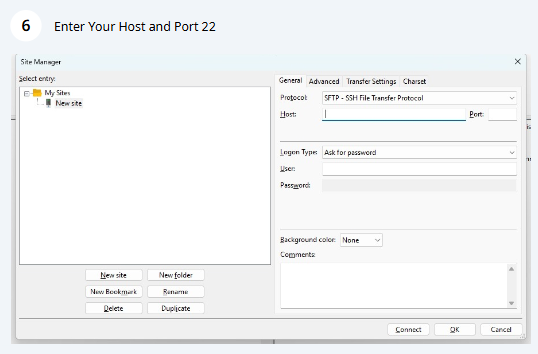
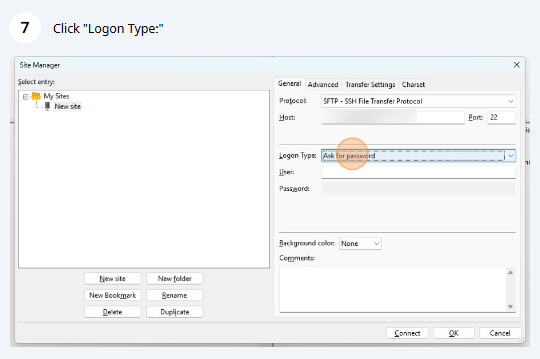
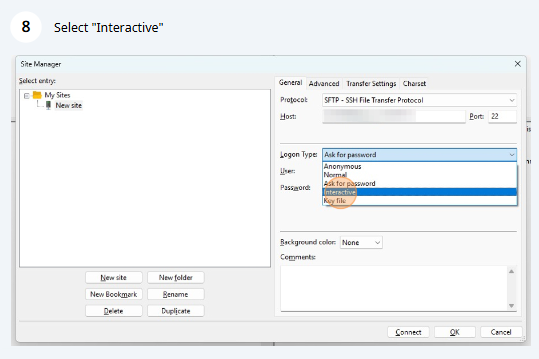
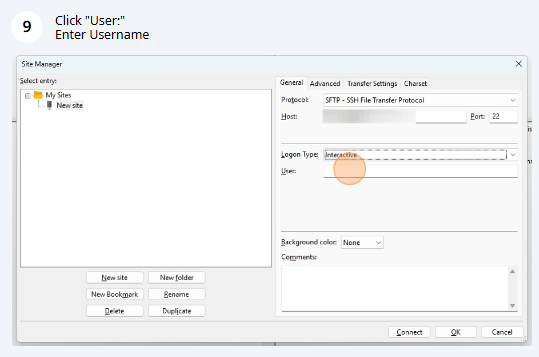
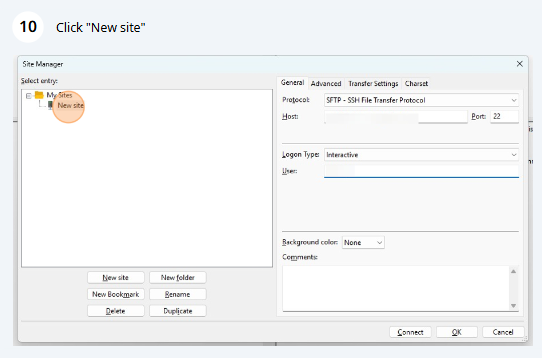
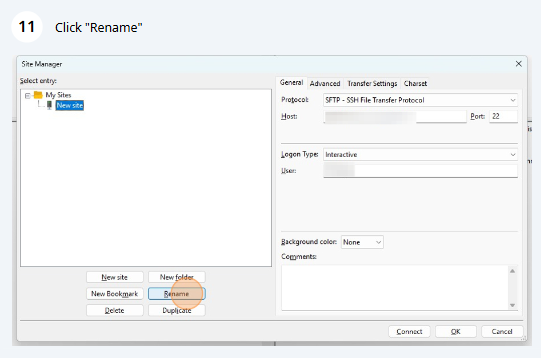
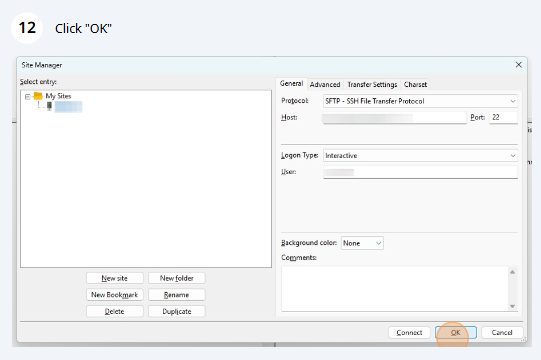
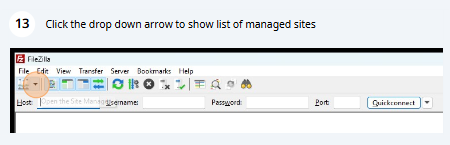
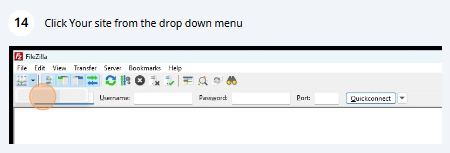
The Mac version of FileZilla doesn't appear to have the arrow. You should be able to click the Site Manager icon and double click you site entry to replicate steps 13 and 14 here.
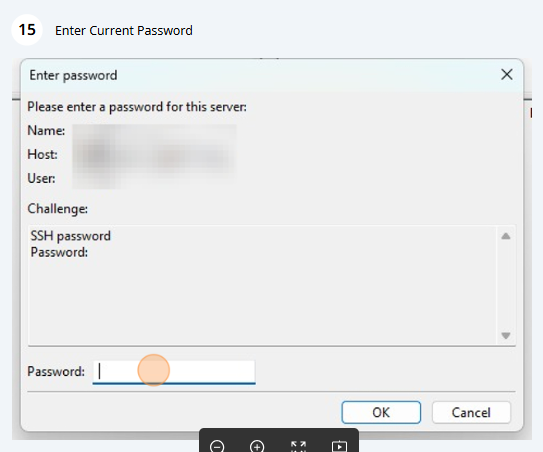
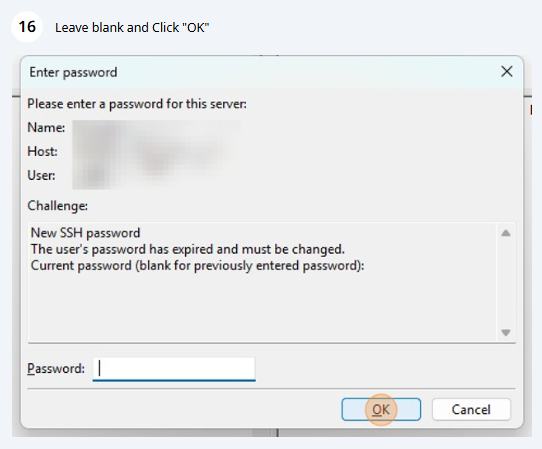
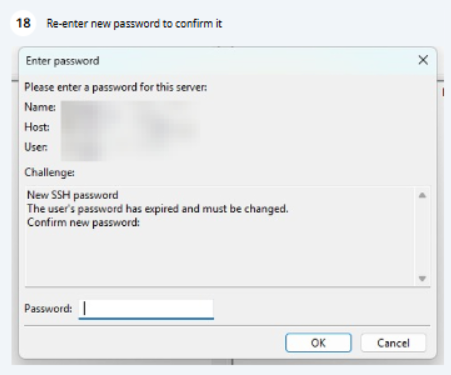
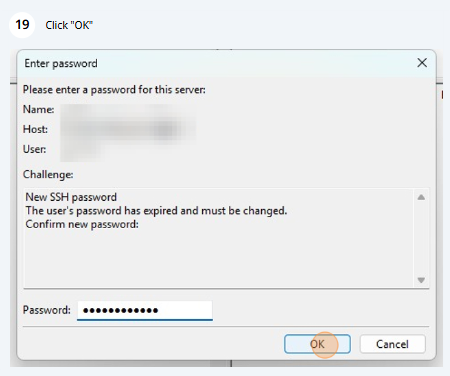
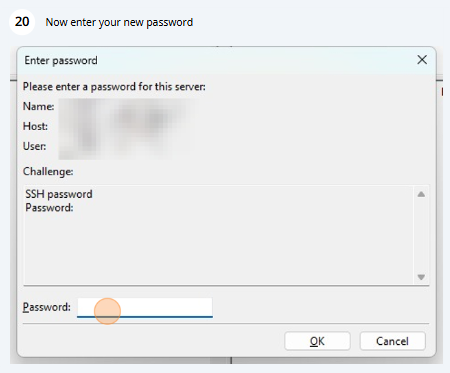
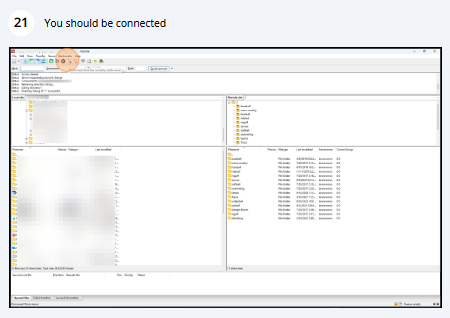
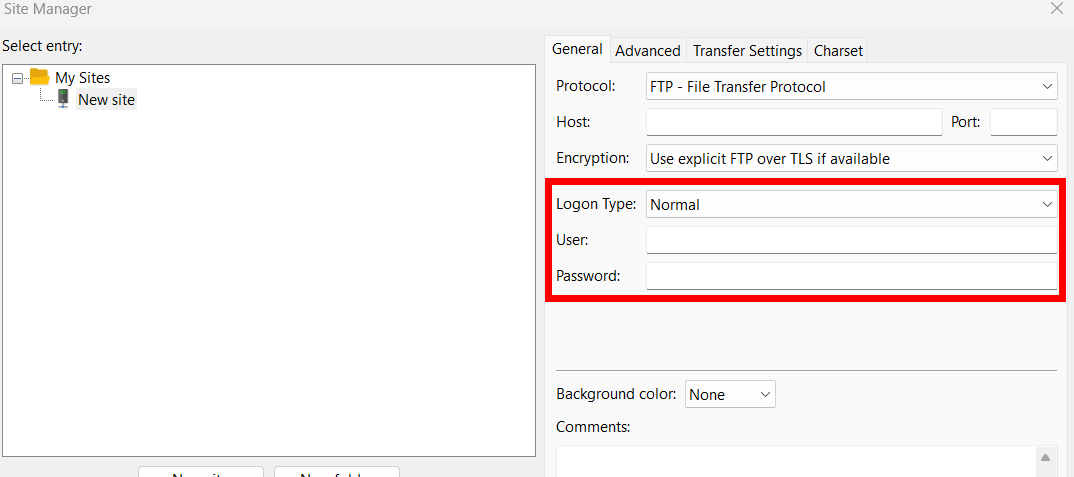
Once you have the new password set, you can switch the "Logon Type:" back to "Normal" so you can save your password for accessing the FTP until the password needs to be updated again.
Was this article helpful?
That’s Great!
Thank you for your feedback
Sorry! We couldn't be helpful
Thank you for your feedback
Feedback sent
We appreciate your effort and will try to fix the article