The Partners landing page provides a centralized location to display all sponsor and partner information in one organized, easy-to-navigate experience.
This feature replaces the need for creating sport-specific files filled with logos and external links, and instead presents partner content in a structured directory format.
If you would like this feature enabled on your site, please contact Support at support@sidearmsports.com.
Admin Management
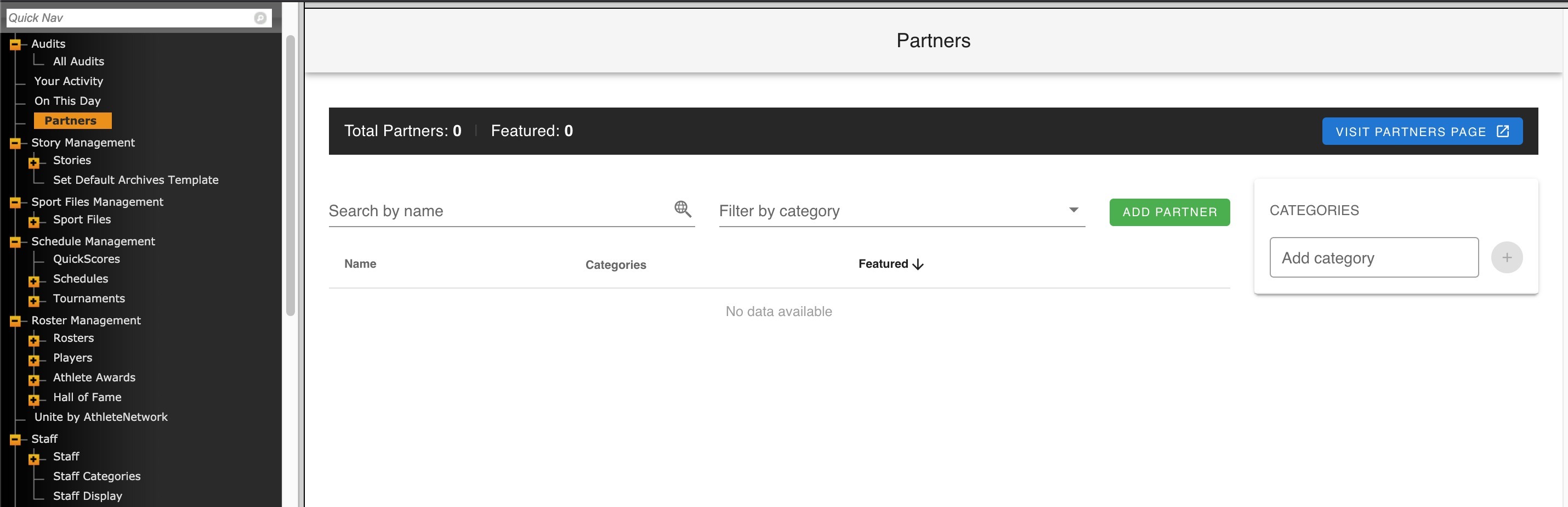
In the admin dashboard, the Partners section is located just above Stories.
From here, you can create, edit, and manage all partner content. The area is divided into two main sections:
You can also use search and filtering tools to locate partners by name or category.
Categories
Categories allow you to organize partners into logical groupings that can be applied when creating or editing a partner.
How to create a category
- Enter a category name in the text field
- Click the green plus button to add it
- The button becomes active once a valid name is entered
Categories should be created before assigning them to partners.
Adding a Partner
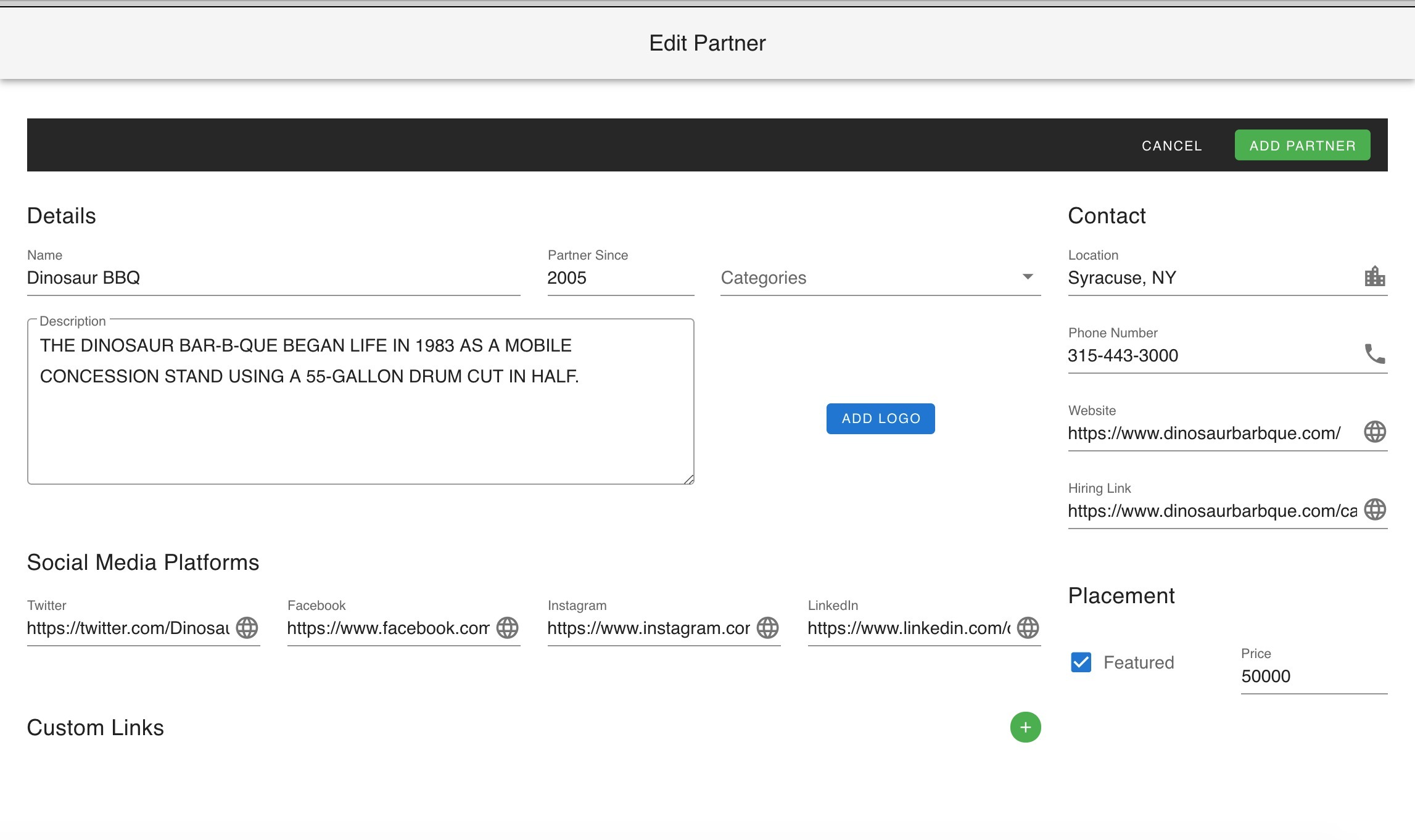
The Add Partner section is where you create individual partner entries and define how they appear on the frontend.
Required fields
Optional fields and settings
Categories
- Assign one or multiple categories to organize the partner
Logo
- Upload a logo using the Add Logo option
- Recommended size: 100x100 pixels
Social Media Platforms
- Icons will display on the frontend when configured
Placement and ordering
- Featured: Pins the partner to the top of the page
- Price: Controls display order
- Higher values appear higher in the list
- Example: 50000 will rank above 1000
- Sorting behavior:
- Featured partners appear first
- Within those groups, ordering is determined by price
Frontend Display
Once partners are created, they will automatically populate the public-facing Partners landing page in a unified directory view.
To access the page, append /partners to your site URL.