The SIDEARM tagging platform adds the ability to tag content to a user created term or phrase and then be able to view all tagged content in one centralized location.
Will replace the need to create a sport page when needing to have filterable content around an event, department or individual.
How to control tags from the admin side of your site
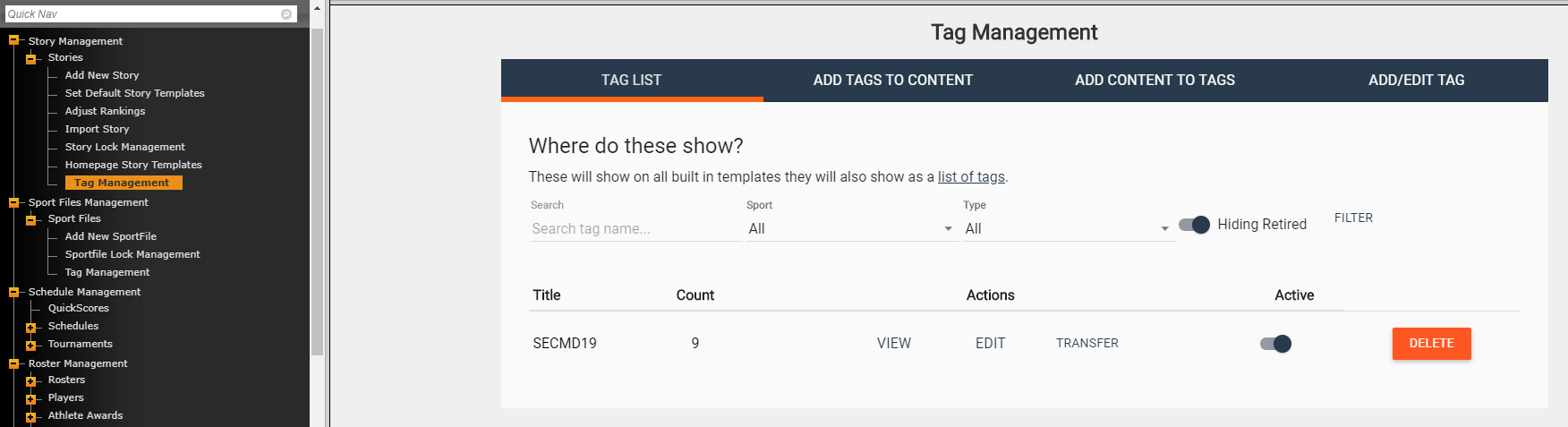
On the admin side of your site you can currently find Tag Management under Stories, Sport Files, Photo Galleries, Podcats, and All-Access Media Files.
The tag management area allows you to add/edit/view your tags.
You'll see four areas. TAG LIST | ADD TAGS TO CONTENT | ADD CONTENT TO TAGS | ADD/EDIT TAG
TAG LIST
This is where you can search for existing tags, view the live tagging page, edit the tag name/description and transfer one tags content to another.
TIP: You can use the TRANSFER option to move all content associated with a tag. Content associated with old tag will be removed and added to the new selected tag.
ADD TAGS TO CONTENT
You can view content from the site, with the option to filter, and apply a tag.
ADD CONTENT TO TAGS
An additional way to view your existing content and add tags to that content.
ADD/EDIT TAG
Create new tags that will display in your TAG LIST.
Live landing page
Once you've created a tag and began adding content, you'll be able to view/present all of the content in one convenient area.
All tags can be found by adding "/tags" to the end of your URL. Example: https://floridagators.com/tags
For specific tags, you have the option to display that content with search options to find other tags. Example: https://floridagators.com/tags/secmd19
Another option will be to add "/landing" to the end of the URL in order to present a more focused page. Example: https://floridagators.com/tags/secmd19/landing
Adding a tagging widget to stories/sport files/etc.
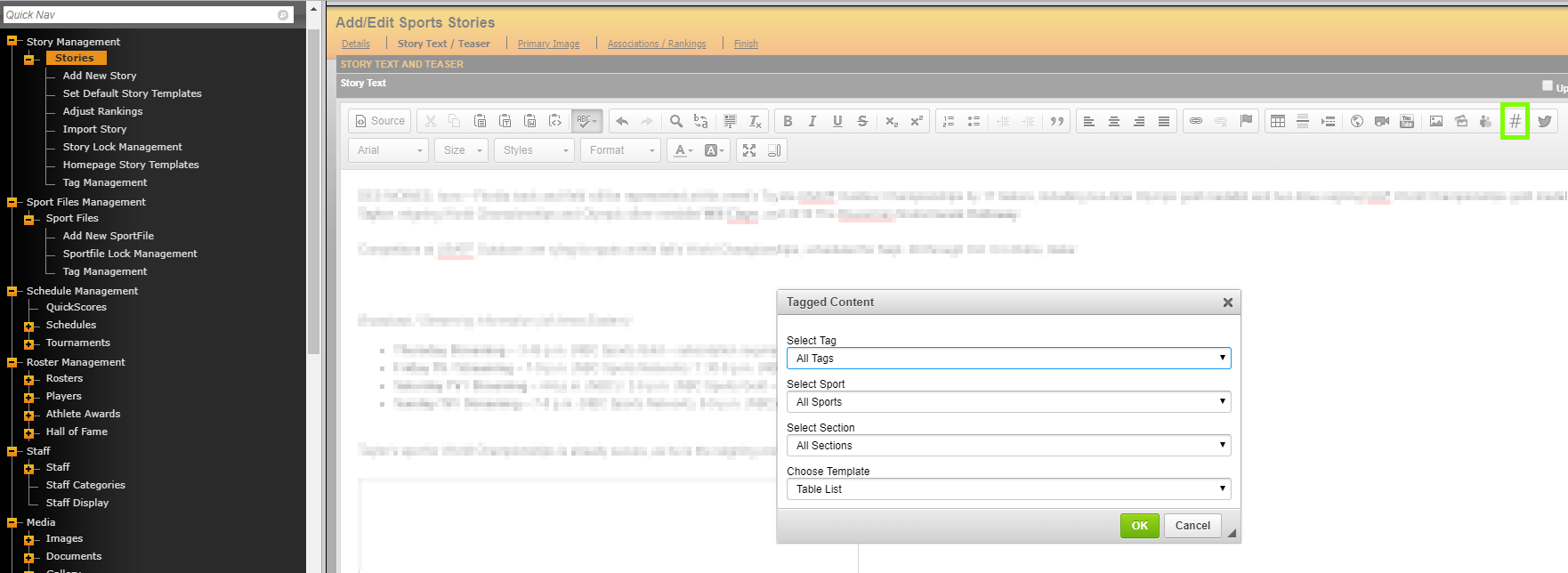
Another option for viewing/presenting your tagged content is through a brand new tagging widget.
You'll find that in the text editor buttons wherever you add text on the site.
When adding the widget you'll have the option to select the tag / select a specific sport / select a section / choose a template.
Was this article helpful?
That’s Great!
Thank you for your feedback
Sorry! We couldn't be helpful
Thank you for your feedback
Feedback sent
We appreciate your effort and will try to fix the article