The most important material on the SIDEARM Venue Platform is the events of course!
To add or manage events click Event Management > Events > Add Event or Manage:
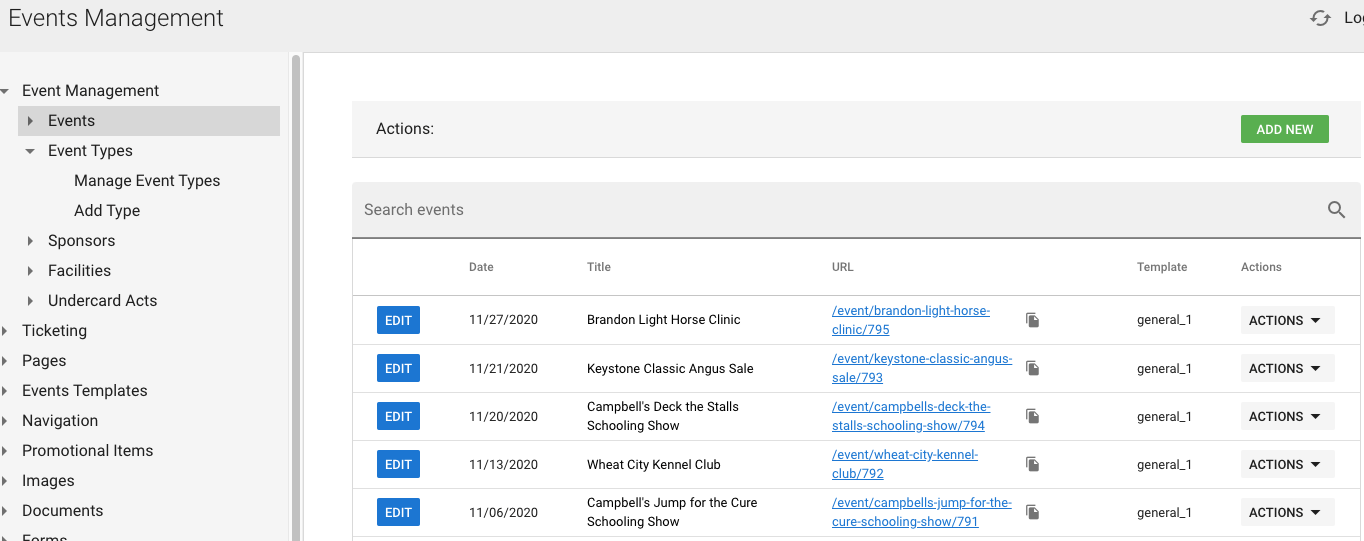
From this manage screen, you can click actions and quickly View, Hide, Cancel, or Delete events. On the left you'll see a blue edit button:
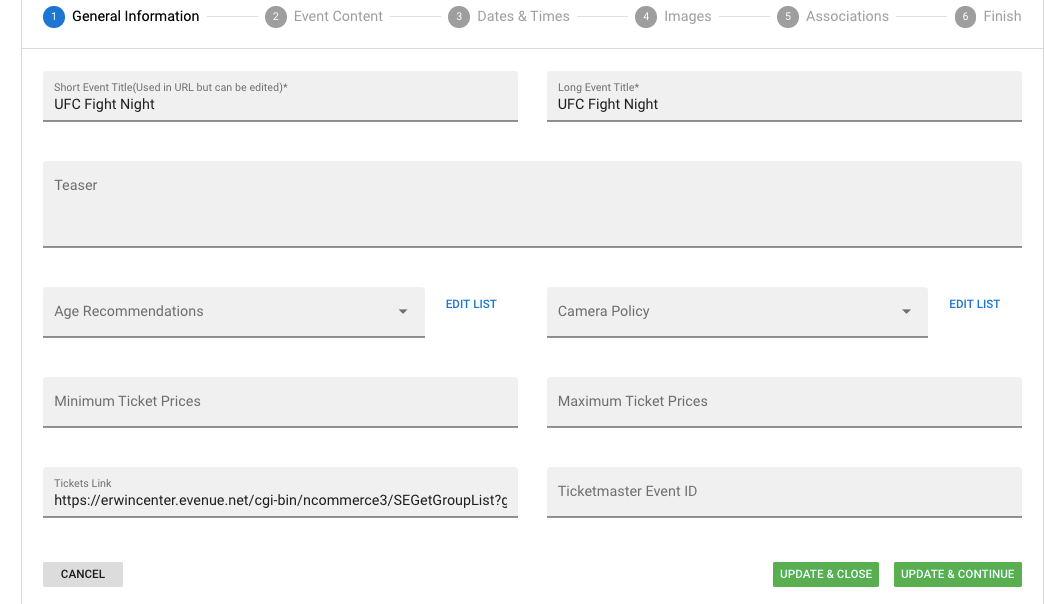
There are six steps to follow when adding events to the back. First is General Information
1.) give the event a title,
2.) set age recommendations and camera policy (if applicable). If the stock ones aren't what you want, click "edit list" to manage those.
3.) Set relevant ticketing information UNLESS you are using the Paciolan catalog integration
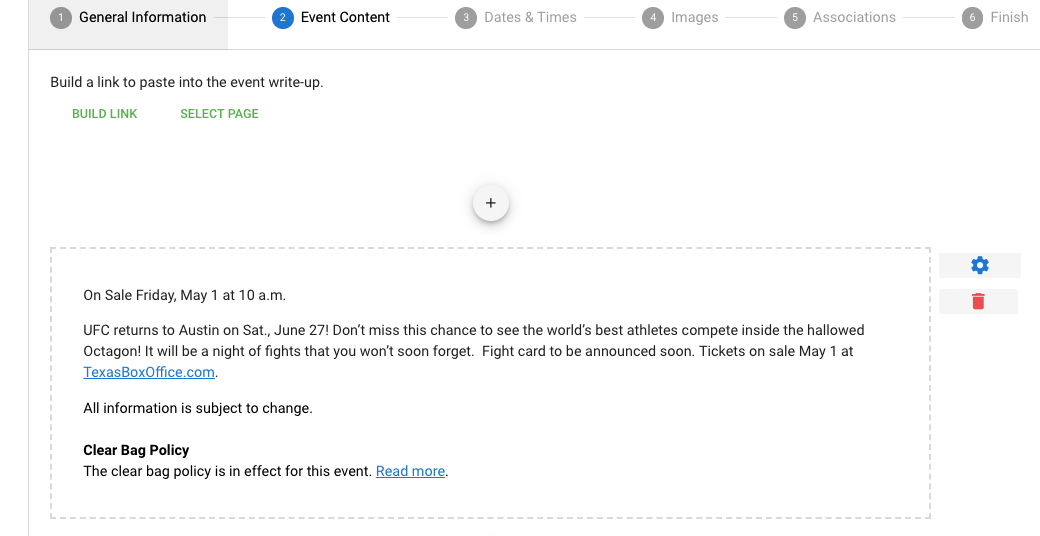
Next build out your specific event content in the text editor:
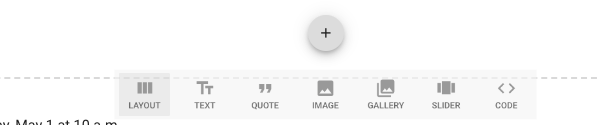
Similar to Pages in the Venue Platform Software, you can add several types of content into the editor by clicking the plus:
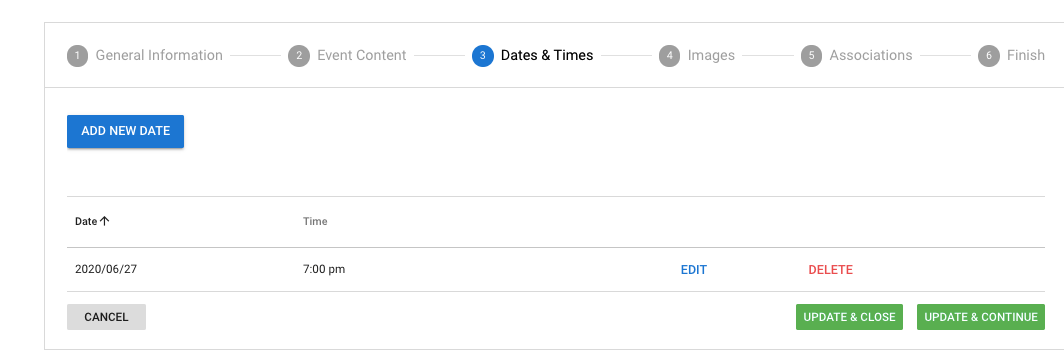
Next, set the event date & time. If event has more than one date/time feel free to set that:
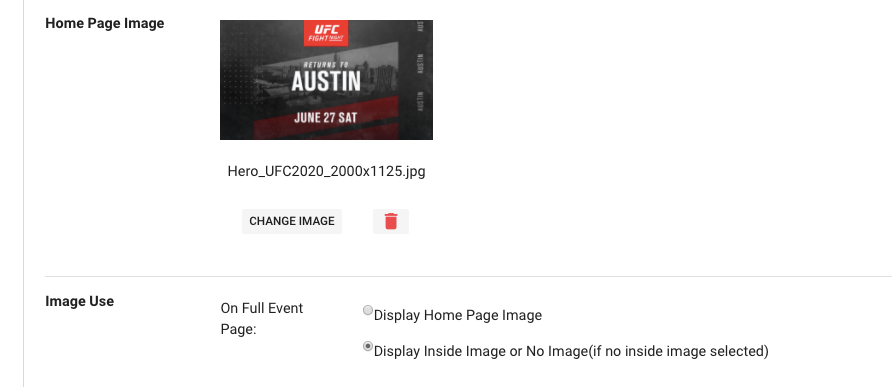
In the fourth prompt, you'll add two types of "Images". First, add a Home Page Image which should follow a 16:9 ratio. Example(s) of that in pixels: 2000x1125 of 1920x1080
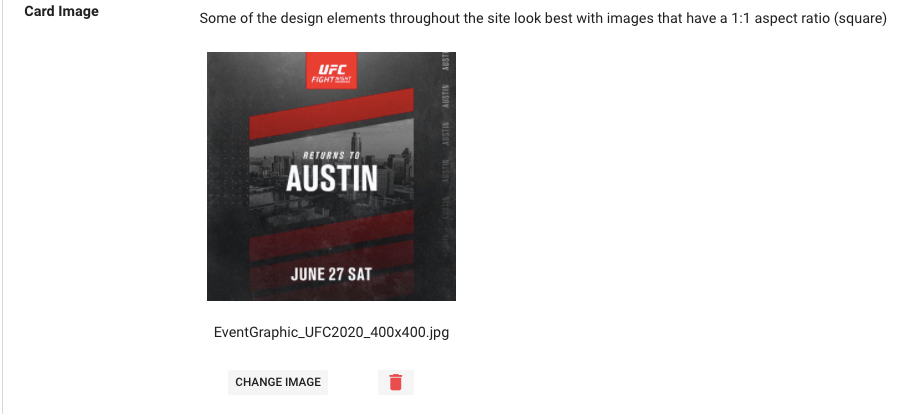
You'll also want to add a card image for the event rotator (this should be much smaller and sized in a 400x400 square:
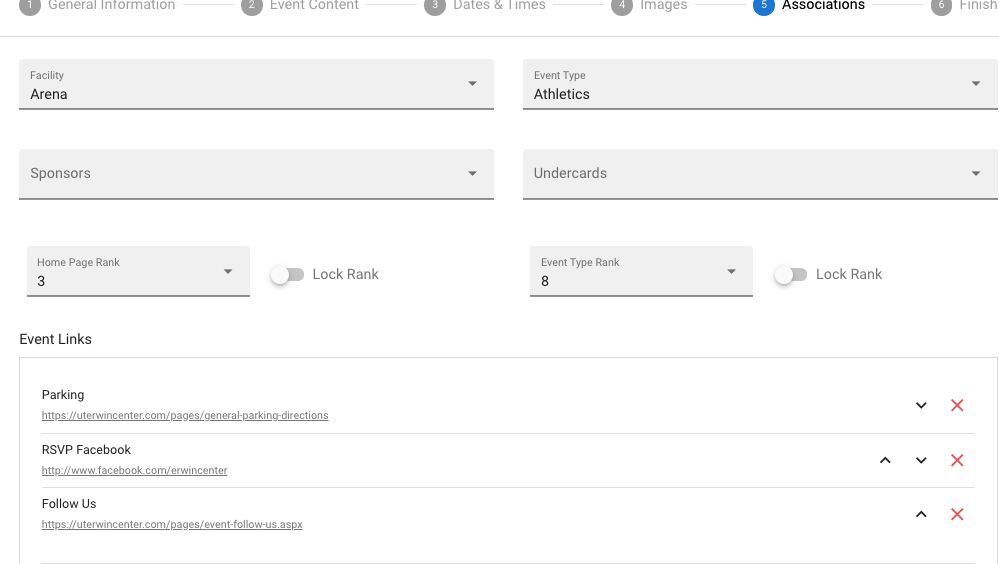
Next, set up your associations. You can tag Facilities, Event Type, Sponsors, Undercard Acts and set individual ranking of how it should display on the site.
You can also set specific events links if need be:
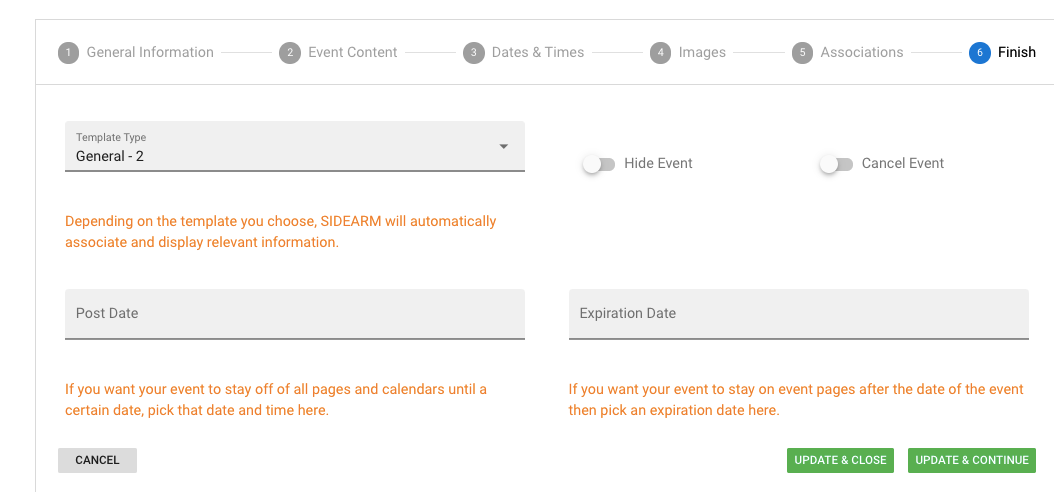
Last, in the "Finish" tab you have options to
- Set a specific template type
- Set Post-Date (system will make live when date/time hits)
- Set Expiration Date (event will drop off site after date/time hits)
Was this article helpful?
That’s Great!
Thank you for your feedback
Sorry! We couldn't be helpful
Thank you for your feedback
Feedback sent
We appreciate your effort and will try to fix the article