Under the opponents section, there’s an option called opponent fixer.
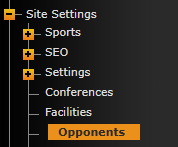
From there click blue "opponent fixer" button.

After clicking on the link, you will have to set a time frame for the games you want the fixer to pull in. You can choose to do a month, a full academic year or even a couple of years depending on what you are looking to do.
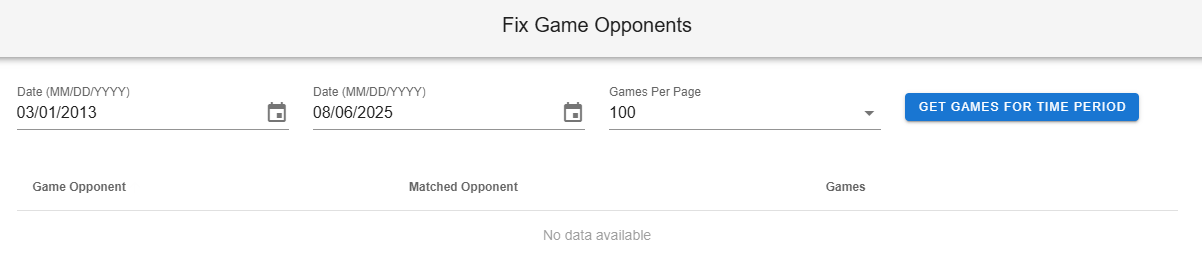
Once the date has been set and you clicked on Get Games for Time Period, you will see the list below
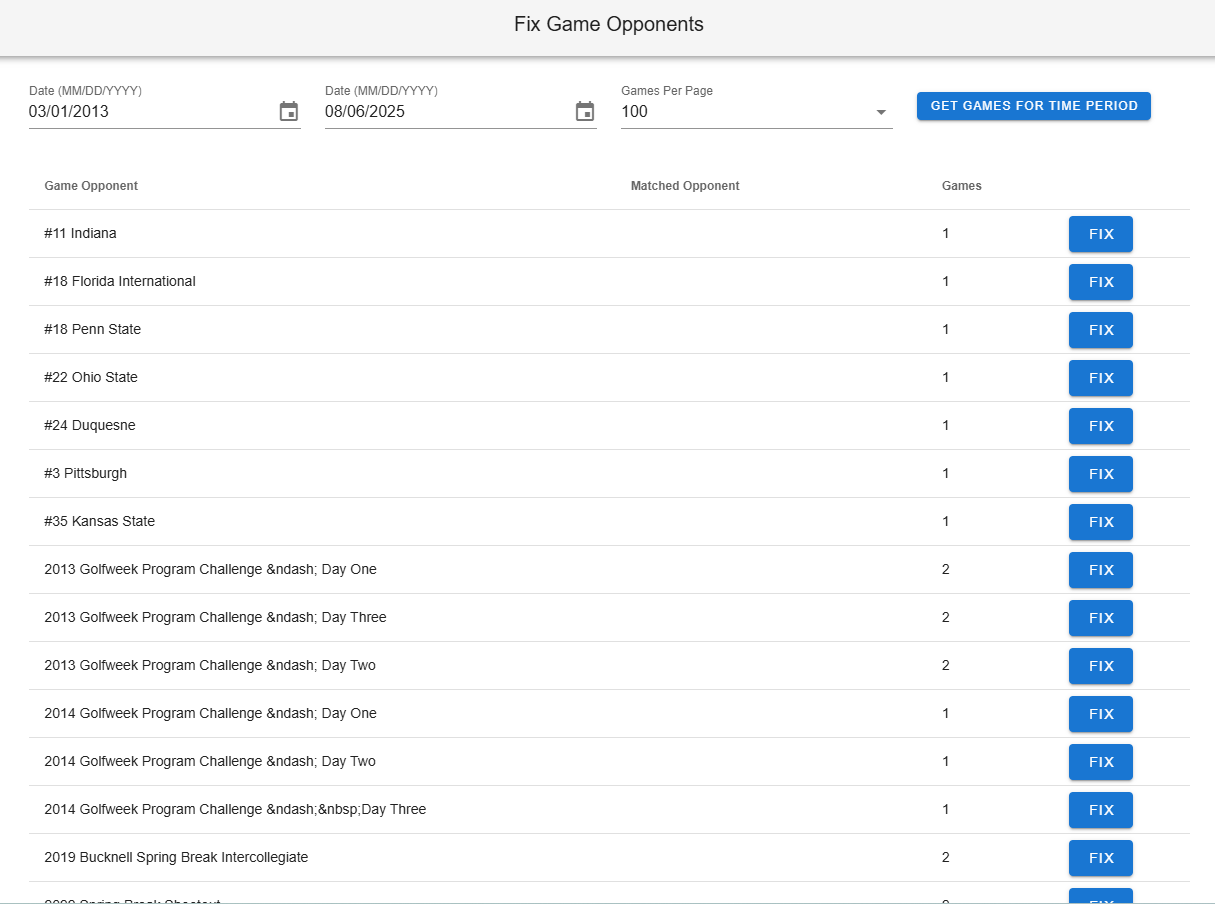
The first column (Game Opponent) is displaying the opponent exactly how it is written on the various schedules. It is possible to have the same school listed more than once, having a different spelling or if an extra space was added when typing in the name or importing fro excel.
The second column (Matched Opponent) displays the system's attempt to match from the list of opponents already added into your system.
The third column (Games) displays all the games that have the exact spelling of that team.
If the first (Air Force) and second (Airforce) columns match, then click on set these.

If they do not match,

then click on the white box and start typing in the school's name. When you see the one you want, click on it and then click the Import Then Save button.
Note: When searching for a school in the list, you can type any word in the name. so typing Bay for Cal State Monterrey Bay will provide less options and make choosing them quicker. The system will also act weird with ampersands and apostrophes, so when search for St. use the second part of the name or William & Mary, just type William or Mary.
Was this article helpful?
That’s Great!
Thank you for your feedback
Sorry! We couldn't be helpful
Thank you for your feedback
Feedback sent
We appreciate your effort and will try to fix the article