Newsletters allow administrators to send out messages to multiple subscribers and lists.
Go to newsletters > newsletters > send newsletter.
Email Info
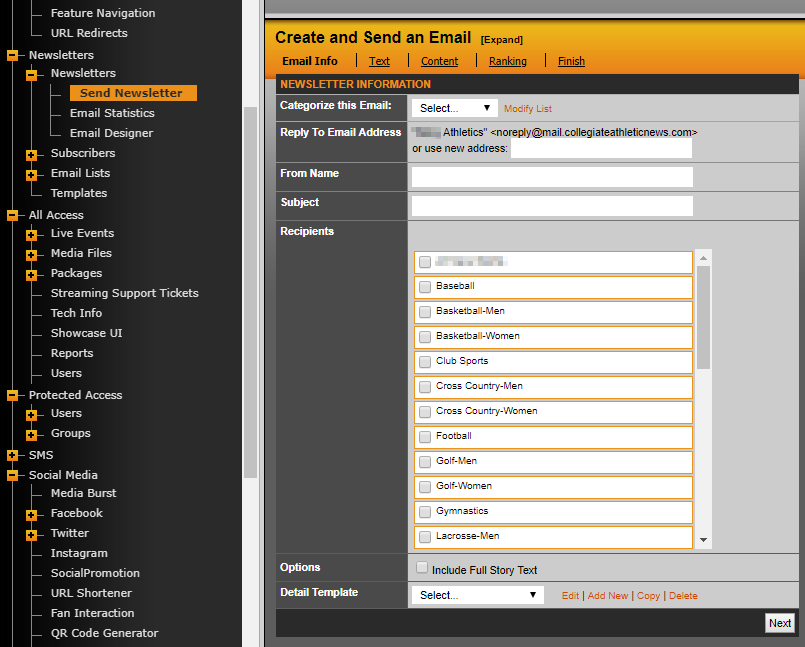
1. The first option is being able to categorize the newsletter; you can modify this list to add additional categories such as newsletters, promotional, etc.
2. You can select a reply to email address from previous addresses you used or enter a new one.
3. Add a subject for the newsletter you are sending.
4. Select the recipient(s) list you want the newsletter sent to.
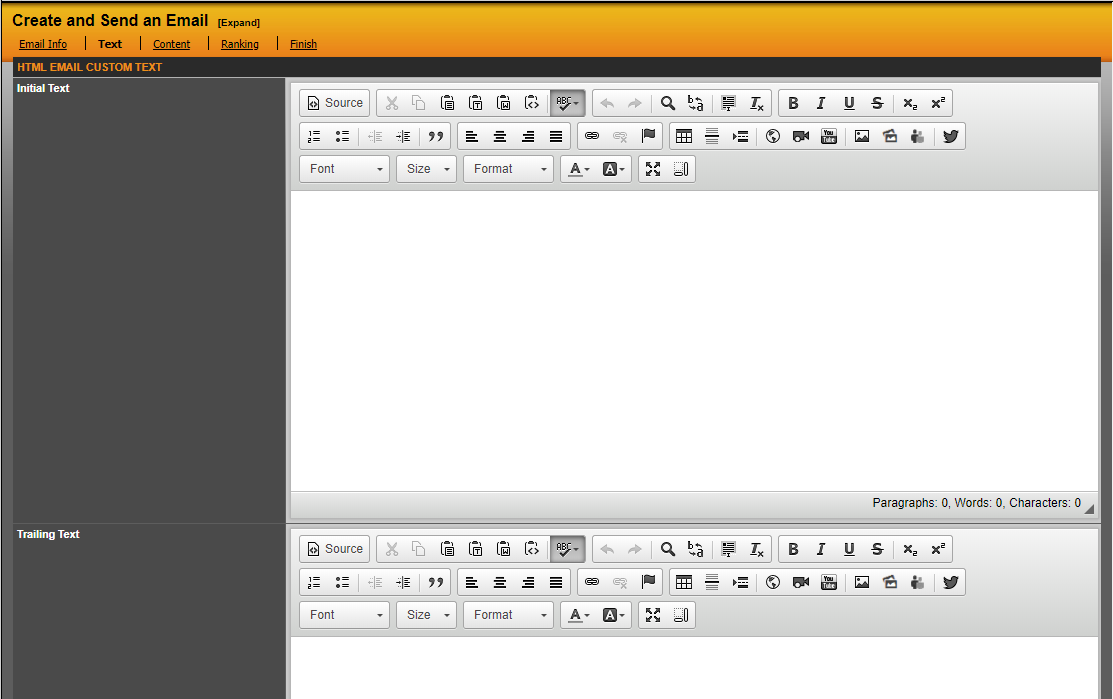
5. The initial text box is what message you would like to appear above the newsletter stories you have selected. The first box is for HTML enabled email clients, while the second box is where you can include a plain text message for non-HTML email clients.
6. You have the options of including an unsubscribe link which allows newsletter subscribers to remove themselves from the list automatically. Also you can choose to include the full story text. It defaults to only show the teaser.
7. Lastly you want to select that template you are working with (more info here).
Text
1. The initial text box is what message you would like to appear above the newsletter stories you have selected.
2. The trailing text box is what message you would like to appear below the newsletter stories you have selected and works identically as initial text box.
 Content
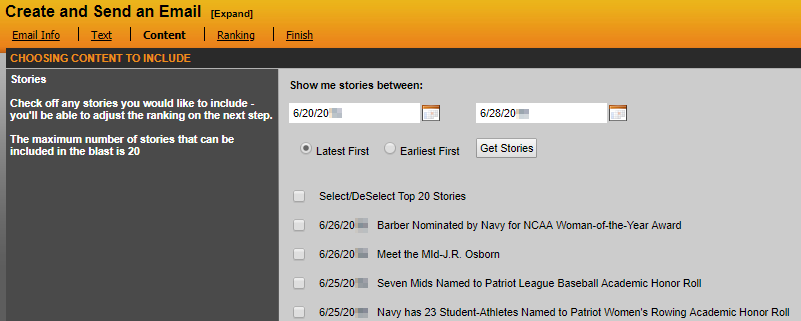
1. You can select a date range of the stories you would like to choose from to include in the newsletter you are sending out. Then you check off which stories (suggest you limit three) to include in the newsletter and hit continue.
Ranking
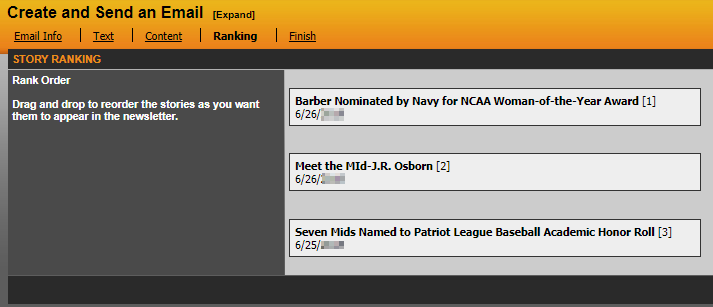
1. Allows you to rank the stories you selected in Content to be displayed in the newsletter you are sending out to subscribers. Drag and drop to reorder the stories as you want them to appear in the newsletter.
Finish
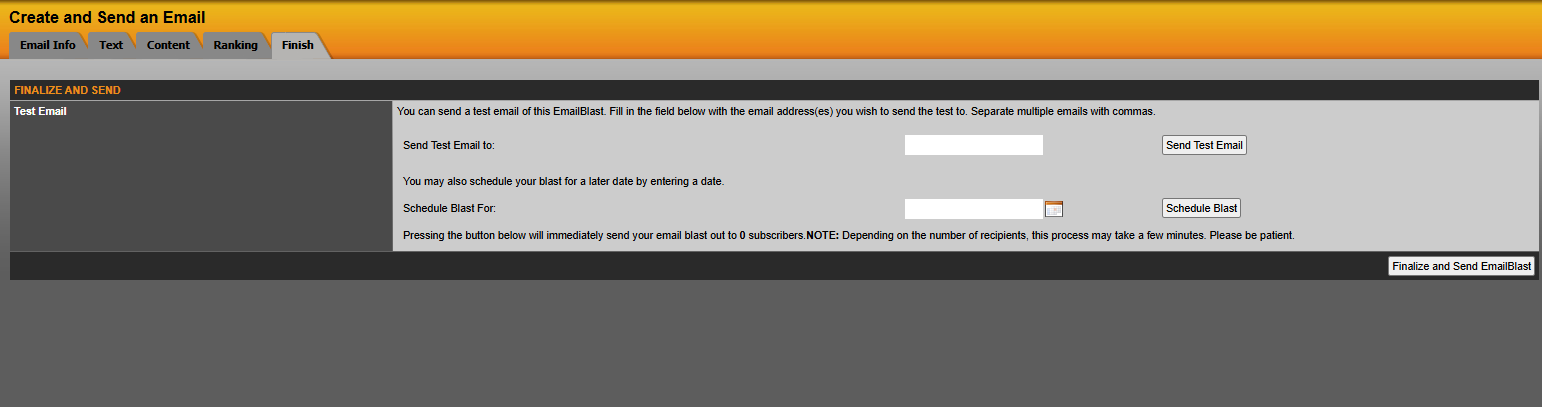
1. This is the final step which will send the Email Blast when you hit Finalize and Send EmailBlast. You can also send a test email first to see if the newsletter is appearing the way you wanted it setup by entering your email address and hit Send Test Email. Additionally, you can schedule an Email Blast for a later date.
Was this article helpful?
That’s Great!
Thank you for your feedback
Sorry! We couldn't be helpful
Thank you for your feedback
Feedback sent
We appreciate your effort and will try to fix the article