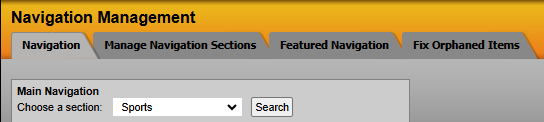
To add a link to one of the sections on your main navigation, go to navigation tab, choose the section from the dropdown and hit the search button to the right of that dropdown.
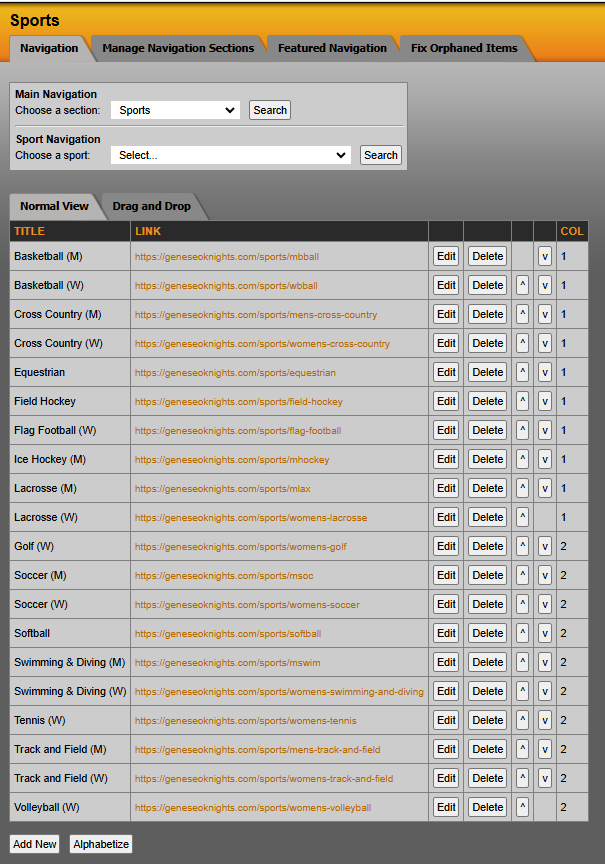
This will load the full list of links currently on the site. Scroll to the bottom of the list and hit the 'Add New' button.
This loads the Navigation Item Information box where you will create the link.
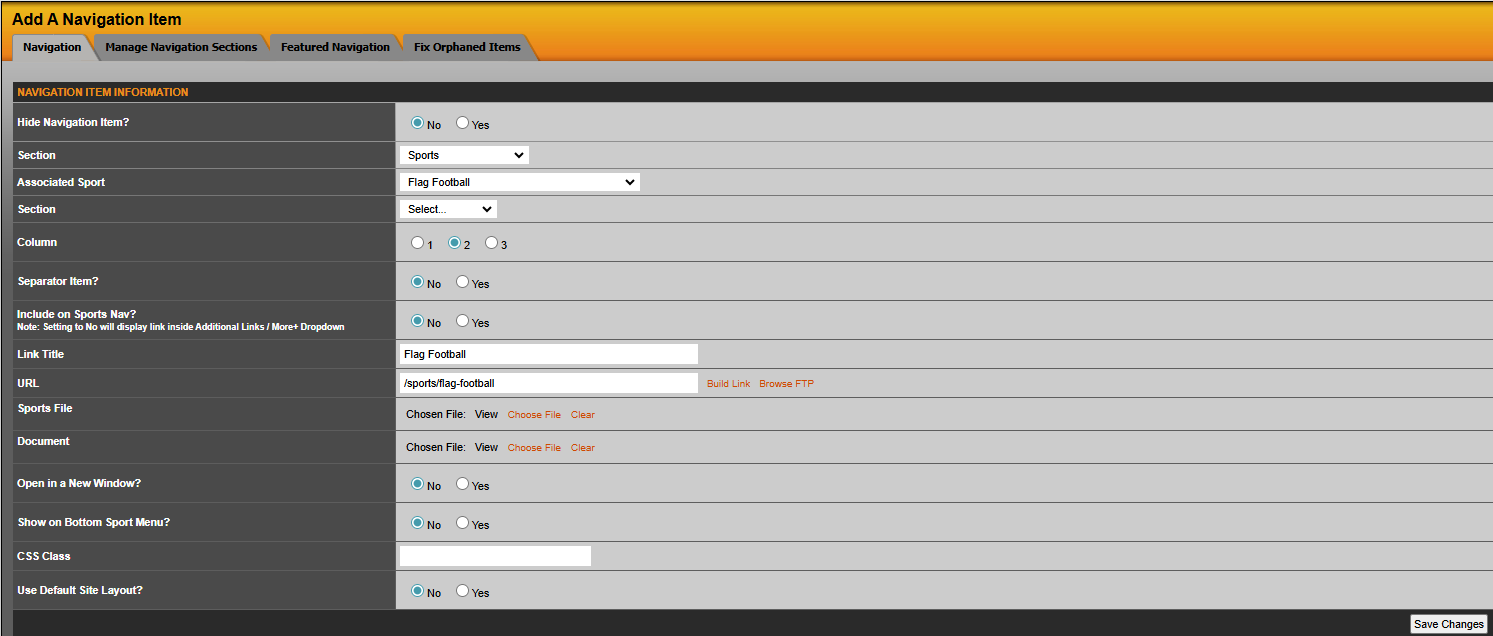
Hide Navigation Item: Selecting 'Yes' will hide this link from appearing on the front end of the website.
Section: This will default to the section you chose to add the link to, but could be used if looking to move an existing link to a new section.
Associated Sport: If building links for a specific sport, choose that sport here.
Column: If your site uses a large dropdown menu with content broken up into columns, here is were you can assign this link to a specific column. Note: If you see this option when adding a link, you must always choose a column, otherwise the link will not save.
Separator Item: Select 'Yes' if you want this to serve as a separator item or a category header such as "Men's Sports". This will not require a URL.
In SIDEARM you always have five options to link an item: 1. URL, 2. Build Link, 3. Browse FTP, 4. Sports File and 5. Document.
URL: In this box, you can paste any URL, either internal or external. Note: Remember when pasting an external link to include the https:// otherwise it will treat as an internal link.
Build Link: This option will allow you to easily link to content built within SIDEARM. Use the dropdown menus to filter through to the link you want and when ready, hit 'Build Link'.
Browse FTP: This option will let you search the site's FTP for any files you wish to link.
Sports File: This option will let you search through any Sport Files you have crated to choose as the link.
Documents: This option will let you search through any documents you have uploaded to SIDEARM and choose as the link.
Open in a New Window: Selecting 'Yes' will have this link open in a new window or tab when a person clicks on it.
Was this article helpful?
That’s Great!
Thank you for your feedback
Sorry! We couldn't be helpful
Thank you for your feedback
Feedback sent
We appreciate your effort and will try to fix the article