When attempting to send Live Stats via TAS FTP, there are some commons problems that you may encounter such as ESOCK Error or Te failure. Below are two possible fixes that usually correct these problems.
Passive Mode
To turn on passive mode, you must first open the TAS Diagnostic Mode. To do this, in Game Reports, click on Live and then TAS Diagnostic Mode
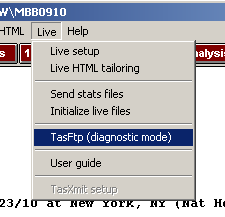
This will bring up a prompt, just click OK and then wait for TASFTP to open.
Once open, in the bottom right corner, you will see a FTP Setup Button.
Click that button and a box will open that lists the setup information
along with three check boxes. Make sure the first and third boxes are
NOT check and then check the box for Passive mode and shown below.
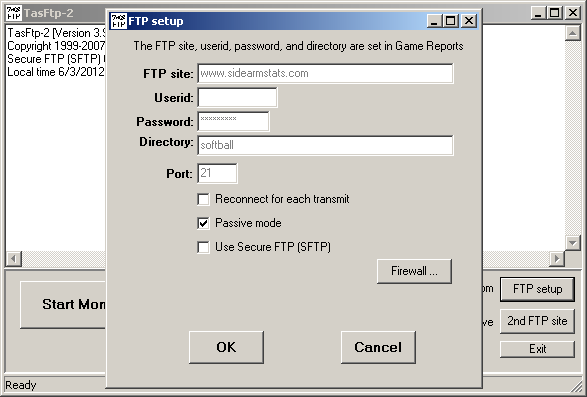
Once done, click OK. Then click Exit. After this, go to Game Reports, click on the Live Tab and then Click on Send Stat Files. This should push the file through, just be ready to click on TASFTP when it opens up in the tray. If turning on Passive Mode did not work, then try the next step.
Windows Firewall
When turning on Passive Mode does not correct the issue, it's possible that a firewall is blocking your connection. This could be a campus firewall that would require getting in touch with your campus IT department, or could simply be Windows Firewall.
To access the Windows Firewall, bring up the Start Menu and then click
on Control Panel (Windows Control Panel, not StatCrew). In the control
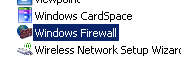
panel, find and click on Windows Firewall.
Once open, click Off and hit ok. Then will turn off the Windows Firewall, and say the machine is "Unsafe" or "Not Protected", but most machines are already protected by an antivirus program.
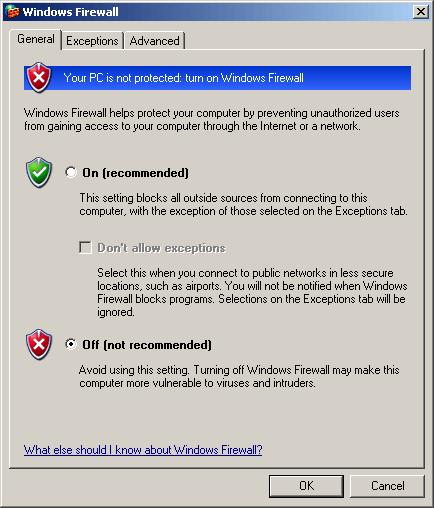
If you do not have administrative rights on your machine, this area will appeared "grayed out". The best move at this point is to contact your campus IT department and explain to them that "A firewall or Windows Firewall is blocking you from sending out Live Stats."
Was this article helpful?
That’s Great!
Thank you for your feedback
Sorry! We couldn't be helpful
Thank you for your feedback
Feedback sent
We appreciate your effort and will try to fix the article