Screen reader users can navigate tables like spreadsheets, going from one cell to another in any direction. When the markup is correct, the SR will read the table header out loud, in addition to data in the cell, allowing blind users to understand where they are in the context of the table. If tables are not marked up correctly, screen reader users will find it difficult to understand the data relationships.
Creating Accessible Tables
Semantic Markup
Do create tables with the HTML <table> element to represent tabular data.
Do not create fake tables, ones that use CSS so they look like tables but they don’t have semantic markup. A fake table is not useful to screen reader users because they can’t navigate it freely. They can only proceed through the content sequentially, in the order the elements appear in the DOM, and they won’t hear which header is associated with which data cell.
Note that tables may sometimes need to have a different structure in mobile view, such as a list with labels. There are multiple techniques for mobile accessibility of tables, but few of them are ideal. However, try to keep the semantic structure of a real table at least in desktop view.
Table Caption or Name
Programmatically-associated caption or name.
Ensure that the name or caption is:
accurate
meaningful
succinct
unique
There are three ways to associate a caption or name to a table.
<caption>
<table>
    <caption>2022-23 Football Roster and Player Stats</caption
aria-label
<table aria-label="2022-23 Football Roster and Player Stats">
aria-labelledby
<h3 id="tableCaption">
  2022-23 Football Roster and Player Stats
</h3>

<table aria-labelledby="tableCaption">
Providing a caption or name gives screen reader users a sense of the overall table meaning. They can also pull up a list of all tables on a page and jump to a specific one, so having names for each is useful.
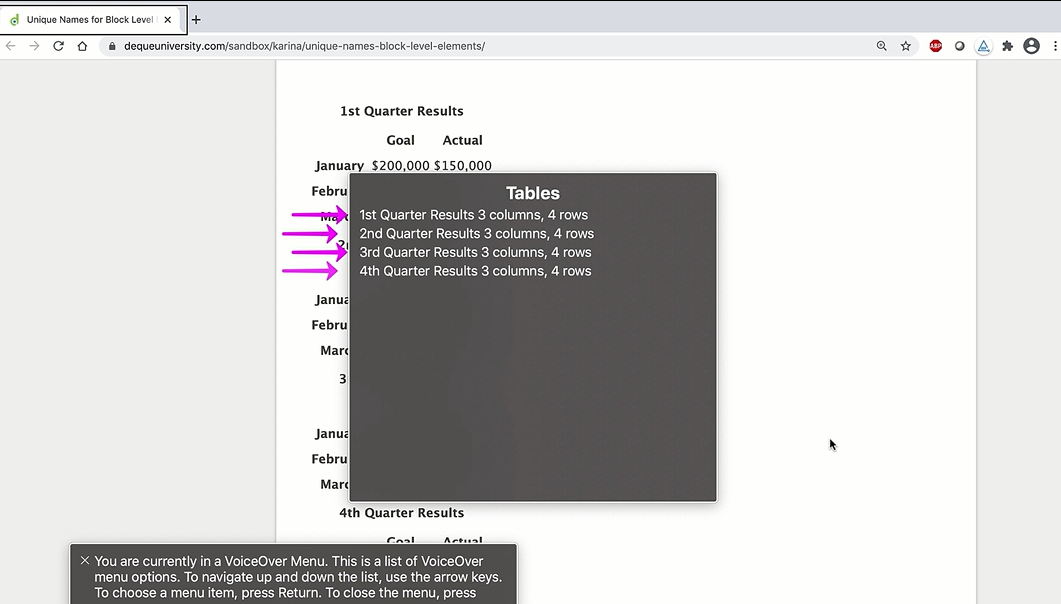
Table Headers
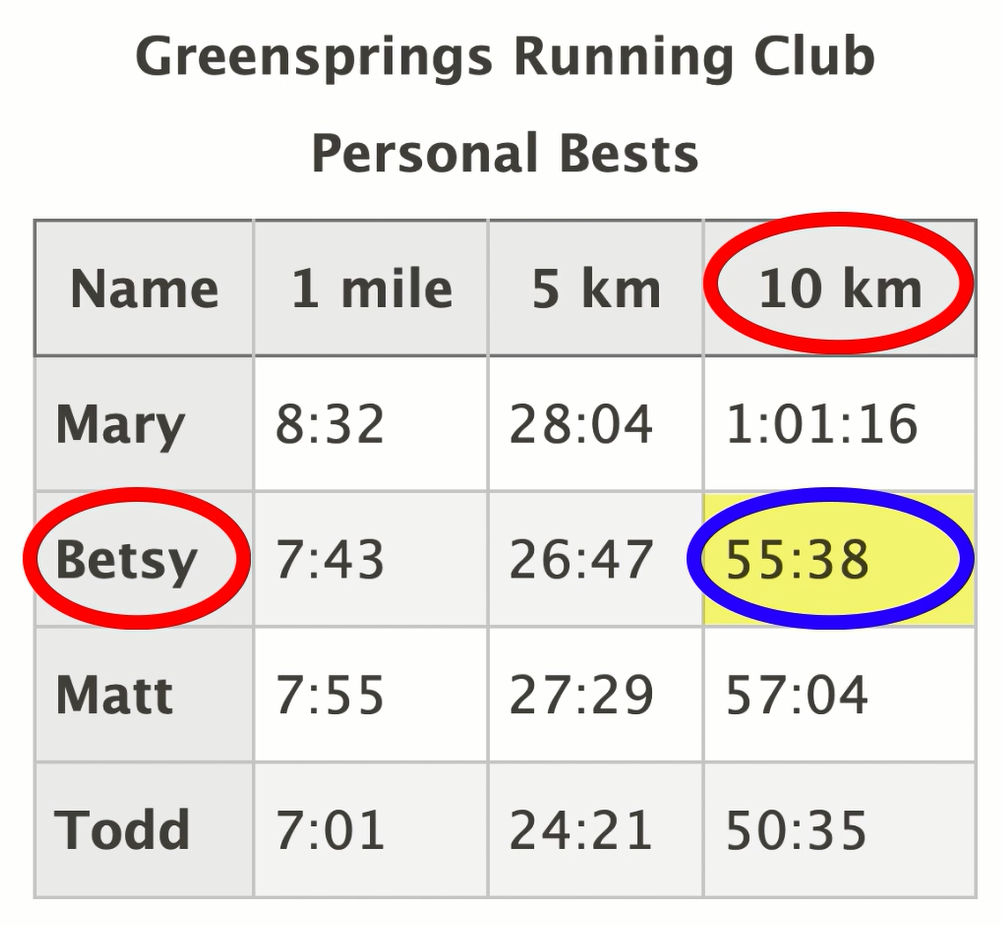
Use <th> to identify table headers. These are the column and row headings.
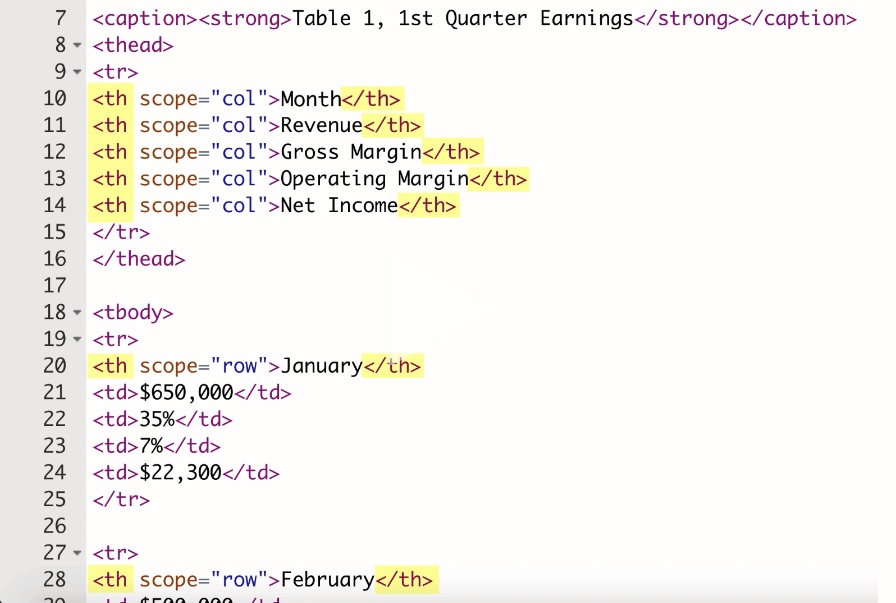
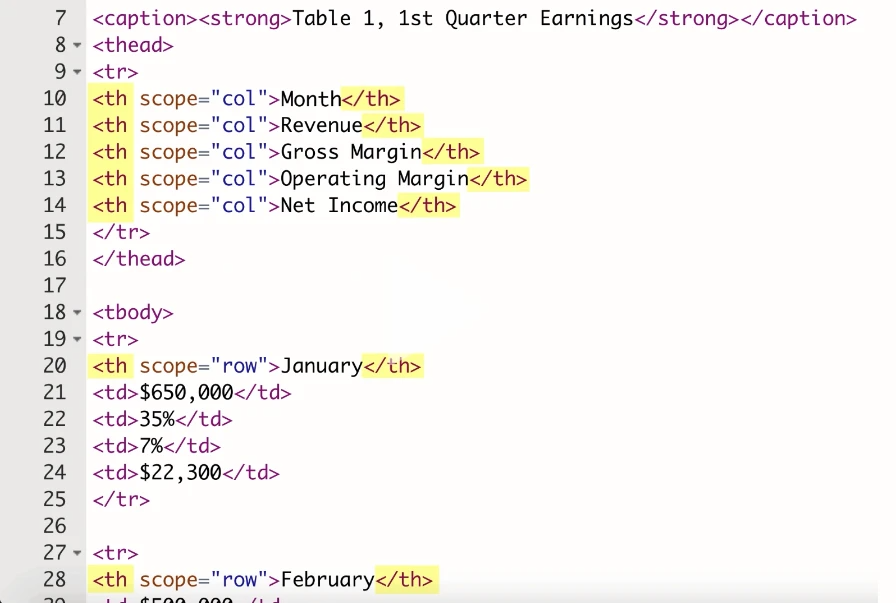
If the header cells are on the first row, screen readers will assume that they all apply to the columns below; in other words, there is an implicit scope equals col.
Be sure that your header text is meaningful. Don’t use a generic phrase like Column 1. Instead, use something specific that accurately describes the corresponding data cells.
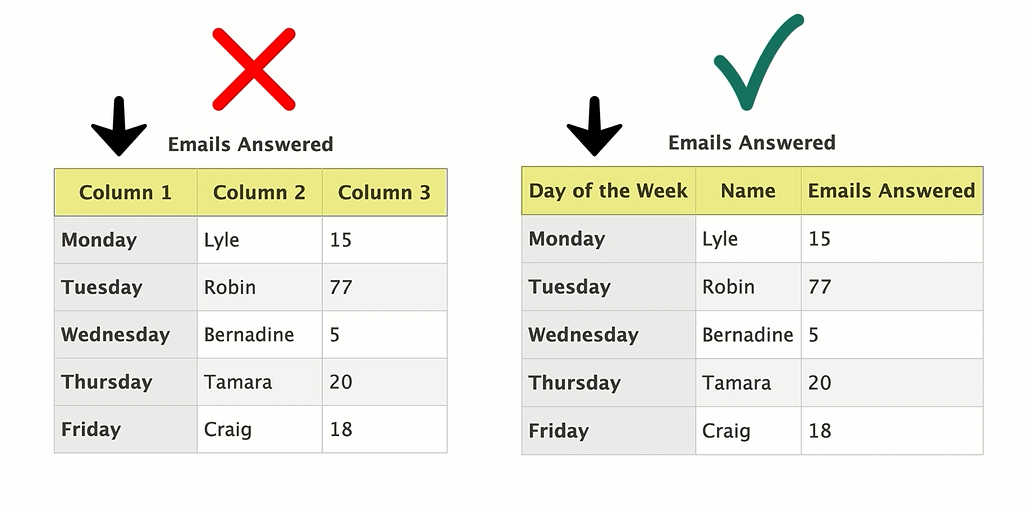
Table Types
There are different types of tables: simple, intermediate, and complex. The type of table affects how the headers are identified for that type.
Simple Tables
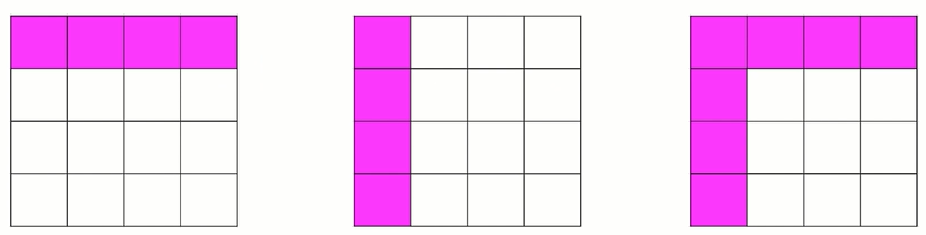
A simple table has only 1 header row, 1 header column, or 1 of each. The images below go through a <th scope="row"> , <th scope="col"> , and the last table uses both <th scope="row"> and <th scope="col">
Intermediate Tables
Tables with header cells that span multiple columns and/or rows. When you have table data group headers, you must associate them with their corresponding data cell groups.
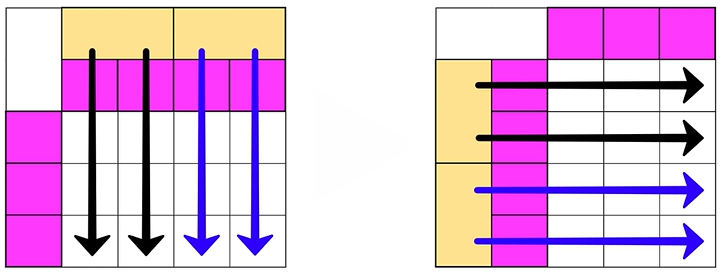 The first table utilizes:
 <th scope="colgroup" colspan="2">
The first table utilizes: <th scope="colgroup" colspan="2">
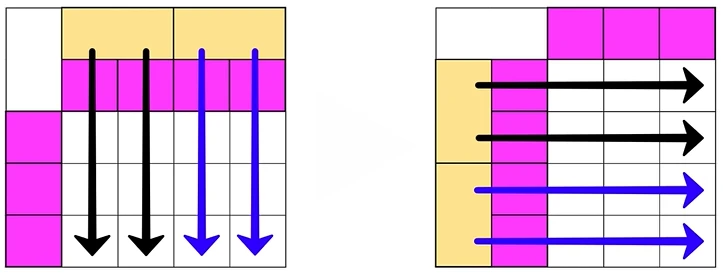
SR support is better for scope="colgroup" rather than scope="rowgroup", so it's better to build tables that require colgroup rather than rowgroup.
Complex Tables
Sometimes you may have a table so complex that you can’t associate the header and data cells by using TH and scope. In those cases, you must use headers plus ID.
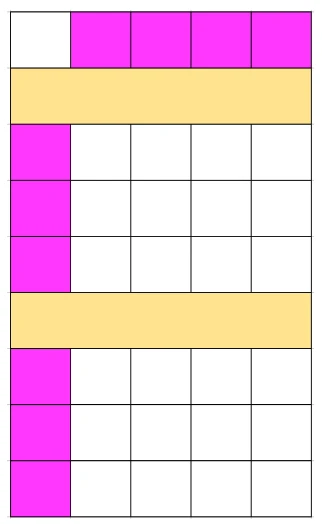
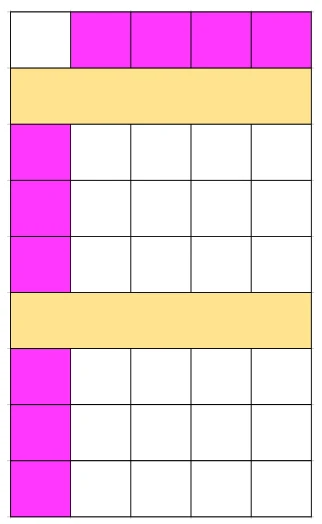
When you have merged data cells or more than 2 levels of headers in any dimension, horizontal or vertical, this is a complex table and you must associate each data cell explicitly with each header cell.
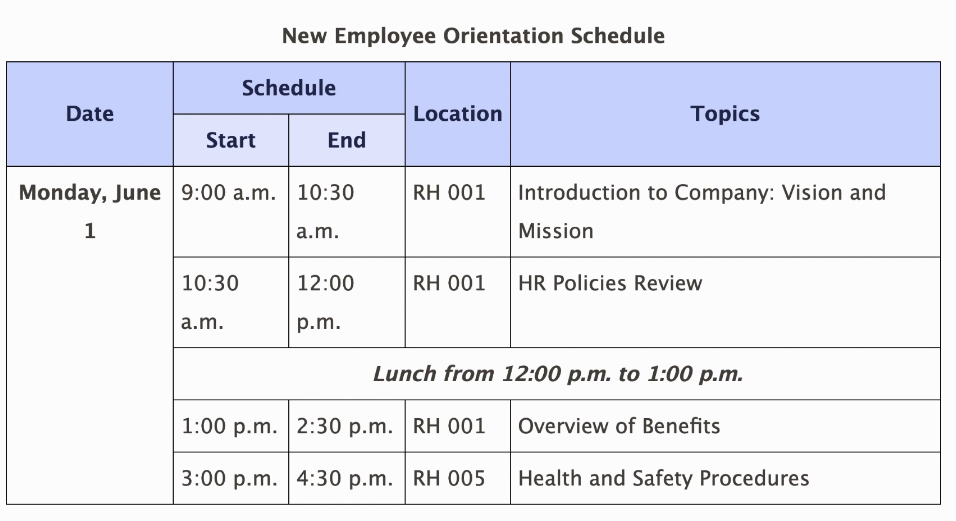
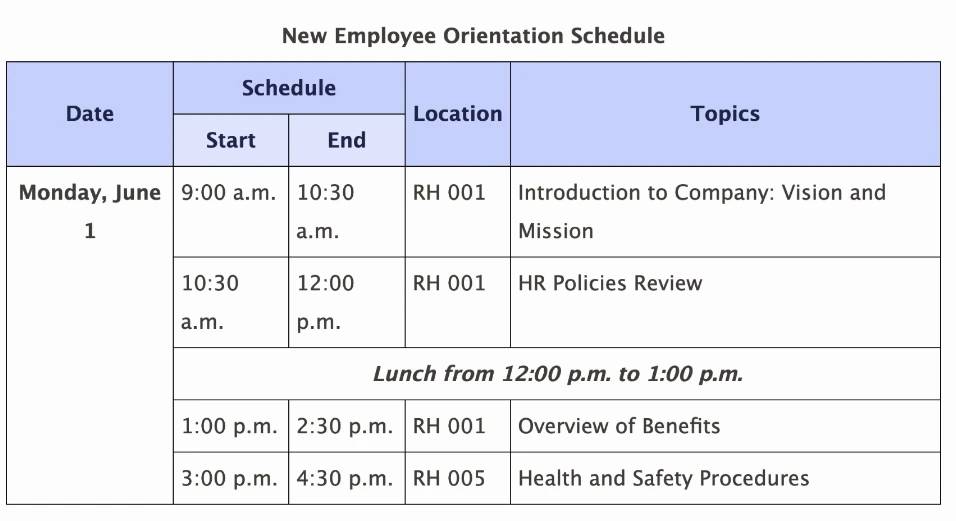
In the example above, we would need an id for the following headers:
Monday, June 1
Schedule
Start
End
Location
Topics
Lunch from 12:00 p.m. to 1:00 p.m.
<table>
  <caption>
    New Employee Orientation Schedule
  </caption>
  <tbody>
     <tr>
        <th rowspan="2" id="date">Date</th>
       <th colspan="2" id="schedule">Schedule</th>
       <th rowspan="2" id="location">Location</th>
       <th colspan="2" rowspan="2" id="topics">Topics</th>
    </tr>
    <tr>
       <th id="start">Start</th>
        <th id="end">End</th>
    </tr>
    <tr>
       <th id="monday" rowspan="5">Monday, June 1</th>
       <td headers="schedule start monday">9:00 a.m.</td>
       <td headers="schedule end monday">10:30 a.m. </td>
        <td headers="location monday">RH 001</td>
    </tr>
  </tbody>
</table>
Screen readers can have trouble with complex tables even when they are marked up perfectly. So rather than trying to figure out how to present your complex table according to guidelines, the better idea is to actually simplify the table, which may mean breaking it up into several smaller tables.
Nested or Split Tables
The rule here is simple: do not create nested or split tables. Nested tables are tables that exist inside other tables. You can visualize them like Russian nesting dolls. Split tables are ones in which you’d want to apply the same headers to multiple tables, but there is no way to semantically associate the headers across those split tables.
So the issue here in both cases, nested or split tables, is that there no way to associate data cells with header cells, which creates a very bad screen reader user experience.
Table Summary
Next, let’s cover the table summary. Ideally, a table would be simple enough and well-organized so that it’s self-explanatory. But even so, sometimes it may help to provide a brief summary of the main points to help users understand data trends, data format, and other important notes.
You can provide the summary in several ways. For example, you can put it in the paragraph preceding the table with aria-describedby. Refer to Deque University for other methods of providing a table summary. And if you do provide one, keep it concise, accurate, and meaningful. Don't make it too long, and don't use it for keyword stuffing for search engine optimization.
Layout Tables
Do not use tables just for visual layout. They are meant to contain data and it’s best to use them only for that purpose. If you must use them for layout, add the ARIA role="presentation" to the table element, so that screen readers read the content as plain text, rather than incorrectly reading them as real tables with header and data relationships.
And also, if you use layout tables, do not use any data table markup, specifically: caption, summary, TH, scope, and headers. If you do, screen reader users will expect the table to contain tabular data with relationships and navigating through it will be confusing.
Was this article helpful?
That’s Great!
Thank you for your feedback
Sorry! We couldn't be helpful
Thank you for your feedback
Feedback sent
We appreciate your effort and will try to fix the article