Clips are vertically formatted videos that are grouped into playlists, to be displayed in a slider component in your App and on the Home Page and Sport Home Pages (if available on your site). The Clips can also be associated to display in a Game Center on your App or Website.
Jump to section:
Specs for Clips
- The standard aspect ratio for vertical video clips is a 9:16 ratio.
- The most common resolution is 1080x1920 pixels.
- The lowest resolution we recommend is 720x1280 pixels.
- The App will show all playlists with videos that have been added within the last 10 days
There is not currently a video length restriction, but this is intended to replicate social style browsing, so keep that in mind with the clips that you choose.
Clip Management
The Clip Management option will appear in the admin under All Access>Clip Management and will be used to curate playlists of vertical content whether it be for a sport, a player, or a category such as hype reels.
Create or Manage a Playlist
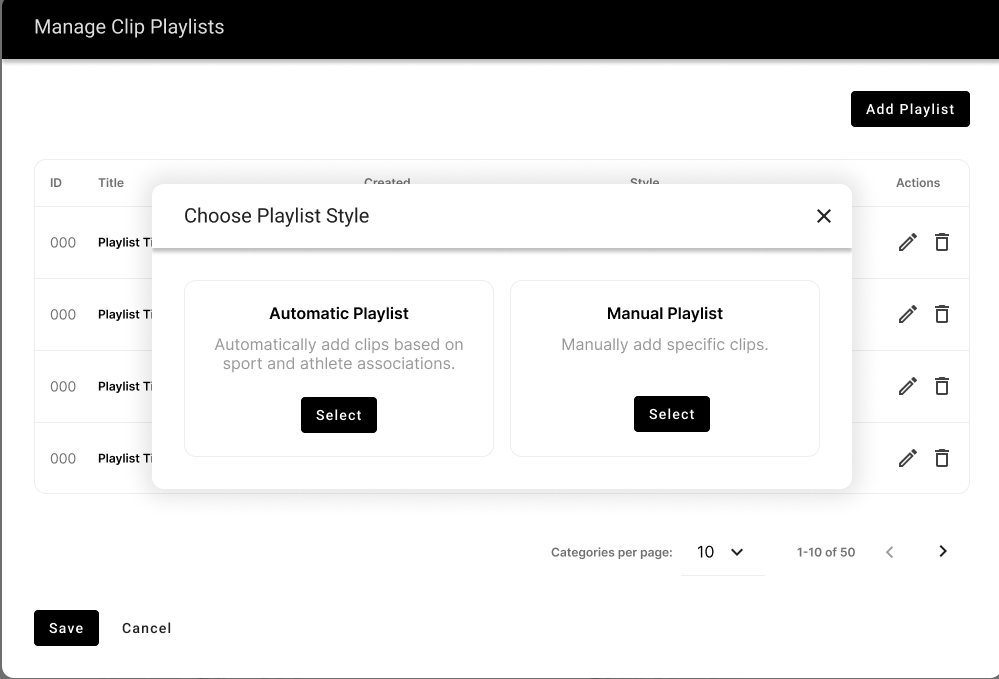
You can create and manage playlists in the All Access>Clip Management section of the CMS. When creating a playlist in the CMS, an admin will have the option between creating an Automatic Playlist or a Manual Playlist.
Automatic Playlists will automatically add clips based on sport and athlete associations.
- Category/tag-based
- Allows multi-select of sports or non-sport categories
- Ability to pin clips to the beginning of the playlist and to determine the order of the pinned clips
- This can be used to highlight a specific player for an award or to have an ongoing playlist for a sport
Manual Playlists allow you to manually select which clips should be added to the playlist.
- You will use search functionality to find clips to add to the playlist as desired
- Default order will be by date (descending)
- Ability to drag and drop clips in the playlist to reorder
- This can be used to create a playlist experience highlighting a specific game
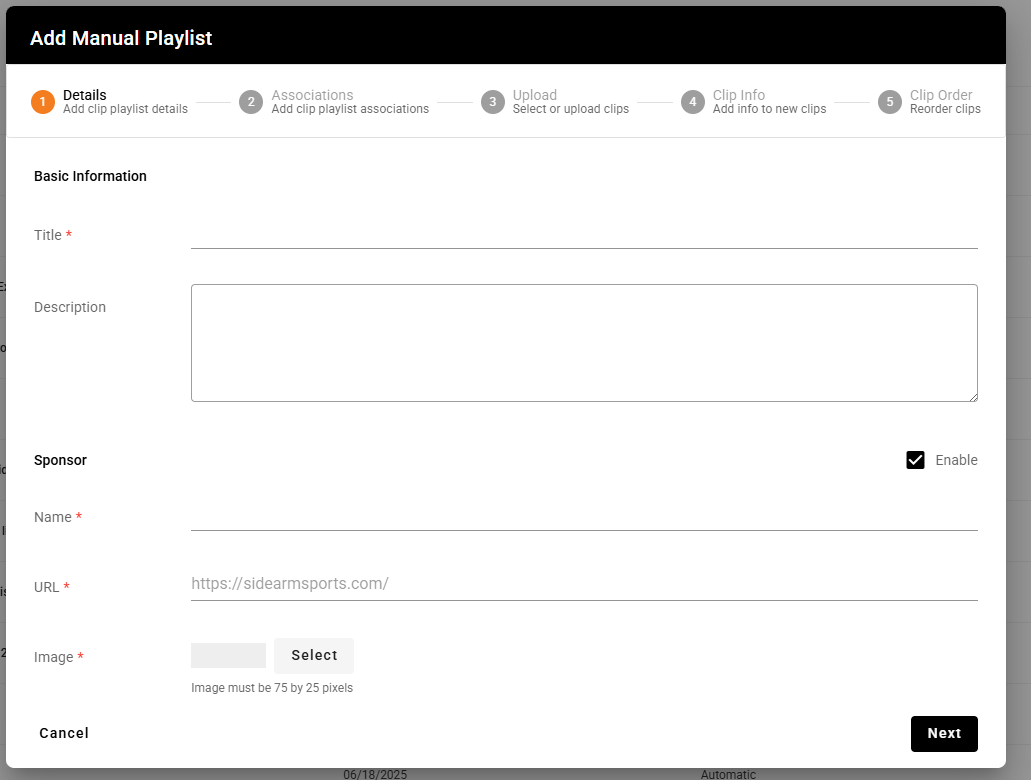
Once you select your Playlist style, the module will take you through all of the steps to to fill out and setup your playlist.
You also have the option to Enable Sponsor and upload a 75x25px image, which will display at the top of all videos that appear on the playlist.
Uploading a Video
There are two options for uploading clips into the system to use on a Playlist.
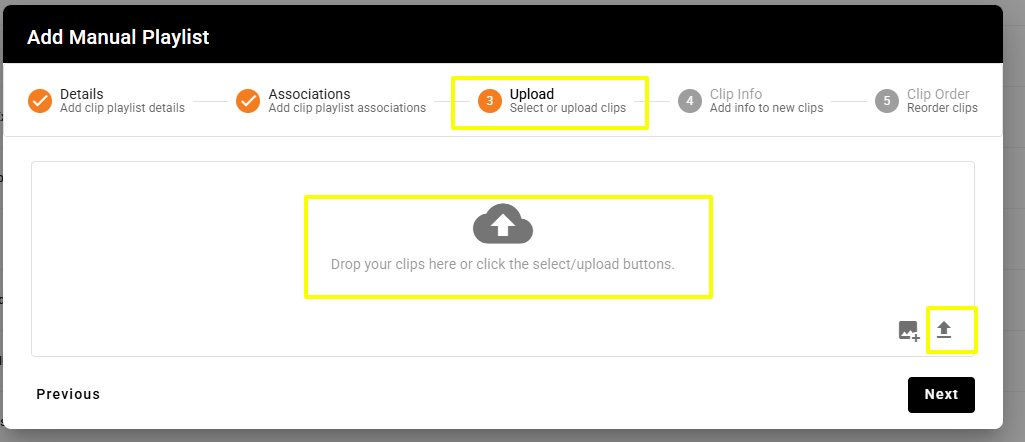
The first option is by going to All Access>Clip Management and uploading the video directly to the desired Playlist.
This allows you to upload your videos directly to your playlist as you are building it out for your specific game/event.
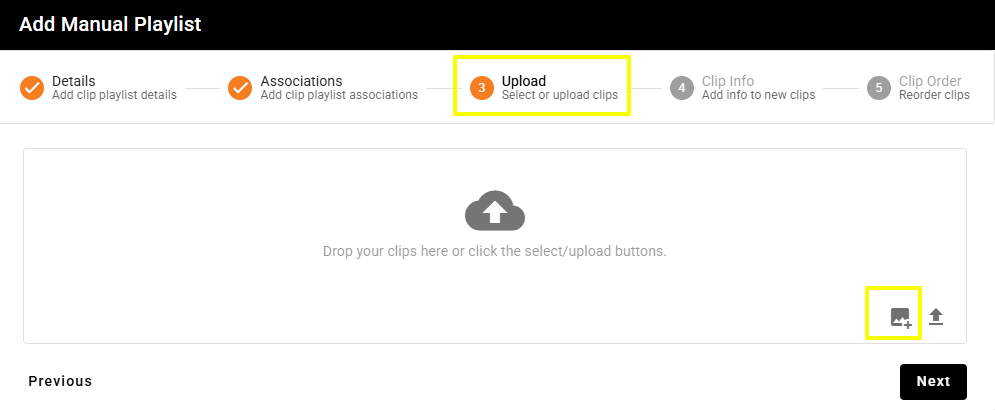
You can drag and drop or click the arrow to upload your videos.
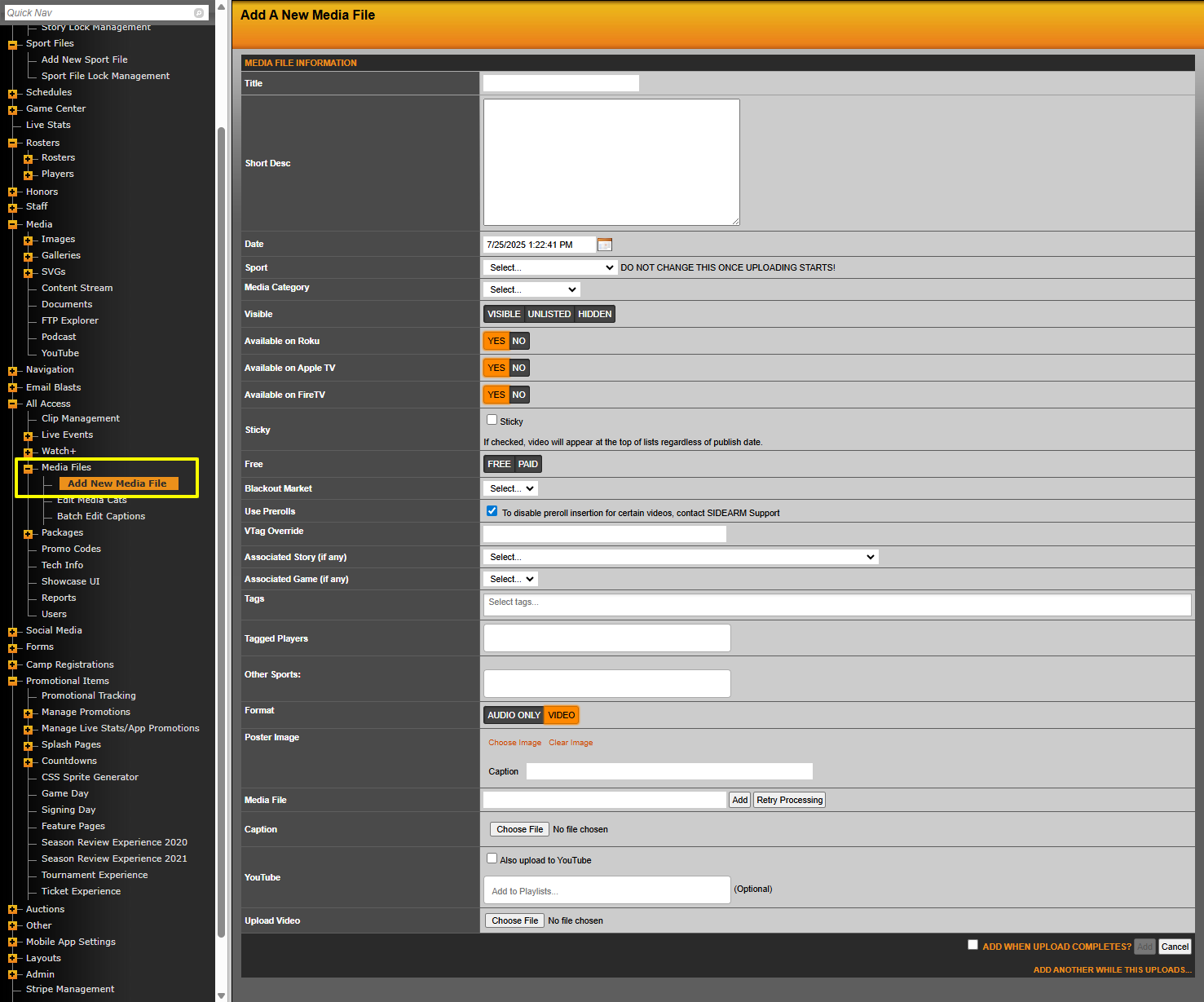
The second option is uploading under All Access>Media Files>Add New Media File, and then adding to a manual Playlist later or allowing it to be pulled into an automatic playlist.
For this option you will choose the Sport and enter your proper information and select your video to upload at the bottom of the page.
Once your videos have been uploaded, you can add them to the Playlist from the Upload tab, by selecting the + icon to choose from clips that have already been uploaded in the system.
If an Automatic Playlist is already created, it will pull in your uploaded videos if the settings applied meet the criteria of the automated Playlist.
When uploading Clips, the system will automatically recognize the video as a clip when using the proper 9:16 ratio, and will prevent it from appearing on your video portal or in related video areas on the website where clips are not intended to appear.
Display of Slider Component
There will be two different slider experiences for clips playlists, depending on the content you have setup.
The Circle slider component for multiple playlists and the Vertical slider component for displaying a single playlist.
Circle Slider Component
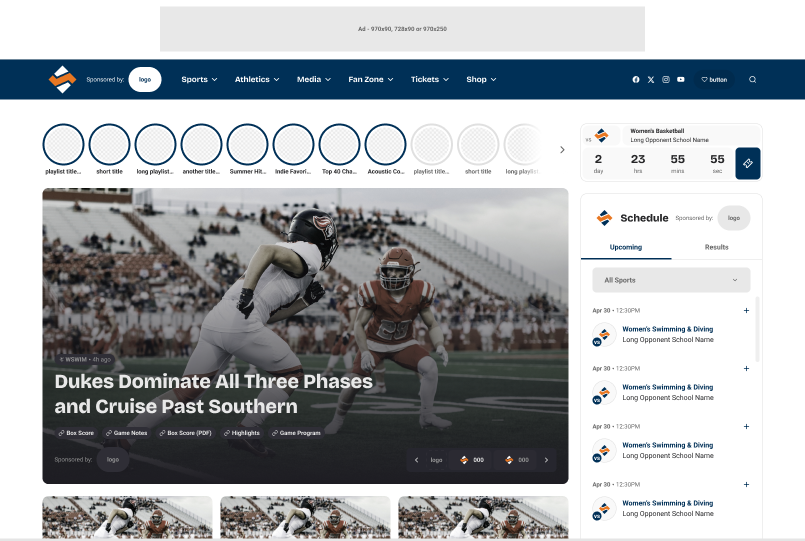
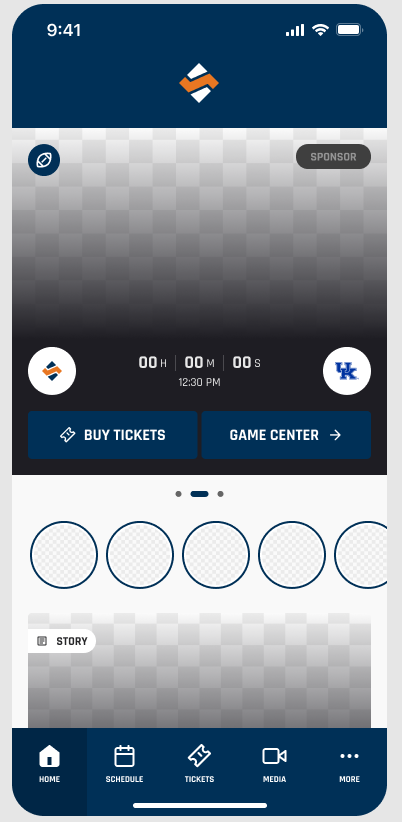
The Circle slider component will show if you have multiple playlists setup to display. Each circle will contain a thumbnail image and represent an individual playlist.
When the user taps on the circle to view, the first unwatched clip in the playlist begins to play and it will continue to auto-play the next clips in the order they were set in the playlist.
Once all the clips within the playlist have been played, the first clip or the next unwatched clip from the next playlist begins. After the last clip is played from the list of available playlists in the circle slider, the module closes and the user is returned to the page.
The Circle slider component will display based on the following criteria.
- On the Home Page, recent playlists from all sports will show in the circle slider component.
- On the Sport Home Pages, recent playlists from the respective sport will show in the circle slider component.
- Circle will contain thumbnail (“poster image”) from the most recent clip added to the playlist
- The circle slider will show all playlists with videos that have been added to that playlist within the last 10 days
- The number of circles (playlists) that display will depend on the number that meets the criteria above. For example, if there is only one playlist with a video from the last 10 days, only one circle will show
- If no playlists have videos from the last 10 days, the component will not show
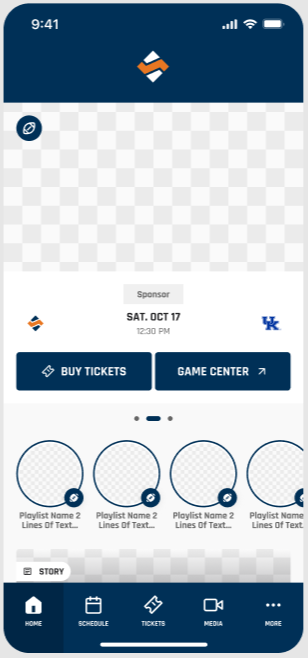
For version 181.2.0+ of the Mobile App, there are updated elements to the Clips circle slider component:
- A short playlist title displays below the circle to inform the user what content is in the playlist
- The short playlist title is managed in the CMS (Video > Clip Management > Add/Edit Playlist)
- The short playlist title is required moving forward when adding a new playlist, or editing an existing playlist created prior to this update
- The short playlist title is limited to 22 characters for style and accessibility purposes
- A small icon displays in the bottom right of the circle to easily distinguish for the user which sport the playlist is for (see below screenshot)
- The sport is managed in the CMS (Video > Clip Management > Add/Edit Playlist > Step 2 - Associations > Sports)
- If multiple sports and/or a generic sport category is selected, a generic tri-sport icon will be used
Vertical Slider Component
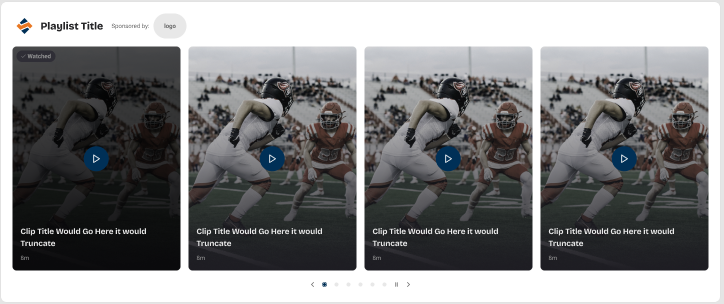
The Vertical slider component will display when there are only clips from a single playlist. Individual clips from one playlist will display portrait style within this slider with thumbnail images.
When the user taps on the thumbnail image of a clip, the module opens, and the selected clip begins to play. Videos will continue to auto-play in the order of the next clip within the playlist. After the last clip is played, the module closes and the user is returned to the page.
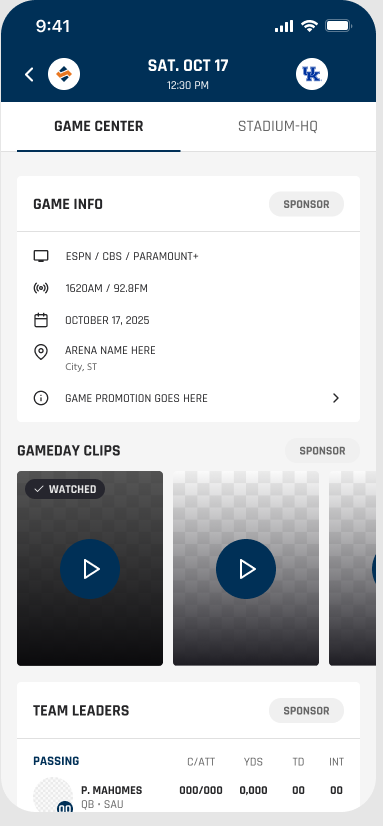
If a user has already watched clips in the playlist, a "watched" state will be reflected on the clips that have been viewed. The "watched" videos will slide over to the left, so that only part of the last "watched" clip is showing and the user mostly sees clips they have not yet watched.
The Vertical slider component will display based on the following criteria.
- Slider will contain portrait style thumbnail (“poster image”) images from each clip in the playlist
- The vertical slider will show all clips that have been added to that playlist via the CMS
- The number of clips that display will depend on the number that meets the criteria above. For example, if only one clip has been added to the playlist, only one clip will show
- If there are no clips within the playlist, the slider will not show
- One playlist can be associated to each Game Center in the CMS. If a playlist has been associated, the playlist will never expire or unlink from showing on the Game Center.
Was this article helpful?
That’s Great!
Thank you for your feedback
Sorry! We couldn't be helpful
Thank you for your feedback
Feedback sent
We appreciate your effort and will try to fix the article