Creating a Live Event
Overview
The Live Events section allows administrators to create, manage, and monitor live streams for video and audio events.
Each live event can be configured as an RTMP stream or linked to an external media source and can be distributed across web, mobile, and OTT platforms.
Before You Begin
Before creating a live event, keep the following in mind:
Stream Provisioning Requirement
All live events must be scheduled at least 6 minutes in the future from the time they are created.
This provisioning period allows the streaming infrastructure to prepare the stream and generate connection information.
Unique Stream Credentials
For RTMP events, each event receives its own:
Stream URL
Stream Key
These credentials are unique to that specific event and should be entered into your encoder prior to going live.
Supported RTMP Encoders
Commonly used encoders include:
OBS Studio
Wirecast
vMix
Teradek Devices
Hardware RTMP Encoders
Accessing Live Events
Log in to the CMS.
Navigate to Live Events.
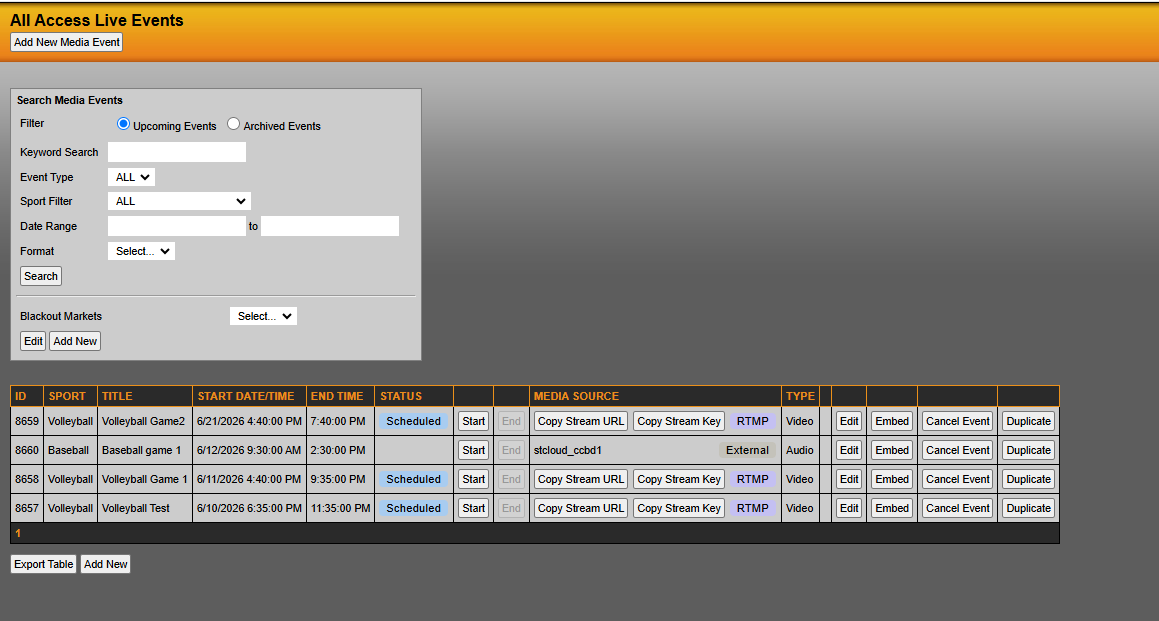
Select Add New Media Event.
Figure 1 – Live Events Dashboard
Creating a New Event
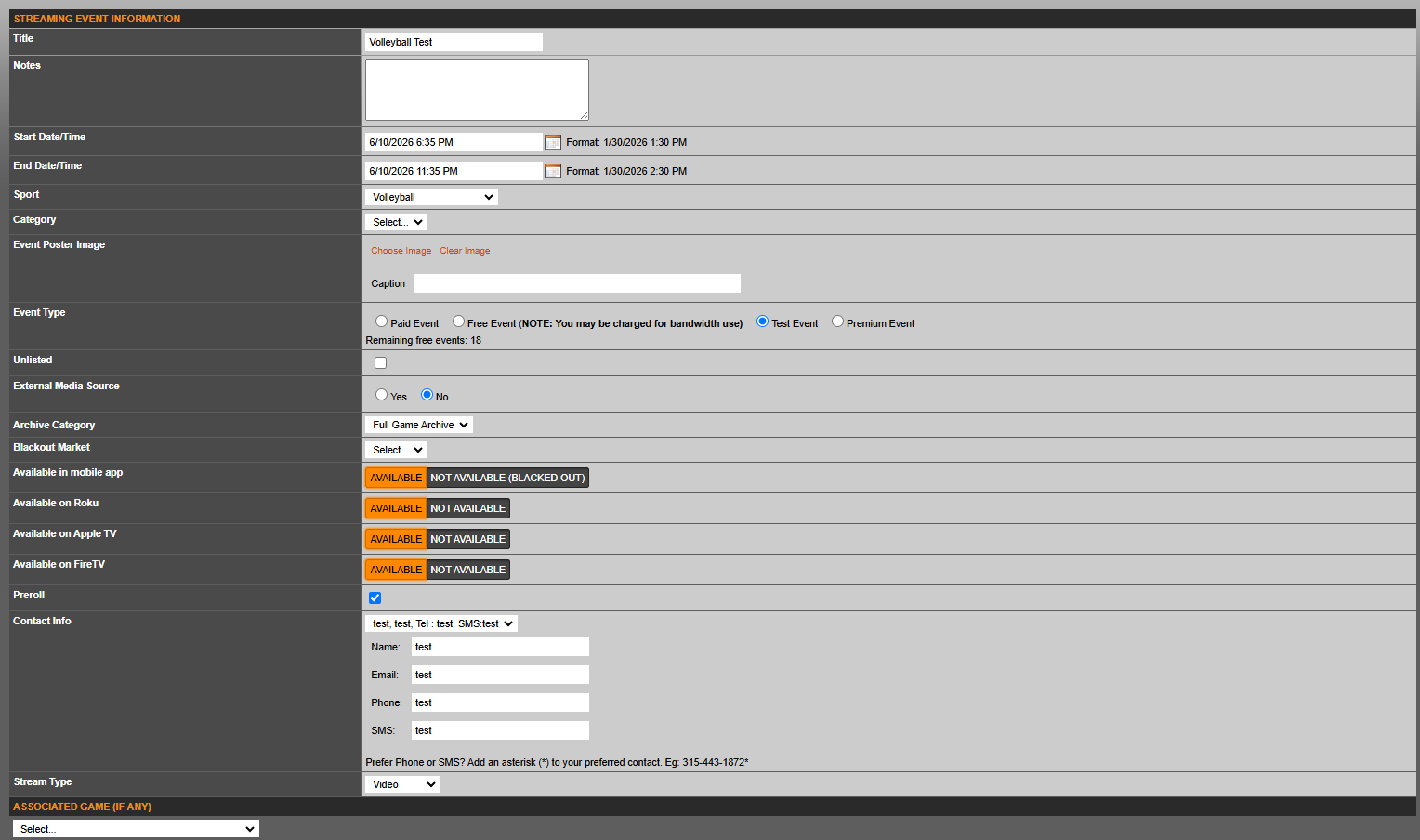
After selecting Add New Media Event, complete the fields shown below.
Figure 2 – Live Event Creation Form
Event Information
Title
Enter the event title exactly as you want it displayed on your website and applications.
Example
Volleyball vs. State University
Men's Basketball vs. Rival College
Volleyball Test Stream
Notes
Optional internal notes for administrators.
This field is not displayed publicly.
Start Date / Time
⚠️ Important
The event start time must be at least 6 minutes in the future.
Example
If you begin creating an event at:
12:00 PM
The earliest valid start time is:
12:06 PM
This allows sufficient time for stream provisioning.
Attempting to connect before provisioning is complete may result in:
Connection failures
Encoder authentication issues
Stream startup delays
The CMS will display an error message if an invalid start time is selected.
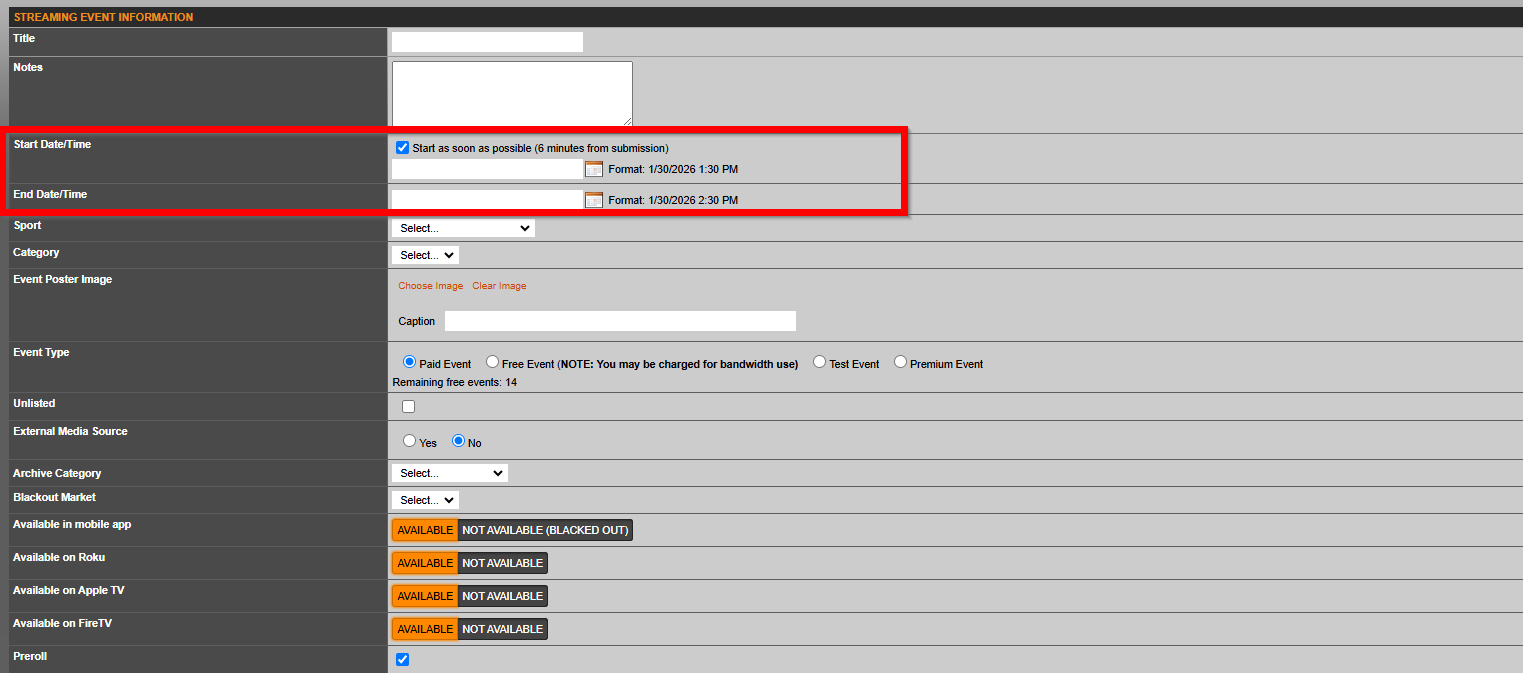
If you wish to create a stream and start it ASAP, the Checkbox Start ASAP will be autoselected unless a date and time are entered.
End Date / Time
Enter the anticipated event end time.
Tip: It is ideal to give your event as much time as possible.
Sport
Select the applicable sport.
Examples:
Football
Basketball
Volleyball
Soccer
Baseball
Category
Select a category if your site utilizes event categorization.
Event Poster Image
Optional.
Upload an image to be used as the:
Event Thumbnail
Video Poster Image
Preview Image
Recommended for improving presentation on web and OTT platforms.
Event Type
Choose the appropriate event type.
Free Event
Available to all viewers.
Paid Event
Available to authorized paying viewers.
Premium Event
Available according to premium subscription rules.
Test Event
Used for testing equipment and workflows.
Unlisted
Enable this option if you do not want the event visible to the public.
Unlisted events can still be accessed directly if the URL is known.
Configuring the Media Source
External Media Source
This setting determines how content is delivered.
YES — RTMP Streaming
Select Yes when streaming from an encoder.
Examples:
OBS
Wirecast
vMix
Teradek
Hardware Encoders
When RTMP is selected, the CMS generates:
Stream URL
Stream Key
These values will appear after the event is created.
NO — External Media Source
Select No when using a third-party media URL.
Common examples include:
Radio station streams
Learfield audio feeds
Conference audio feeds
Network-provided streams
Supported External Media URLs
External URLs should:
Begin with
https://
Common formats include:
.mp3.m3u8
Additional Settings
Archive Category
Determines how completed events are archived.
Blackout Market
Apply blackout restrictions when applicable.
Device Availability
Choose whether the event is available on:
Mobile App
Roku
Apple TV
Fire TV
Preroll
Leave enabled unless otherwise instructed.
Preroll controls advertisement and sponsorship playback before stream startup.
Contact Information
Provide support contact information for event management.
Fields include:
Name
Email
Phone
SMS Contact
Stream Type
Select the content type:
Video
Standard live video stream.
Audio
Audio-only event.
Associated Game
Link the event to a scheduled game if applicable.
This assists with scheduling and presentation throughout the platform.
Saving the Event
After completing all required fields:
Review your settings.
Select Submit.
The CMS will refresh and return you to the Live Events page.
Your event will now appear in the Live Events table.
Understanding the Live Events Table
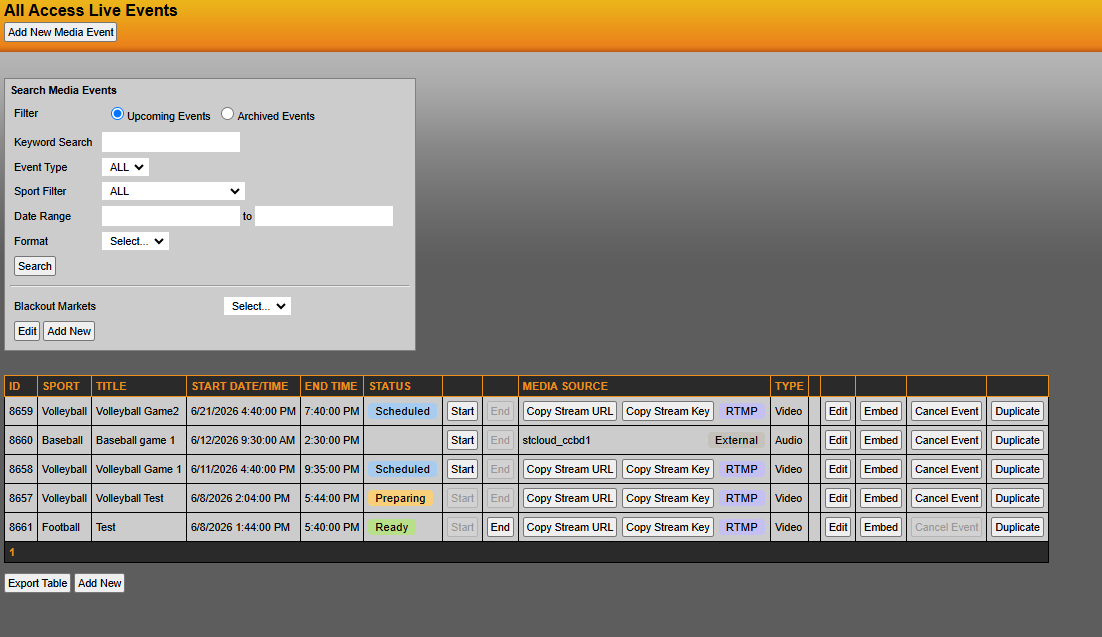
The Live Events table provides status information and management controls for each event.
Figure 3 – Live Events Table
Event Statuses
Scheduled
The event has been created and is awaiting its scheduled start time.
Preparing
The stream is currently being provisioned.
During this phase:
Stream resources are being allocated.
Encoder connections may not yet be available.
Ready
The stream is fully provisioned and ready for encoder connection.
Stream Controls
Start
Select Start to manually activate the stream.
This is commonly used when beginning a broadcast shortly before the scheduled start time.
End
⚠️ Warning
Selecting End is permanent.
When selected:
The stream immediately ends.
The watch page is removed.
The event cannot be restarted.
If a stream is ended accidentally:
Create a new live event.
Obtain the newly generated Stream URL and Stream Key.
Reconfigure your encoder using the new credentials.
Media Source Column
RTMP
RTMP events provide:
Copy Stream URL
Copy Stream Key
Use these buttons to quickly copy credentials into your encoder.
External
Indicates the event uses a third-party media source URL rather than RTMP.
Additional Actions
Edit
Modify event information and settings.
Embed
Access player embed code for website integration.
Cancel Event
Removes the event before it begins.
Note: This option becomes unavailable once the scheduled start time has been reached.
Duplicate
Creates a copy of an existing event.
Useful for:
Weekly broadcasts
Recurring events
Similar production schedules
Export Table
Exports the Live Events table to a spreadsheet format.
This feature is particularly useful when:
Managing multiple events
Sharing Stream URLs and Stream Keys with production staff
Coordinating multi-event production schedules
Common Mistakes & Troubleshooting
"My encoder won't connect."
Verify:
The event start time is at least 6 minutes in the future.
The event status is Ready.
The Stream URL and Stream Key were copied/input correctly.
"I ended my stream by accident."
The End action cannot be reversed.
Create a new live event and use the newly generated Stream URL and Stream Key.
"My stream key doesn't work."
Each event has unique credentials.
Verify you are using the Stream URL and Stream Key associated with the correct event.
"I don't see my event on the site."
Check:
Event start and end dates.
Unlisted setting.
Blackout restrictions.
Was this article helpful?
That’s Great!
Thank you for your feedback
Sorry! We couldn't be helpful
Thank you for your feedback
Feedback sent
We appreciate your effort and will try to fix the article