The Content Stream allows you to display a mixture of site content and social media posts in a section on your site's main and/or sport home pages. This component would be something created as part of your site's design, but is also available for use in the game day and signing day pages as a panel option when setting up those pages.
The setup for Content Stream is the same between both options, just handled in different locations. To edit a Content Stream that is part of your site's design, go to Media > Content Stream Management.
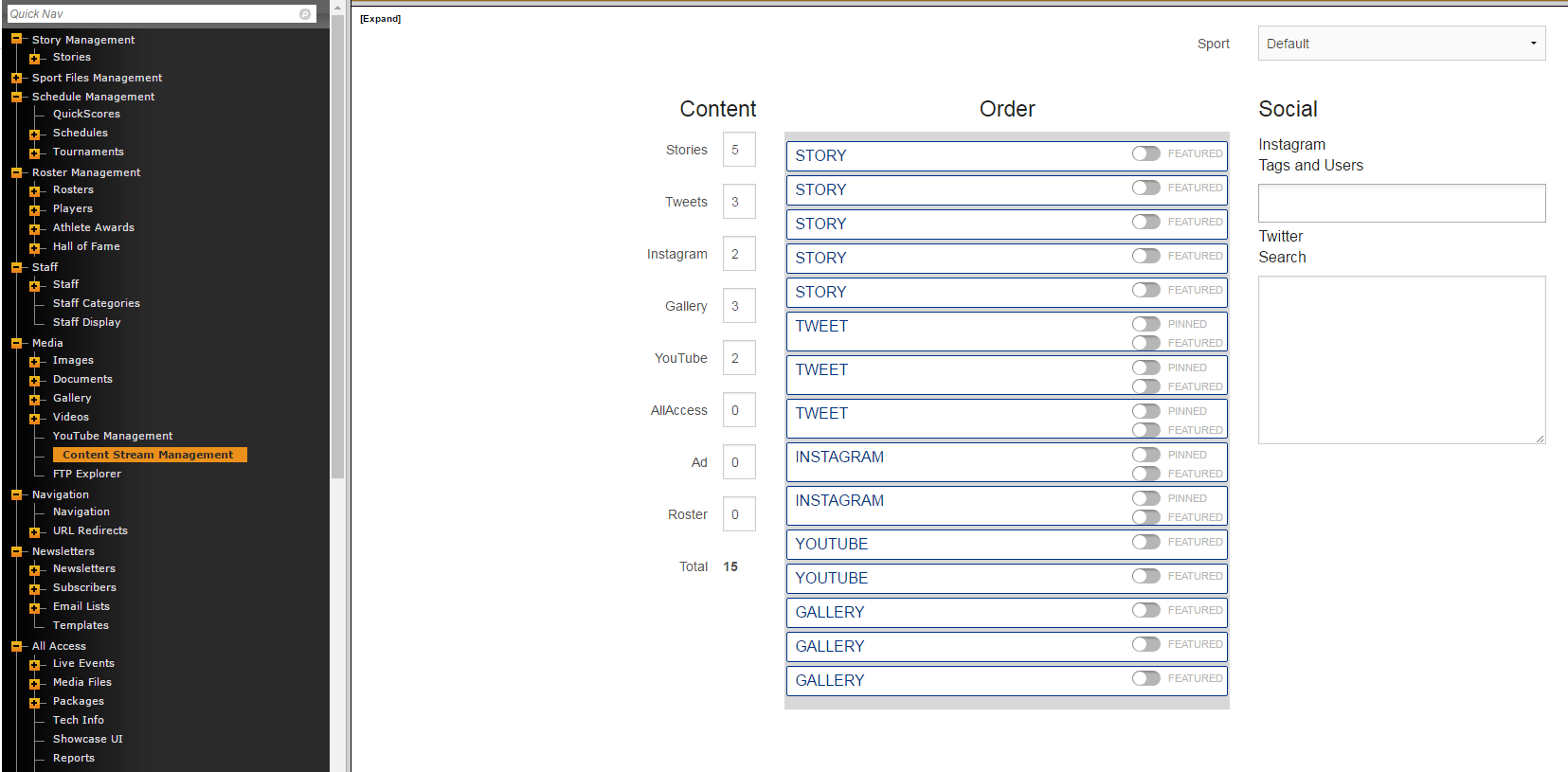
The first thing to note is the drop down in the top-right of Content Steam Management. There is the Default, which will set the parameters for the homepage and all sport pages, or you can select a specific sport which will allow you to add sport specific accounts and settings. Changes made to specific sports will supersede the Default settings.
Starting from left to right you'll see Content/Order/Social.
Content
Here you can set the number of Stories/Tweets/Instagram/Gallery/etc. that will display in your Content Stream. The availability for some of these pieces may be restricted based on your sites design.
Order
Here you can set the rate at which different pieces of the stream will show. The list will be populated by the content and number that you selected in the Content column. Just simply drag and drop to set the order.
Notes for responsive sites:
- The way that Content Stream is setup on the responsive platform means that the Order is now a general outline but can be overridden based on the size of the content (i.e. a Tweet with a large image might force other content to be reordered).
Social
Here you will setup the social media accounts that you want to pull information from.
- To pull content directly from a specific Instagram account, use "@" and the username. Example "@sidearmsports".
- You can add multiple Instagram accounts by following the same process for each username that you want included.
- Make sure you log into your account on the back end under Social Media -> Instagram. (Note: If you use sport-specific accounts for your site, doing this from your main athletics Instagram account should suffice).
- You will start with "from:" and add the Twitter handle without @. Example: "from:sidearmsports"
- You can pull from multiple accounts by placing OR between the handles. Example: "from:sidearmsports OR from:sidearmsports2"
WARNING: You can add a hashtag instead of a username/handle but there is no approval process for incoming content so it can be risky. Best practice is to pull information from university run accounts to avoid rouge content!
Was this article helpful?
That’s Great!
Thank you for your feedback
Sorry! We couldn't be helpful
Thank you for your feedback
Feedback sent
We appreciate your effort and will try to fix the article