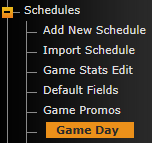
You can find the Game Day option on the backend of your site under the Promotional Items section.
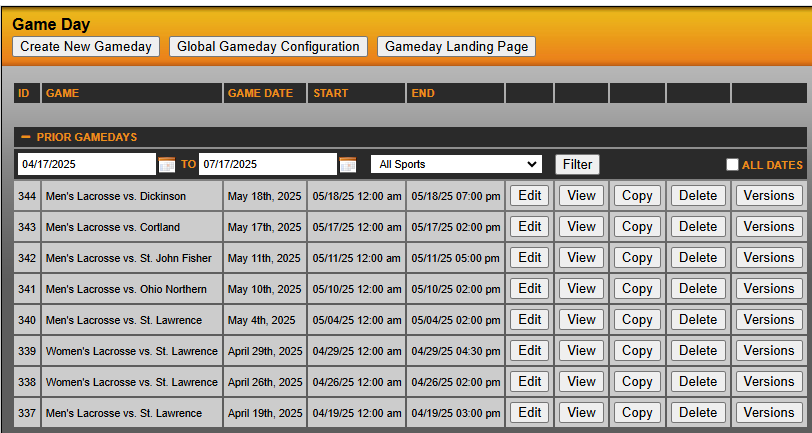
You will then be brought to a screen where you can click "+ Prior Gamedays" to see your previous gameday entries. To make a new entry, click "Create New Gameday" button in top-right corner of screen.
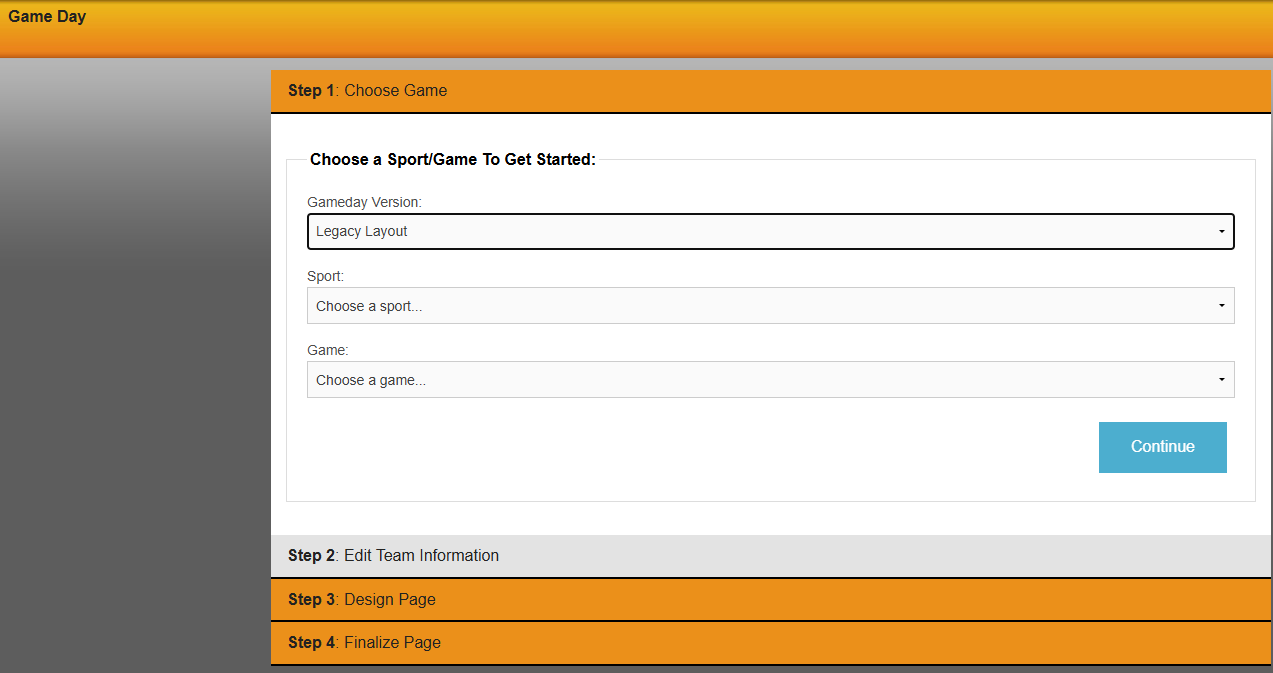
Once "Create New Gameday" is selected you will see an initial screen starting with:
Step 1: Choose Game
Make sure Legacy Layout is selected for Gameday Version. You will then select specific sport from the dropdown and then the associated game that you will be creating the Game Day feature for. Click continue to proceed.
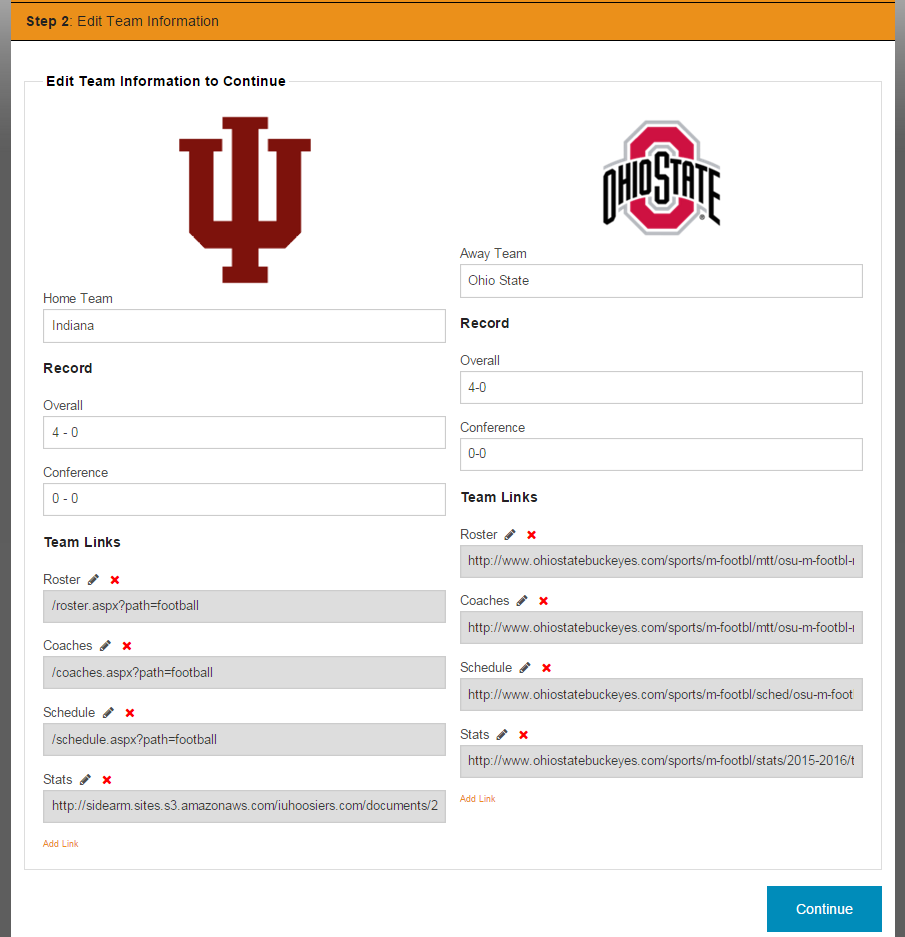
Step 2: Edit Team Information
In Step 2 you will fill out information such as Overall/Conference record and Team Links that aren't already populated (information should auto-populate if opponent is in your database and/or is a SIDEARM school).
Click on the  button to edit the Roster/Coaches/Schedule/Stats links. You can also click the orange Add Link option at the bottom of the fields to add custom links.
Step 3: Design Page
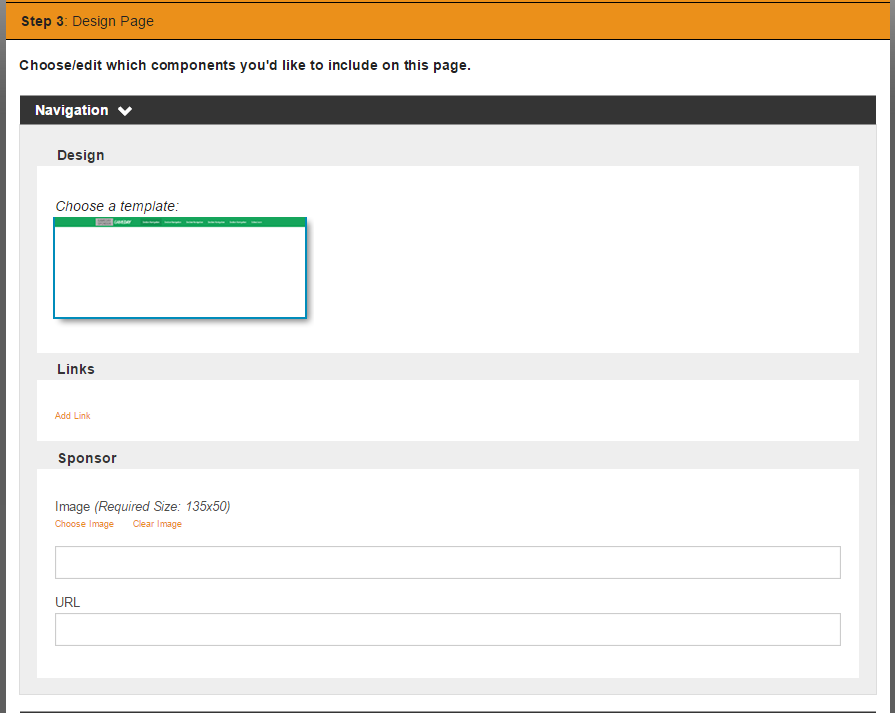
Step 3 is made up of numerous customizable sections. They are as follows:
Navigation
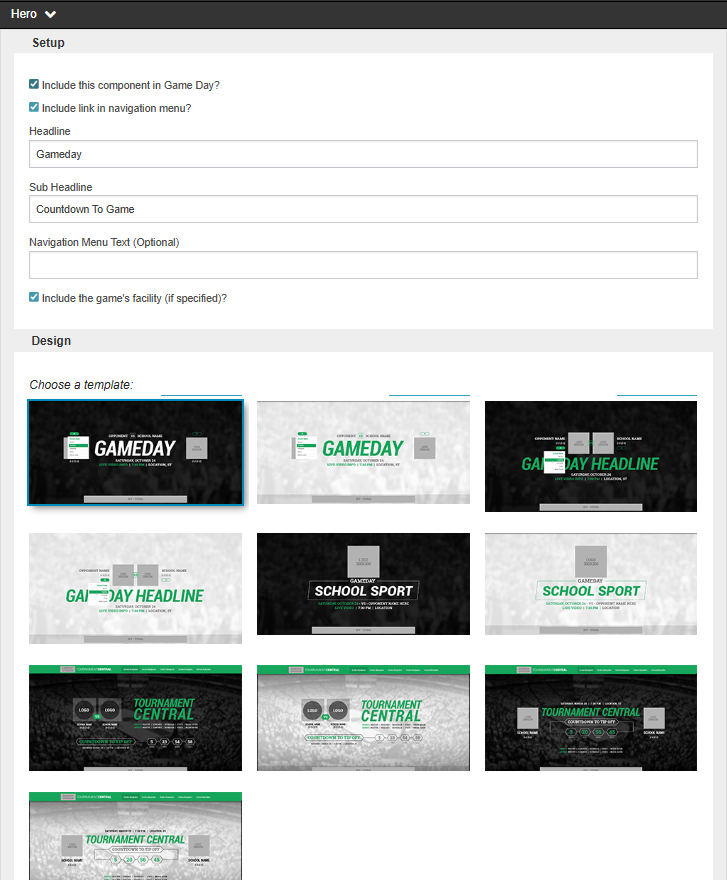
Hero
*note that there are options for both singular gameday and tournament game day templates
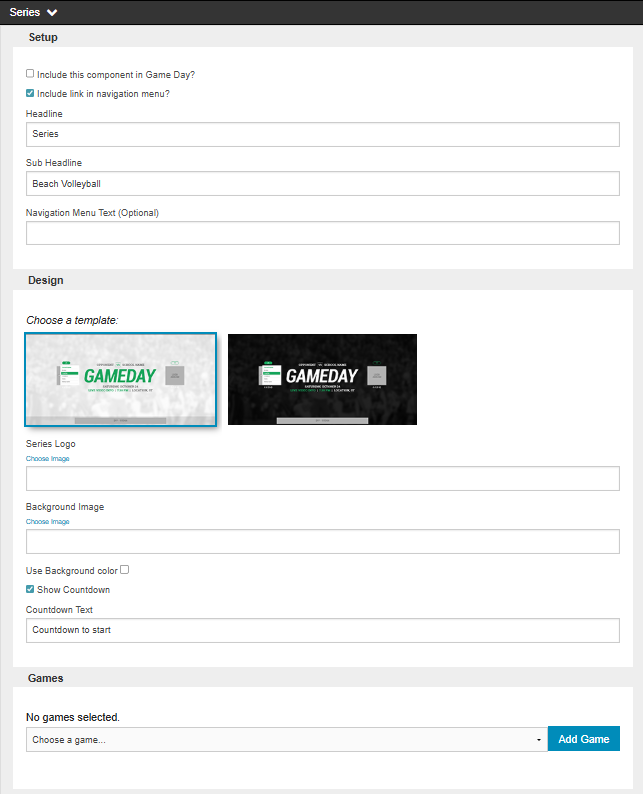
Series
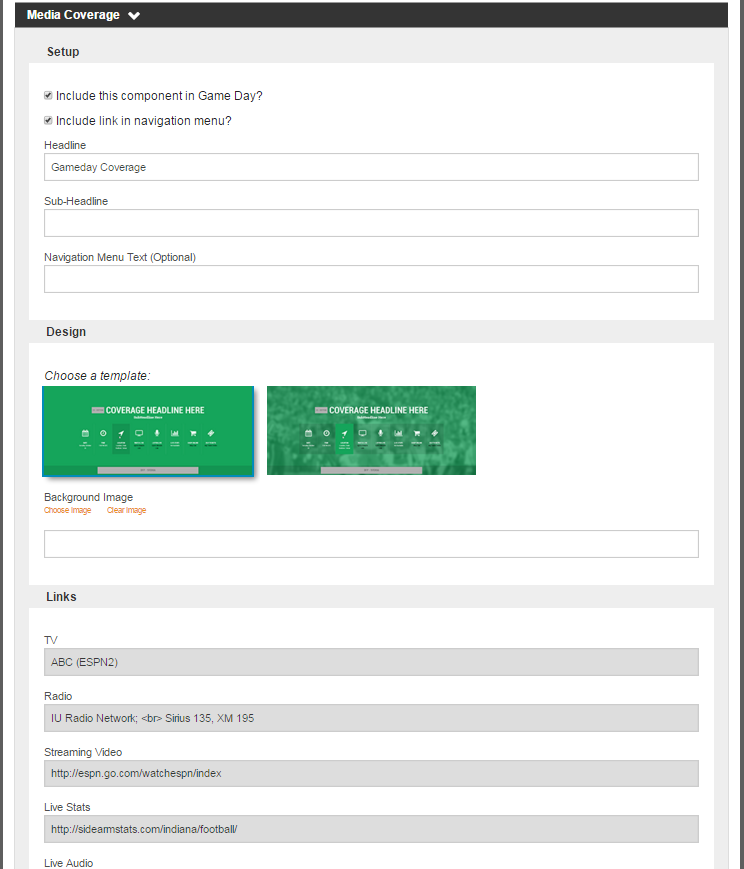
Media Coverage
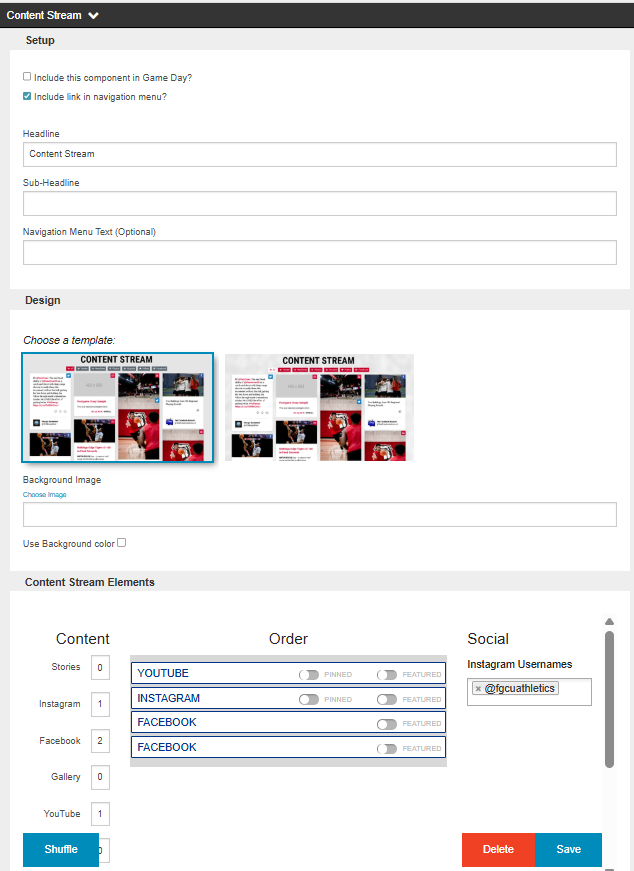
Content Stream
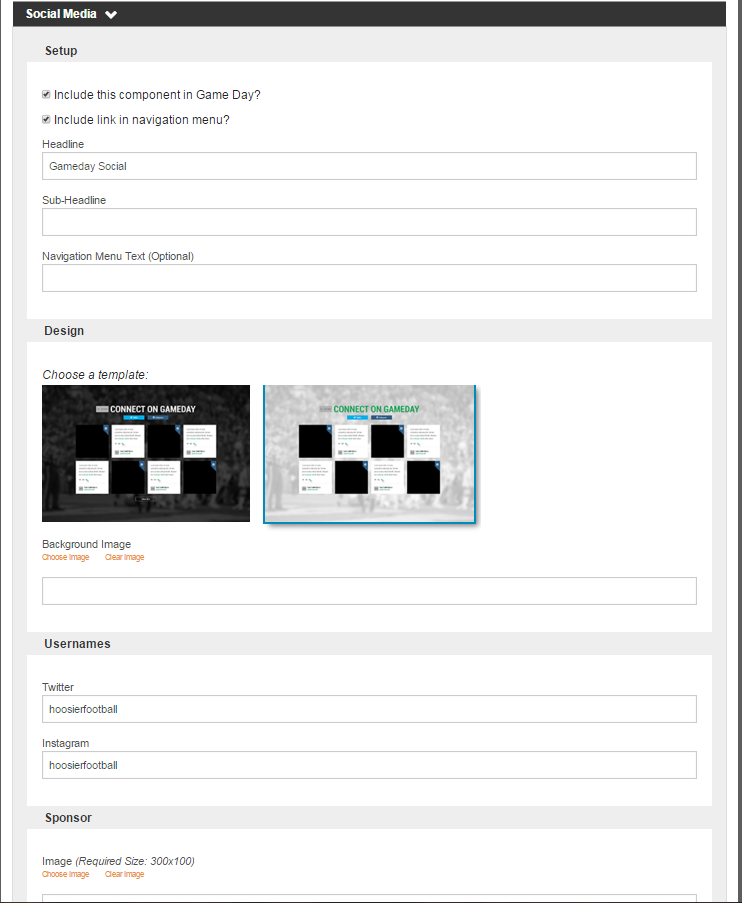
Social Media
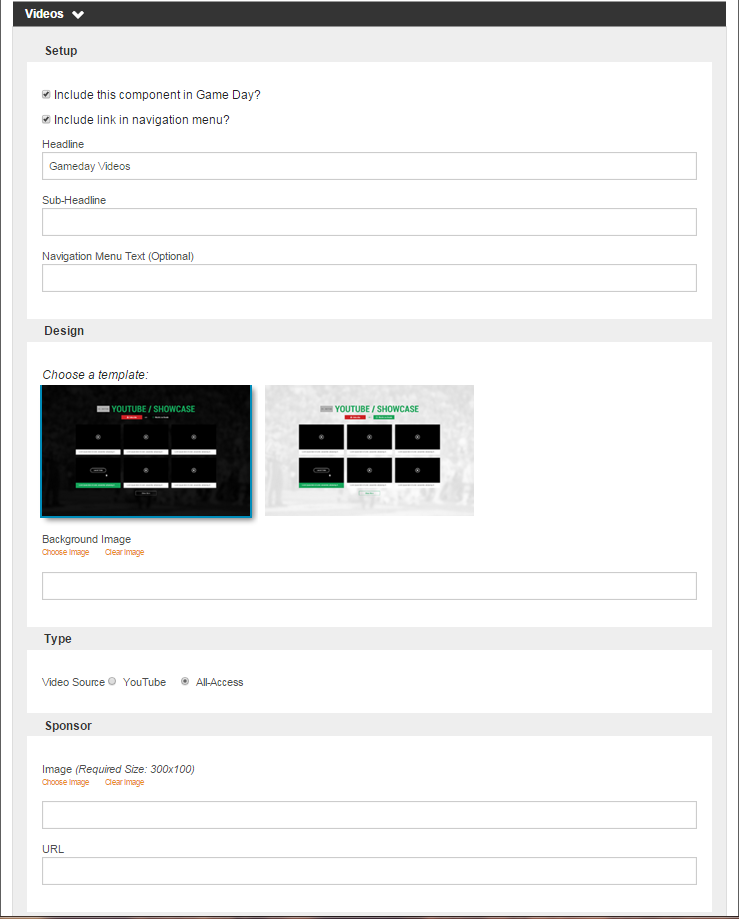
Videos
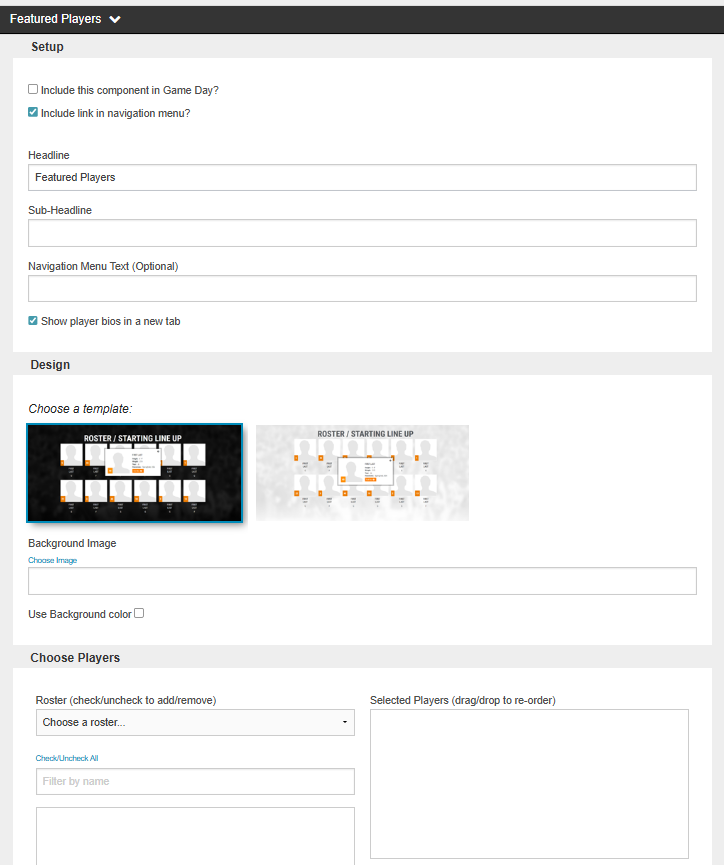
Featured Players
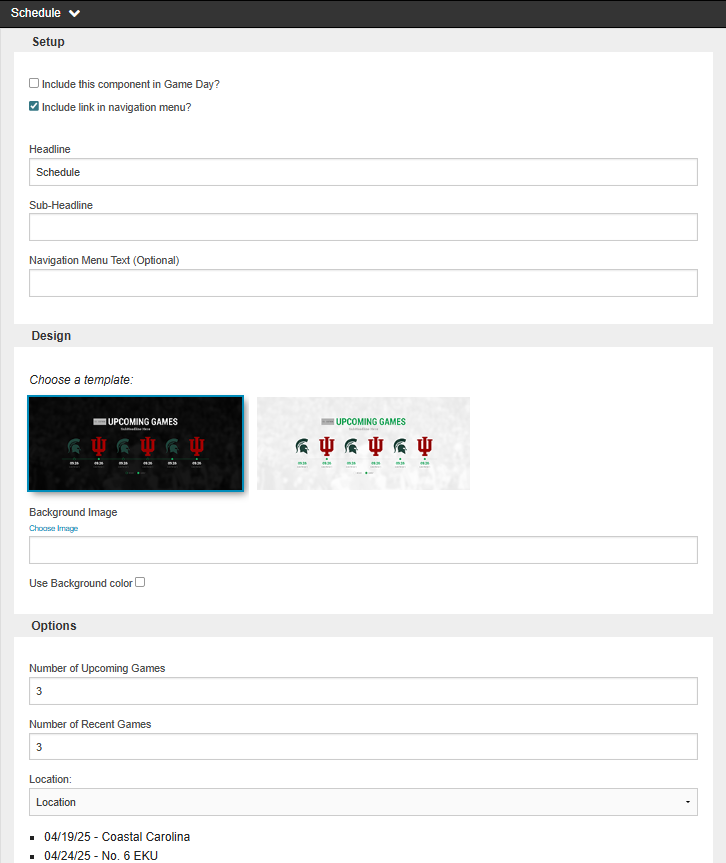
Schedule
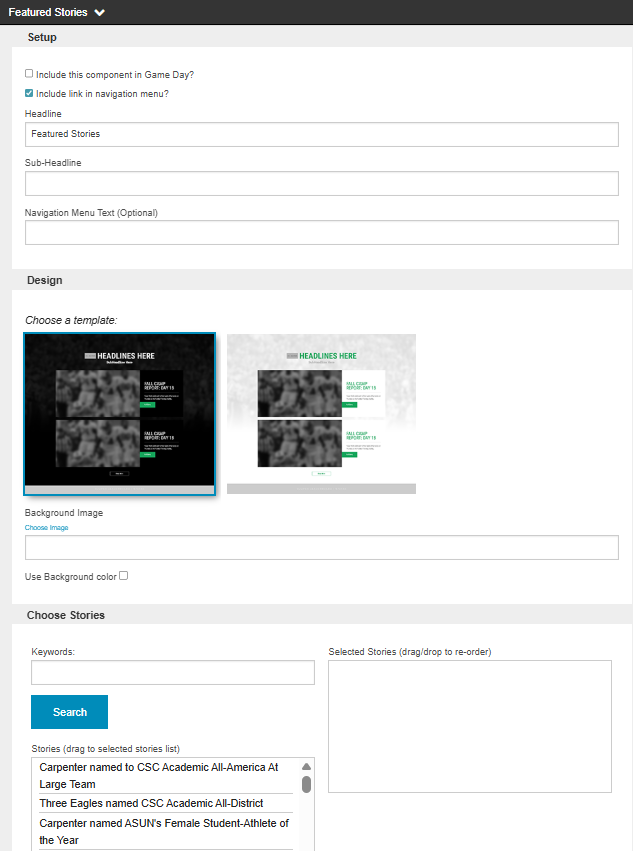
Featured Stories
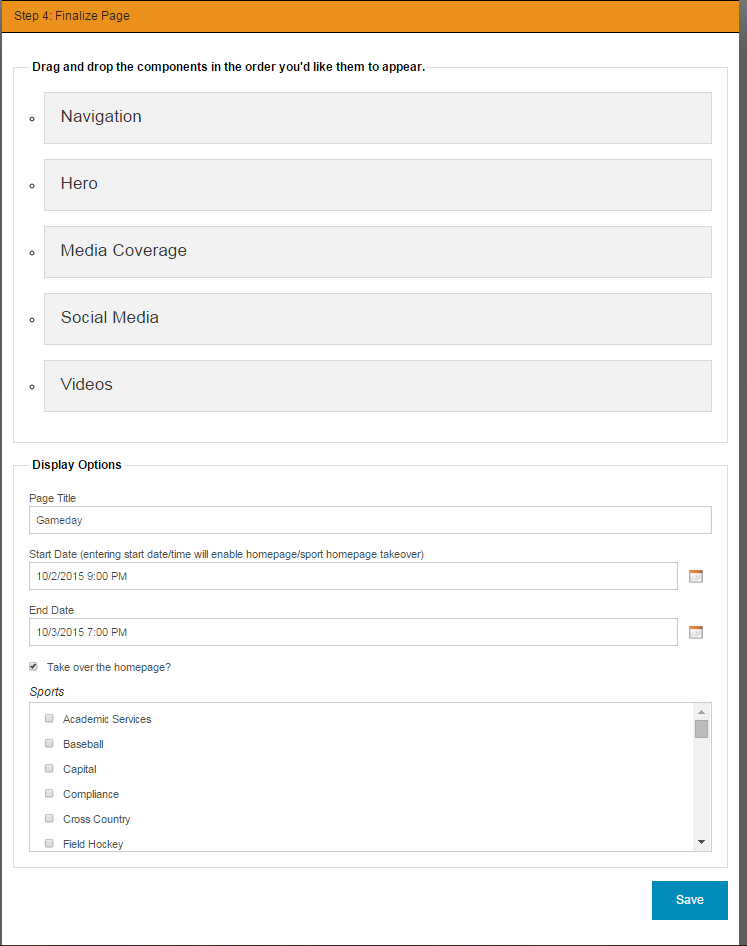
Step 4: Finalize Page
In the final step before you Game Day feature is complete you have several options to customize the format.
You can drag and drop the components to change the order.
Update the Display Options, including the Page Title/Start Date/End Date/Take over the Homepage?/Pick which specific sport pages to show on.
Was this article helpful?
That’s Great!
Thank you for your feedback
Sorry! We couldn't be helpful
Thank you for your feedback
Feedback sent
We appreciate your effort and will try to fix the article