To add a single document into SIDEARM, click on 'Documents' and then 'Add a Document'. You will be brought to the screen below. 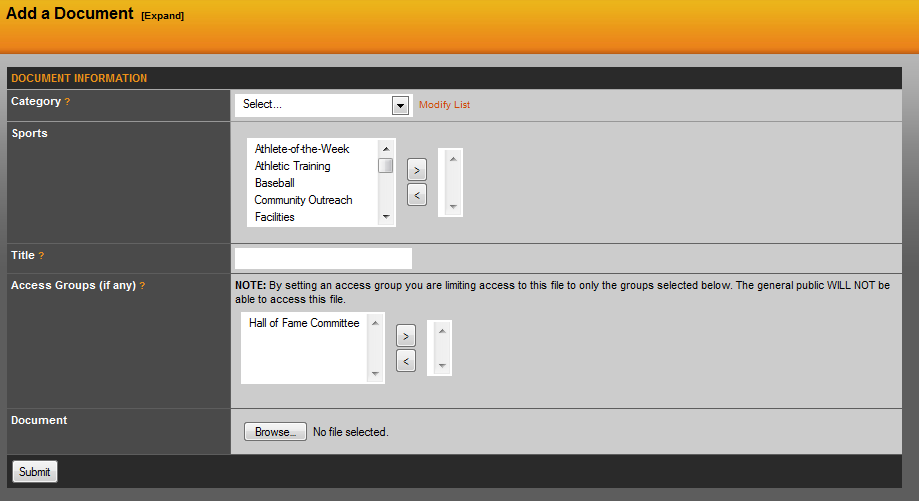
From here, you will want to choose a category for the document. You can also modify the list to create new categories, those instructions are in the next section. Then you can choose to associate the document with a sport for search purposes on the backend, you will want to title the document and then click Browse to search for and select the image. When finished, click the submit button.
Modify Documents List
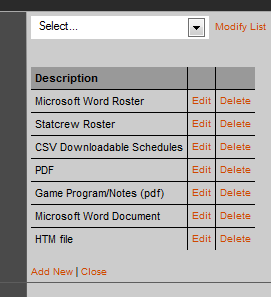 To modify the documents category list, click the orange Modify List link to the right of the dropdown menu. From here, you will see a list of all current categories and the option to edit, delete or add a new one. When you add a new one, just type in the name of the new category and then click update. Then close the orange close link to collapse this and go back to uploading your document.
Was this article helpful?
That’s Great!
Thank you for your feedback
Sorry! We couldn't be helpful
Thank you for your feedback
Feedback sent
We appreciate your effort and will try to fix the article