The athletics website is the first place that fans, students, student-athletes, potential students, and many other individuals access the website. When sites are not accessible to people with disabilities, then we are closing our digital doors to one of the largest minority groups in the world. An estimated 1.3 billion people are affected by some type of disability across the globe.
How to make your website content accessible
The first step is to address the content that is on the websites. I’ll be breaking that down and providing explanations on what the issue is and how to fix it. This is the first step to improve the accessibility of the websites, the next step involves development and refactoring the code on these websites.
The areas that will be covered here are:
- Images without alt text
- Page titles
- Broken links
- Empty headings
- Incorrect heading order
- Form fields missing labels
- Empty links or buttons
- Text legibility
- Color contrast
- Link text
- IFrames without titles
Alt Text
Users with vision disabilities such as blindness, low vision, and colorblindness are not always able to fully see what is in an image. Alt text gives more context to those who may not be able to view a picture. If the image fails to load, then there is still a description to be read which gives context to the user.

Let’s write some alt text for the image above.
Option 1
SIDEARM University football stadium
Okay, now I know that this is a football stadium at SIDEARM University, but that’s all I can gather.
Option 2
The recently updated SIDEARM University football stadium has room for 20,000 fans and a grass field. The seats are red, and the stadium structure is white. There’s a terrace that surrounds the stadium and beyond that is a forest, two large parking lots, and another athletic facility with a red roof.
This is a great description in the context of an article or blog post speaking about the new updates to the facility. Providing that extra context is extremely helpful for users with vision issues. You can also focus on describing the image.
Option 3
"”
If there are images that do not add much value to the page, you can use alt=”” which tells the screen reader that the image is decorative.
Page Titles
Every page on the internet requires a unique page title to differentiate it from other pages on the internet. This is important for search engine optimization, and users bookmarking our websites, and it is what screen readers use to identify a webpage.
- Make sure that each page has a title.
- Give pages unique titles to differentiate between similar pages.
- Don’t make the titles too long. Ideal page titles are 30-60 characters.
Broken Links
A broken link is a link that no longer goes to the correct location. This is usually due to the owner of the web page being linked to having taken the page down or moved it. Broken links on a website are difficult to catch, but they have a huge impact on users.
To find broken links on a page, I recommend using a browser extension to identify the broken links on a given page. The Accessibility Team at SIDEARM uses Broken Link Checker for Chrome, but any browser extension that finds them works.
After you’ve identified any broken links on a web page, you’ll need to either remove the link or find the correct link and update the link.
Empty Headings
Empty headings occur when an extra heading element is added to a web page in the content management area or in the code of the page. These seemingly invisible elements can add weird spacing on a page, but they are also read by screen readers even though they appear empty.
To find the empty elements in a content management system, you’ll need to edit the page that you’re checking. Then view the code of the page via a “Source” or “HTML” button. Read through the code shown and hunt for any code like this
<h2></h2> and delete them.
Incorrect heading order
Each page should have an <h1> on it. Some sites created via a content management system already have an <h1> on it which is usually the name of the school or company. If that is not the case, then each page created needs to have one, and only one, <h1>. After the <h1>, you need to have an <h2> before using an <h3>, and so on till <h6>.
When you’re using a content management system to create the pages on your site, this looks different. Within the WYSIWYG (what you see is what you get) content editing, when you select a text style for an element, you need to choose them in order.
This is how users of SIDEARM Sports’ CMS control the headings here:
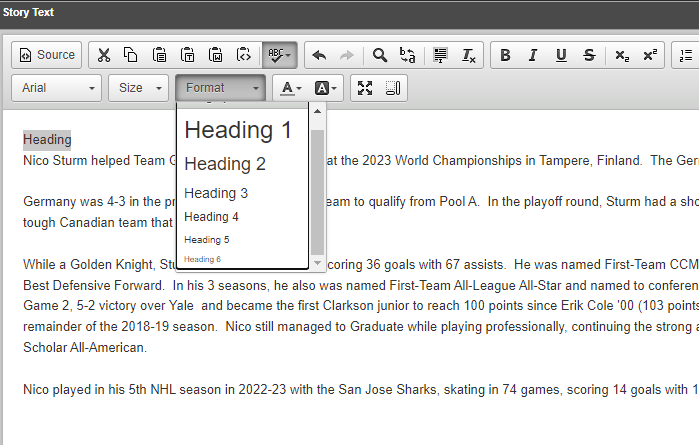
When using a screen reader, an individual can have the screen reader list out the headings on a page and they can navigate to those headings. If the headings are out of order for the page, the user may accidentally think that one section of the page is more important than another even if that isn’t the intention. It can also cause them to read the page out of order.
Form fields missing labels
When a user with visual disabilities uses a form on a website, they must rely on the content that is available for a screen reader to help them fill out the form. Any forms on a website must have labels so that users can understand what they should enter in a form input. Labels are different than placeholders, and placeholder text has been found to confuse users.
Empty links
Empty links often cause confusion for users with vision disabilities. These users aren’t able to see or notice the element that is the link. The common cause of empty links is a linked image without alt text, or a linked icon that doesn’t have alt text. A user without visual impairments can easily see the image that might contain information about an event and then link to a sign-up for that event. But if that image lacks alternative text, the blind user will only be informed of where the link goes.
To fix empty links, ensure that any linked images or icons have alternative text. An example would be an image of the NCAA logo that links to the NCAA website that opens in a new tab. In this case, the alt text for the image needs to inform the user what this link will do. “NCAA website opens in a new tab.”
Text Legibility
One of the most important functions of a website is to provide information. But if the information isn’t legible, then the website isn’t functional. This impacts a large range of users: people with visual disabilities, people with dyslexia, people with a lower reading level, and many, many others. There are general guidelines to follow for text.
- 12px font is the smallest text size that can be used.
- Do not use all uppercase (on the web and in print documents) as this is extremely difficult for dyslexic individuals to read.
- Ensure the line spacing is 1.5 times the size of the text.
Color Contrast
Color contrast also plays a large role in text legibility. While color contrast pertains to the contrast between any one element and the things around it, it also impacts the legibility of headings, body text, link text, etc.
To check the contrast of two colors, go to WebAIM’s Color Contrast Checker. There are two levels of contrast ratios shown. The item must meet Level AA requirements, but taking the extra steps to meet Level AAA is nice if you can.
This is what you’ll see when you go to the color contrast checker.
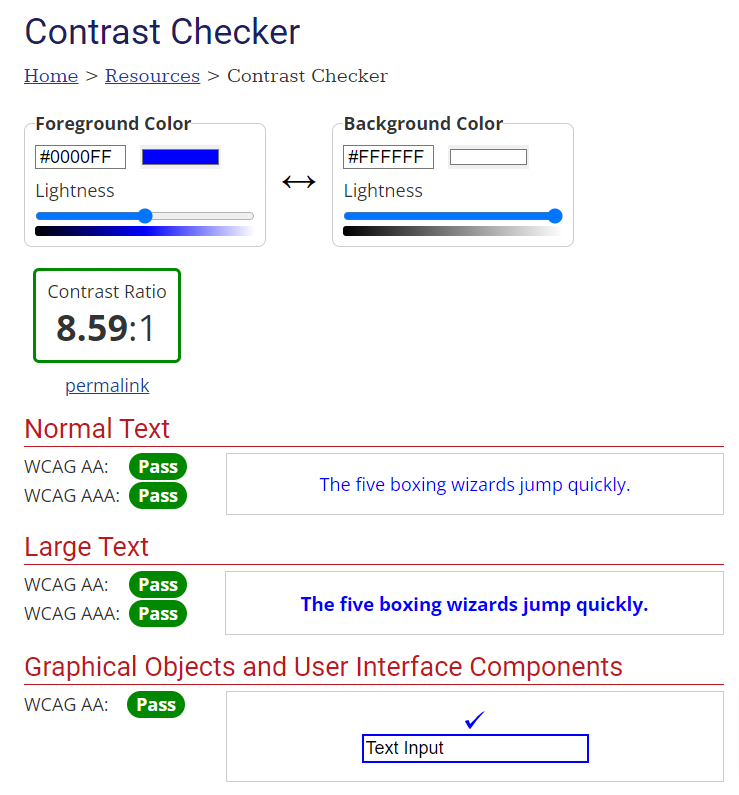
As you can see, this color passes all checks.
Link Text
The text used within a link must help users understand where that link will take them. Screen reader users can navigate a page by going from link to link or button to button. When the screen reader is listing out these links, if the link doesn’t have helpful text, the list will have vague link names:
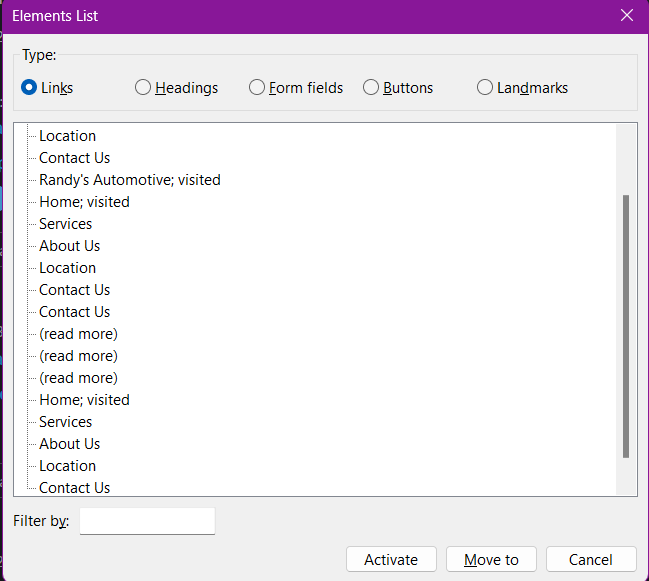
In the middle there are three “(read more)” links.
IFrames without Titles
An iFrame is an element that loads another HTML element inside of a web page. They are commonly used to embed specific content like external ads, videos, tags, or other interactive elements into the page. When embedding an iFrame, you need to make sure that the element has a title attribute. This looks like title=”name of iFrame”.
Was this article helpful?
That’s Great!
Thank you for your feedback
Sorry! We couldn't be helpful
Thank you for your feedback
Feedback sent
We appreciate your effort and will try to fix the article