TABLE OF CONTENTS
Overview
To have the podcasts feature enabled on your site, just send a note to our support team and we'll get that enabled for you.
Once active on your site, you'll access that page by entering your URL + /podcasts. For example, https://goracers.com/podcasts.
One key feature of adding podcasts to your SIDEARM site is the ability to generate an RSS feed that can be fed into iTunes, Google Play, etc.
That RSS link can be accessed from the top area of your /podcasts landing page.
Podcast Display
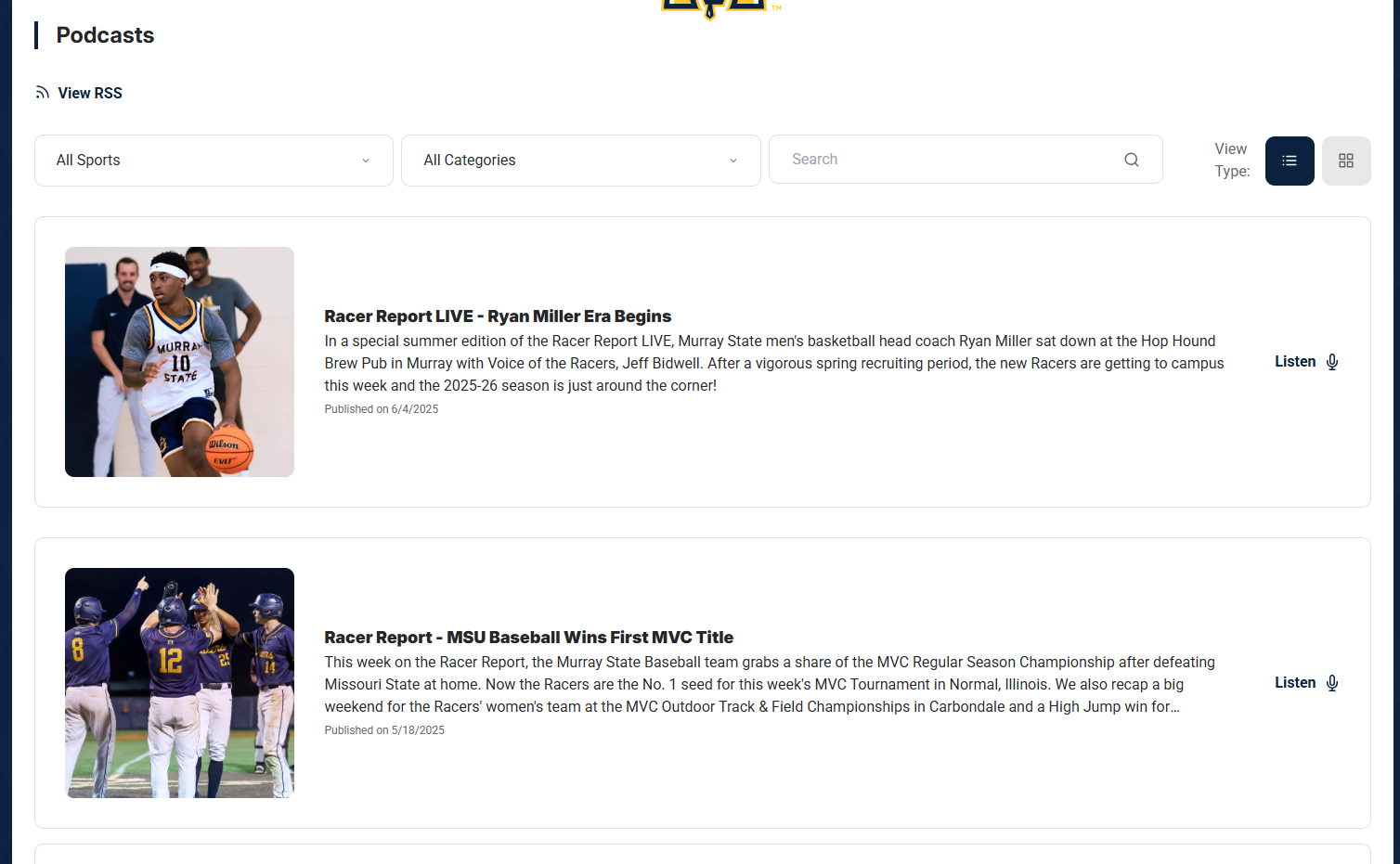
NextGen
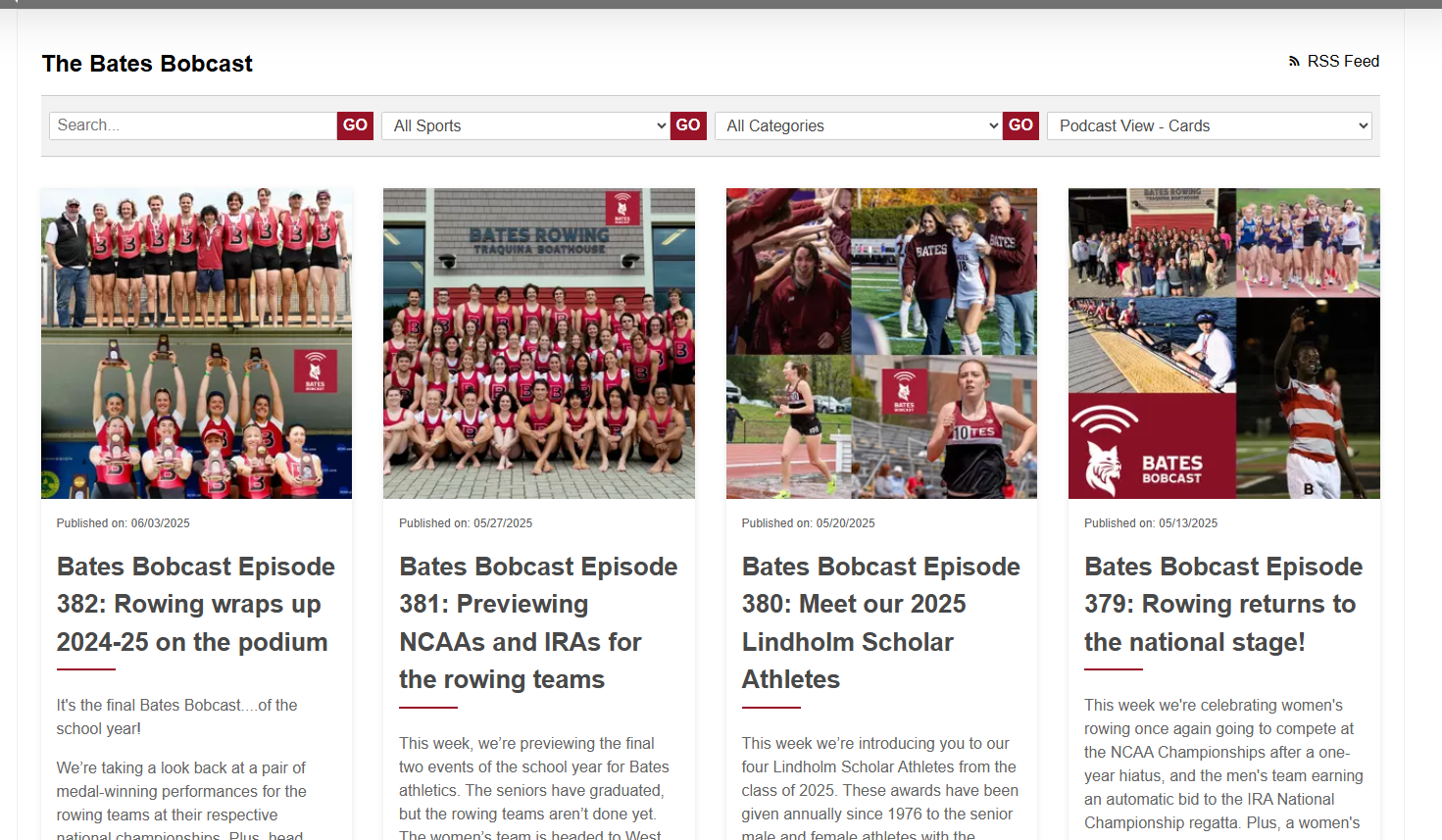
Legacy
Customization Options
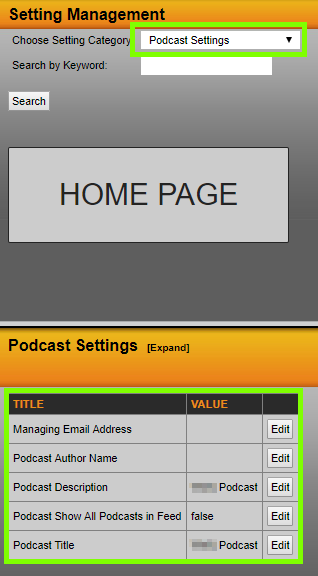
Go to Site Settings > Settings and select "Podcast Settings" from the drop down.
There you can customize items such as the podcast title, author, email, etc.
Setting Up Your Podcast
In the CMS, you can access this option under Media > Podcasts.
You can update the RSS feed image using the Edit RSS Image button on the setup page. The cover image must be 1400x1400px in size.
You can also update the landing page (Podcast Hub option), and you can edit Podcasts Categories if you offer more than one podcast.
NOTE: All different podcasts show on the same RSS feed.

Adding a New Podcast
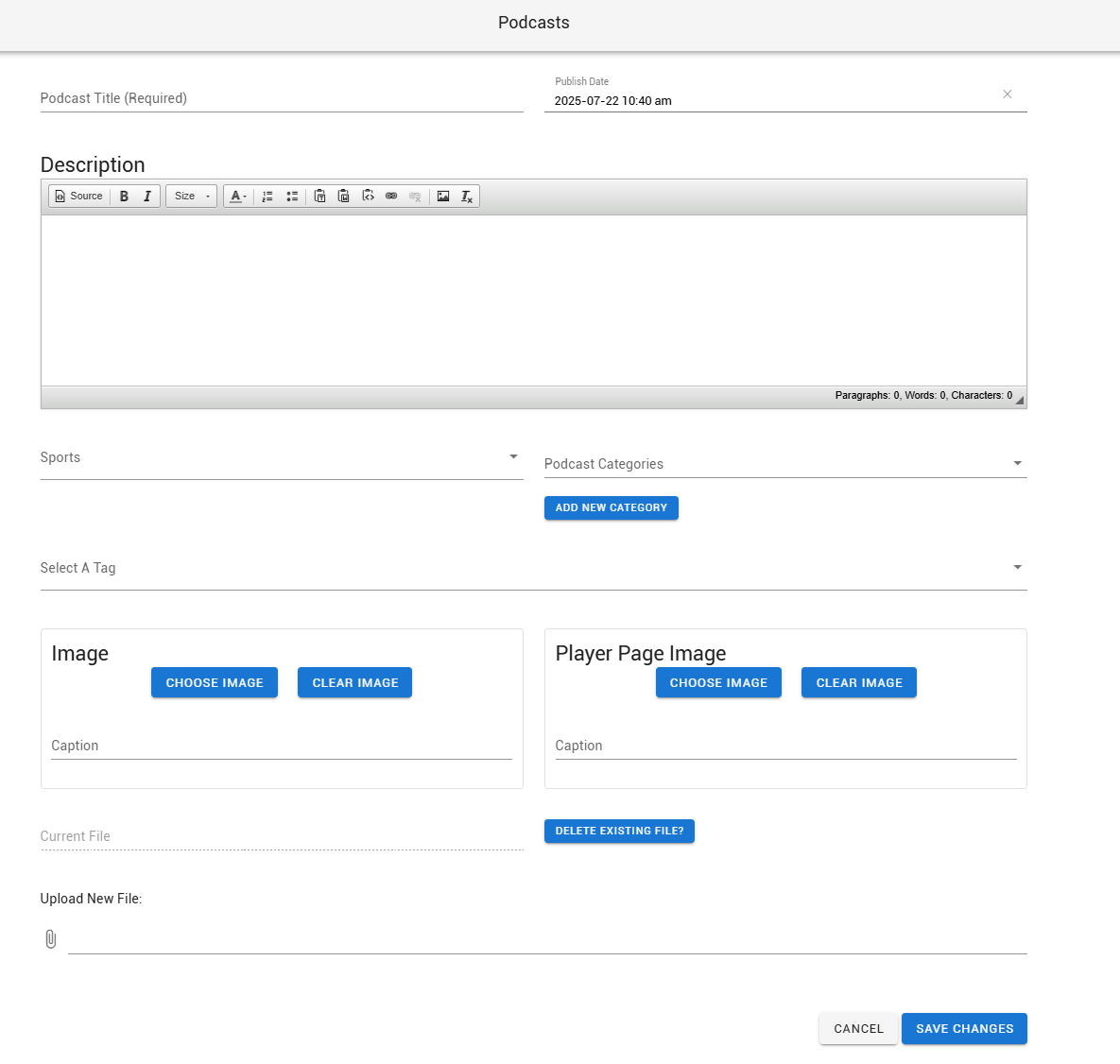
When adding a new podcast, you will go through the steps of adding the standard publish information, category, and images, and uploading the .mp3 audio file to save.
Add the standard publish information.
Select a category.
Add images.
Upload the
.mp3audio file and save.
Was this article helpful?
That’s Great!
Thank you for your feedback
Sorry! We couldn't be helpful
Thank you for your feedback
Feedback sent
We appreciate your effort and will try to fix the article