Step 1 - Download and Install the SIDEARM FTP
Click here to download the installer file
You will be prompted to add this program your machine, hit next until the installation has been completed.
Once installed, a shortcut will be added to your desktop, the icon is the SIDEARM diamond logo.
Step 2 - Setting up the Distribution Points
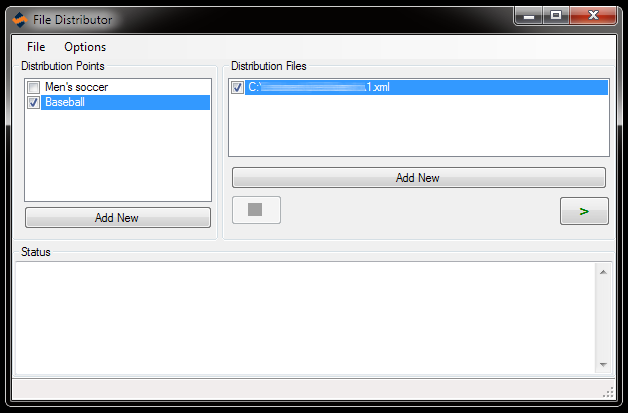
Click the add new button under the distribution points box. This is where you will create accounts for each sport and any other locations that you would normally send your files to for Live stats. These steps were previously handled in the locations.XML file, but is all done within this section and you can now create and save a separate account for sport and distribution point.
Name: When adding a new distribution point, be sure to give it a proper name, in our example below, we are setting up Baseball.
Host: The host to send to us will always be sidearmstats.com, if you are sending to another location, add the proper host in this field.
Port: The port will always be 21 unless otherwise specified.
Username & Password: The username and password are provided to you with the initial directions, but will be the same you have always used in the past.
Directory: The directory name will be the sport folder name. Here is a list of all the folder names available to use: msoc, wsoc, fhockey, football, wvball, mbball, wbball, mvball, mhockey, whockey, baseball, softball, mlax, wlax
Active or Passive Mode: Always choose passive mode unless otherwise specified.
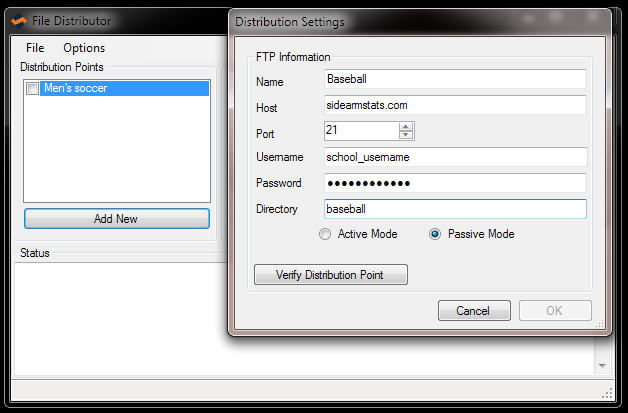
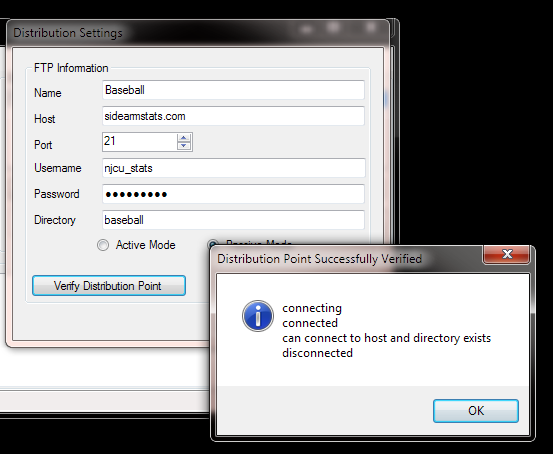
The last step before you can add the new distribution point is to Verify it. To do so, click on the 'Verify Distribution Point' button. This will ping the location you have entered information for to verify that everything was entered properly. If it returns an error, double check all the fields and try again. Otherwise you would receive the following notification.
Step 3 - Choosing the Distribution Files
To add your distribution files, click on the 'Add New' button under this section. Then browse your machine to find the XML file, commonly named 1.xml on your machine. If following the simple directions, this should be located in the LIVE folder on your C Drive. After selecting the file, you will see the it appear in the box. In most cases, you will only need to do this once. If by chance you wanted to save the XML file to a different folder on your machine for each sport, this allows you to add each location at once. Just note, if you do plan on using different locations that the Target Directory in Live Setup, matches with the location you using for that sport.
Step 4 - Activating the SIDEARM FTP
When ready to begin using the SIDEARM FTP, check the boxes for each of the distribution points you will need for the game, check the box for the Distribution File and then click on the > button. This will activate the SIDEARM FTP and each time a file is saved in StatCrew, it will transmit a new file.
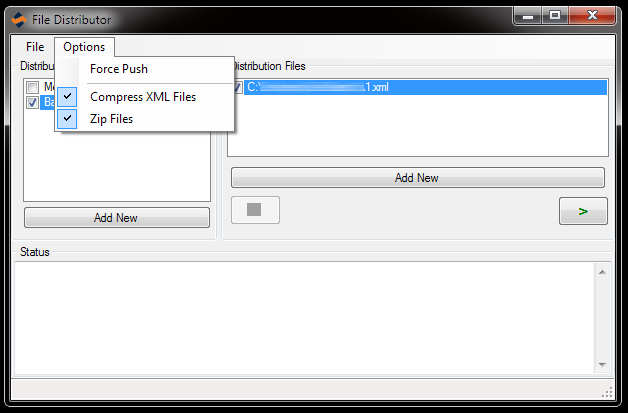
If you want to send a test through, you can force send the file by clicking on the 'Options' tab and then clicking on Force Send as seen below.
Game Day Checklist
Open the SIDEARM-FTP by double-clicking the icon on your desktop.
Check the boxes for the distribution points for today's game and the Distribution file.
Hit the > button to activate the SIDEARM FTP.
Open StatCrew Game Reports
Click on Live and then choose Live Setup
Click the Activate button in the top left corner. Make sure the Auto-Copy box is check, the XML Radio button is selected and the target directory is C:\LIVE. Then in the upper right corner, Enable XML should be checked and the 1 or your file name below that. Then Click Ok.
Choose the game from the list in StatCrew and lastly click on Live and then Send Stat Files.
At this point we suggest you minimize the SIDEARM FTP program. It will need to stay open to function, but doesn't need to be on the screen, this way you can't close it by accident and it doesn't take up valuable screen space.
Was this article helpful?
That’s Great!
Thank you for your feedback
Sorry! We couldn't be helpful
Thank you for your feedback
Feedback sent
We appreciate your effort and will try to fix the article