This section allows administrators to add in as many fields to each form/survey for respondents to complete when submitting the form/survey. These can be Text Boxes, Text Boxes with Date Picker, Text Areas, Dropdown Select Boxes, Multiple Select Boxes, Quantity Select Boxes, Radio Buttons, Yes/No Radio Buttons, Standard 1-5 Radio Boxes, Check Boxes, and Separator Items.
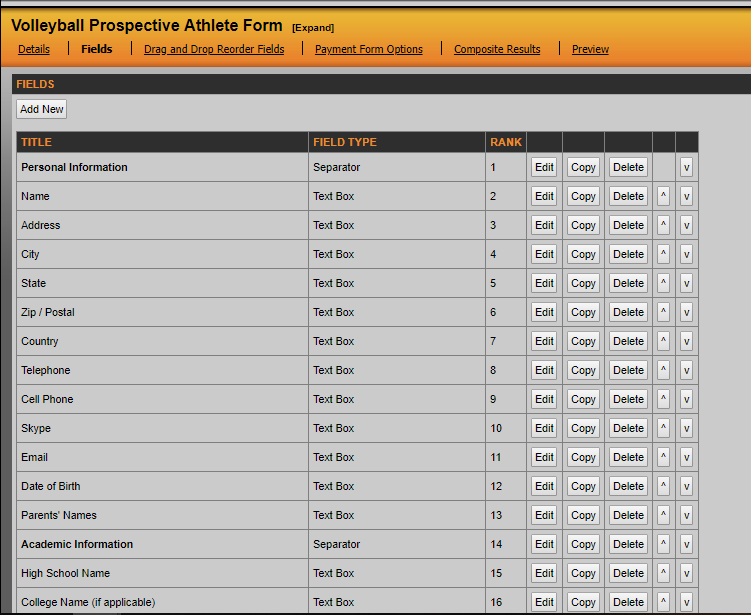
When clicking on Fields you can Add New, Edit, Copy or reorder the fields on that form.
Text Box
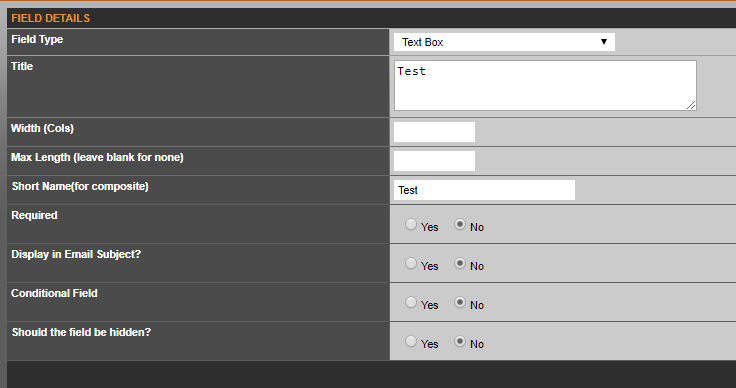
When adding a text box, you will provide a title for the text box, and then a short name that will show as the column title in composite results. If it's a required field that users will have to fill out, you can switch the Required toggle to "Yes." You also have the option to hide the field if need be by using the "Should the field be hidden?" toggle.
Text Boxes with Date Picker
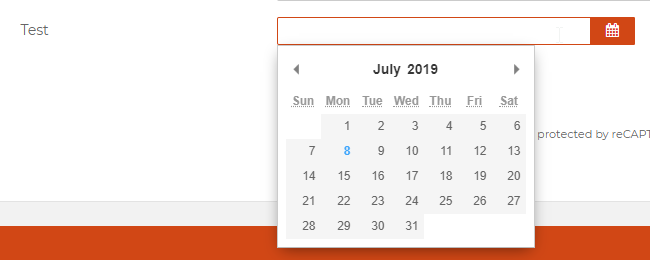
This is a similar set up to the general Text Box field, but a date picker will show instead of a text box like so:
Text Areas
The text area is a similar set up to the general Text Box field, but is more of a larger box for longer responses:

Dropdown Select Boxes
This field has the ability to create dropdown options that the user can select. The admin will first have to create a title for the dropdown box, give a short name for composite, and then will have to click the "Submit" button in the bottom right hand corner before being able to add the options that will appear in the dropdown:
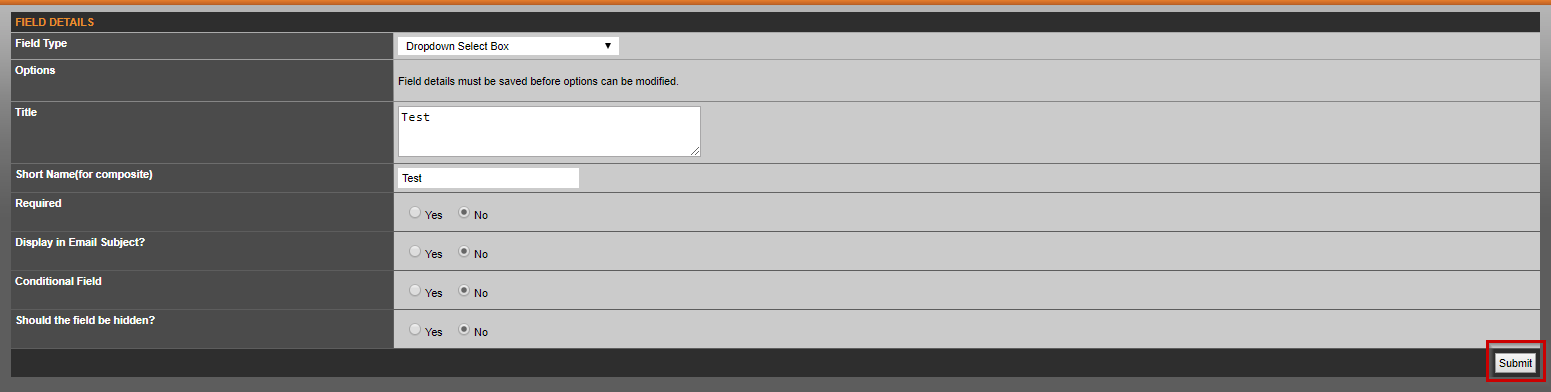
Then, you will be able to edit the field you just created, and then add the dropdown options by clicking the "Add New" button here:
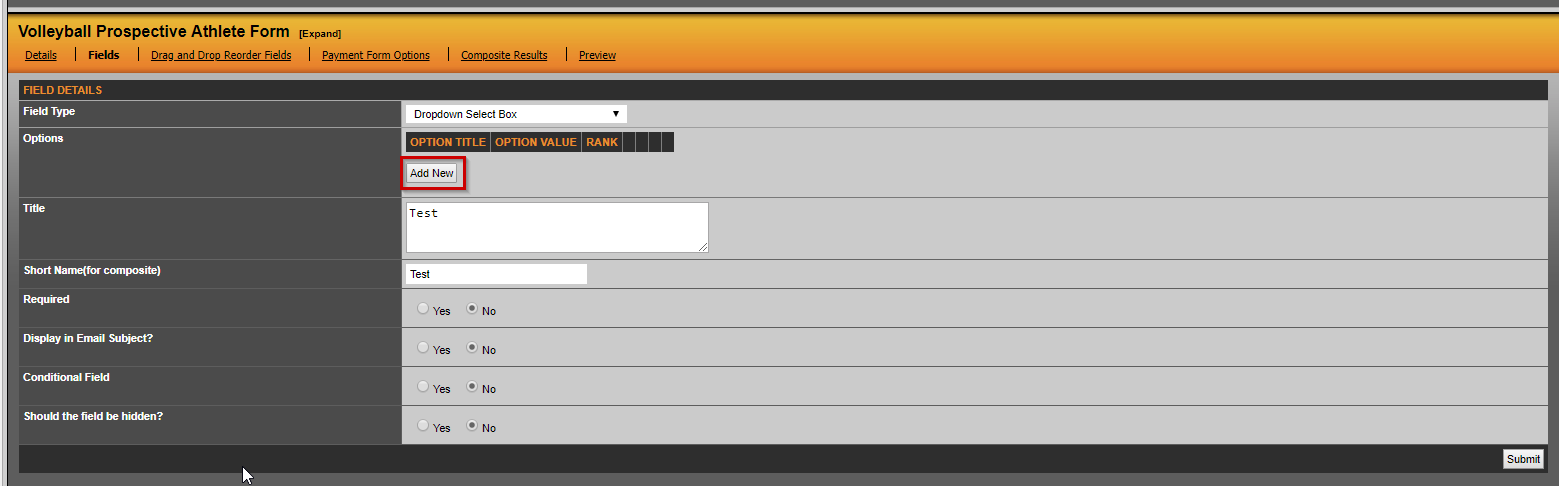
You'll give the dropdown option a title, and then you can also select that particular option to be selected by default when the user fills out the form:

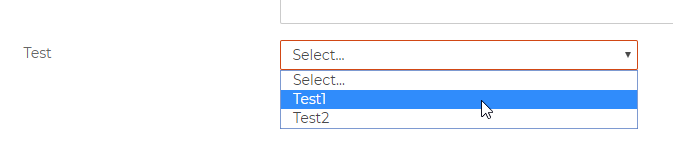
Once you add the all of the dropdown options, they will appear like so when the user fills out the form:
Multiple Select Boxes
The setup is the same as Dropdown Select Boxes, but users will have the option to select multiple boxes on the form instead of just one.
Quantity Select Boxes
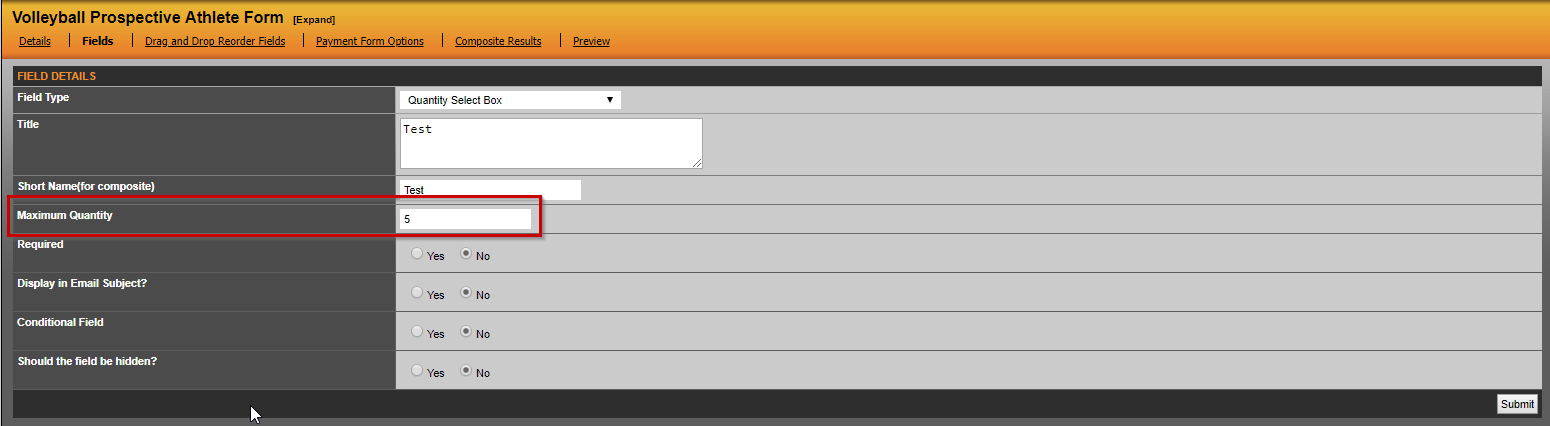
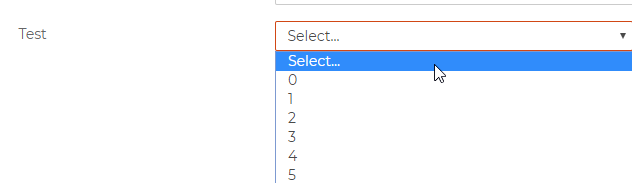
This field will allow the admin to set a quantity for the dropdowns so they appear as numerical options (ex. 1-5). The admin will set the maximum quantity in this box, and then will appear as options on the front end:
Radio Buttons
This field allows admins to designate the choices for radio buttons. When adding a radio button, you provide a title for this field, the short name (for composite results). Once you have the title and short name filled out, you will click the "Submit" button. You will then be able to go back and add as many options as you would like for the radio buttons. This is how it will appear on the front end:

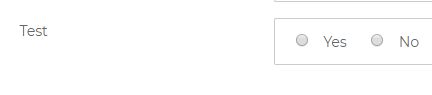
Yes/No Radio Buttons
This option is available to admins who just want to add a yes/no option without having to go in and manually add the options. They will appear automatically on the front end:
Standard 1-5 Radio Boxes
Similar to the yes/no radio button field, this option automatically adds radio buttons with 1-5 options. They will appear automatically on the front end like so:

Check Boxes
This field is similar to the radio buttons, but the options show with check boxes next to them instead of the radio buttons:

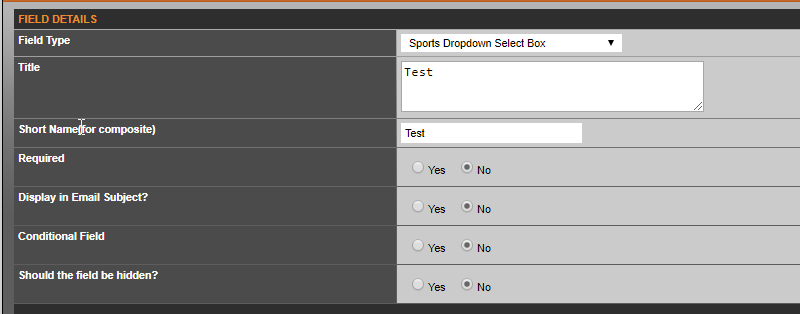
Sports Dropdown Select Box
This field allows the user to select a sport from the dropdown, which pulls all of the sports listed as sports on the site. You just need to provide a title for this field and a short name for composite.
Sports Check Boxes
This field is similar to the Sports Dropdown Select Box, but has check boxes instead of the dropdown option.
Dropdown Select Box (multi-recipient)
This field allows the user to select a sport from the dropdown, which pulls all of the sports you have checkmarked in the details tab in the form. You just need to provide a title for this field and a short name for composite.
Multiple Select Box (multi-recipient)
This field allows the user to select multiple sports from the dropdown, which pulls all of the sports you have checkmarked in the details tab in the form. You just need to provide a title for this field and a short name for composite.
Check Boxes (multi-recipient)
This field allows the user to select a sport or sports with checkboxes, which pulls all of the sports you have checkmarked in the details tab in the form. You just need to provide a title for this field and a short name for composite.
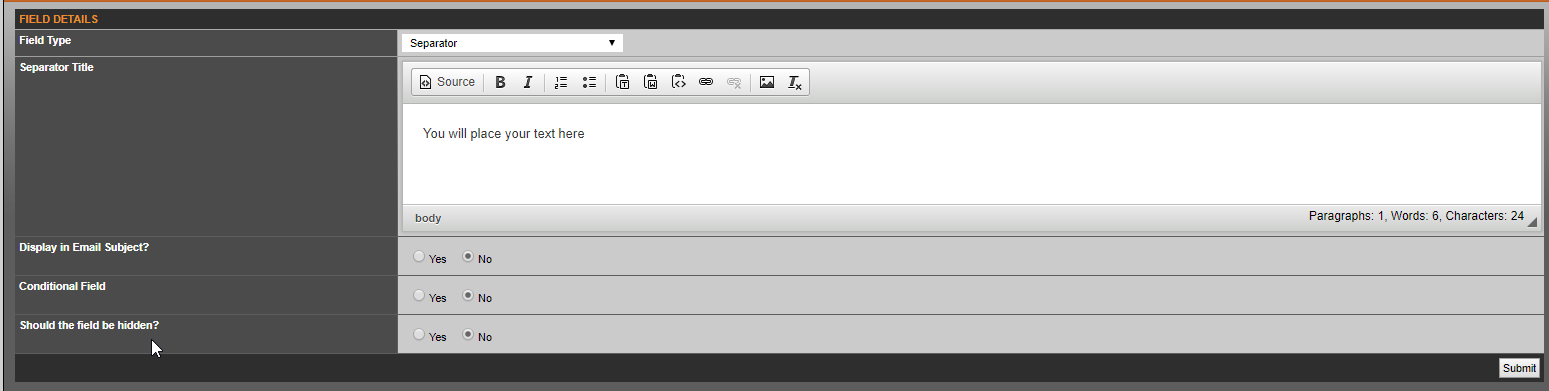
Separator
Adding a separator item allows you to place text on the form that the user doesn't have to fill out. You can use this option to break up a form with different headers or information.
Was this article helpful?
That’s Great!
Thank you for your feedback
Sorry! We couldn't be helpful
Thank you for your feedback
Feedback sent
We appreciate your effort and will try to fix the article